🌍 Offline maps
Offline maps let operators keep working even when the application cannot reach the online map provider. When the feature is enabled in your license, tiles that you have saved or imported stay on the device so the map can render without an active internet connection.
How offline tiles are served
SkyView ships as a Progressive Web App (PWA). Its service worker watches every request to the map server. If the device is offline or the map provider is unreachable, the service worker intercepts the request. The worker looks for a cached version of the requested tiles. If the tiles exist in the cache (because they were previously downloaded or imported), the application displays them immediately. If the cache does not contain those tiles, the request fails until you either reconnect to the map provider or download that area for offline use.
Configuring Offline Maps
To use offline maps, your license must include the Offline Maps option.
When enabled, you can prepare map tiles in two ways:
- Download offline tiles
- Import from an offline map archive (no Internet required)
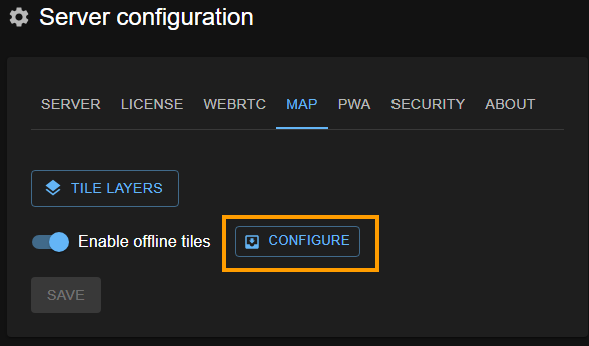
- Open Server configuration → Map.
- Toggle Enable offline tiles.
- Click the Configure button.
Caching an area for offline use
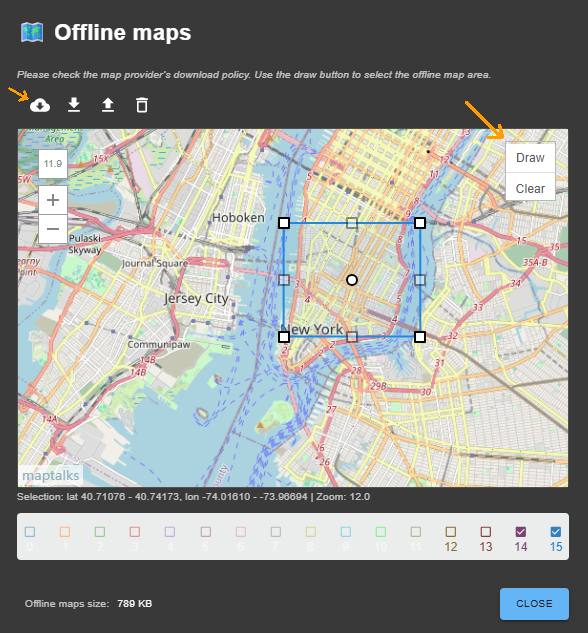
- Open the Offline maps dialog and select Draw on the map toolbar.
- Use the handles to outline the area you want to keep. You can adjust the rectangle until it covers the full region you need.
- After the area is set, the Zoom level panel appears. Choose a detail level from 0 to 15 (15 is the most detailed). Higher values provide clearer imagery but require many more tiles, so downloads take longer and consume more disk space. More on Zoom levels
- Start the download by pressing "Download offline map" button. The progress indicator confirms when the cache is ready.
- (Optional) Repeat the process for other areas or delete old caches with the trash icon to reclaim space.
The bottom status bar of the Offline Maps dialog continually reports the total size of all cached offline maps, letting you track disk usage at a glance. Existing cached regions are also visualized directly on the map: each region is shown with a color corresponding to its zoom level, making it easy to understand which areas are stored and at what level of detail.
Exporting and importing map archives
Use export/import when you need to pre-stage tiles for control rooms or other PCs without internet access:
- In the Offline maps dialog, click the Export button (download icon) to package the selected tiles into an archive.
- Move the archive to the target machine (USB drive, secure share, etc.).
- On the destination PC, open the same dialog and select the Import button (upload icon). Choose the archive file to merge the tiles into the local cache.
- Confirm that the total offline map size increases and the area appears in the list before disconnecting from the network.
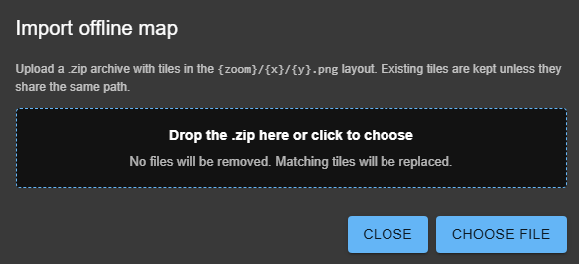
You may repeat the process for multiple regions.
Disk space
Old or unused map caches can be removed using the trash icon, helping reclaim disk space.