🔑 Licensing
Without a license, the SkyView application operates in demo mode with certain restrictions.
To remove these limitations, obtain a license and upload it through the application's user interface.

License options
SkyView optional features are enabled by a license:
| Feature | Description |
|---|---|
| User & Group Management | JWT-based authentication and authorization for secure and controlled access |
| SRT playback | Secure Reliable Transport (SRT) protocol support |
| Offline maps | Download/Import maps and use them without Internet access |
| Error detection | MPEG-TS and KLV integrity issues |
| Stream recasting | MPEG-TS and Data stream recasting, file streaming |
| Flywheel | Produce a continuous, normalized MPEG-TS output with KLV, regardless of whether a source stream is present. |
| Analytics | Stream Analytics (TimescaleDB) services |
License restrictions
| Restriction | Description |
|---|---|
| MaxClients | Maximum number of simultaneously connected clients |
| MaxStreams | Maximum number of simultaneous streams |
✉️ Obtaining a license
To obtain a license, please contact ImpleoTV support and provide the Node Info string, which can be found in the License dialog.
The GUI shows the Node Info in two equivalent forms: the full Node Info text and a QR code that encodes the same text. You can either copy and paste the Node Info string directly into your support message, or, if that's more convenient (for example during an offline installation), take a clear photo of the QR code and send the image to us. When using a photo, make sure the QR code is fully visible and in focus so it can be scanned reliably.
📤 Uploading a license
To upload your license, use the application’s user interface - either drag and drop the license file into the designated area, or click “Select file” to browse and choose the license file manually.
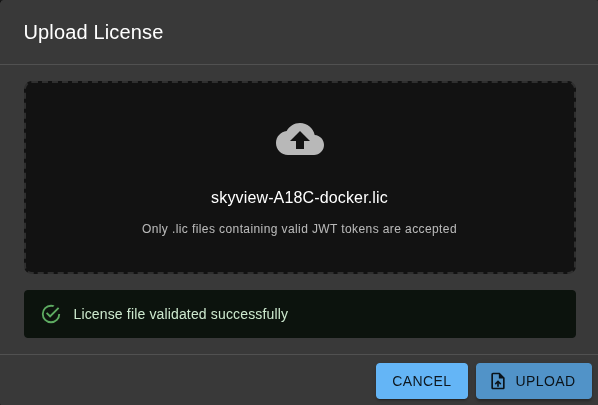
After a successful license upload, you should see descriptive information about the license (for example, available options, license restrictions, expiration date, or scope). The detailed license content can be reviewed by clicking the "Show license" button in the dialog. Removing the license will bring the application back into demo mode and re-enable the associated limitations.