✈︎ Platform configuration
This section explains how to configure a platform in the system.
Platforms and their corresponding sensors (streams) can be viewed or configured on the Platform Configuration page.
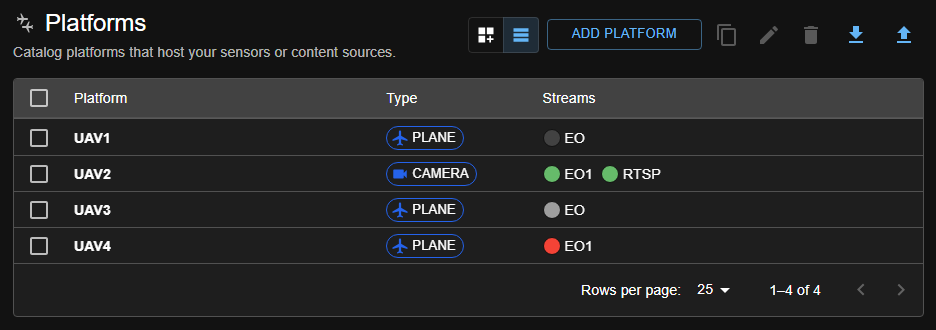
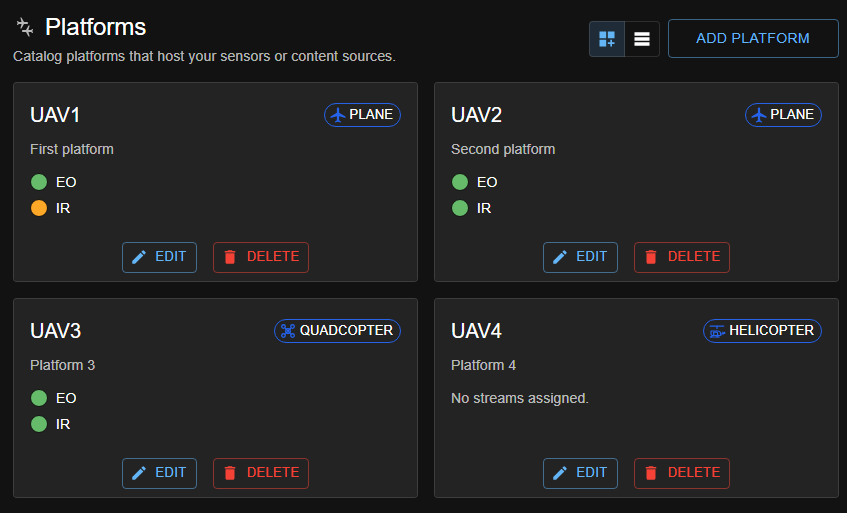
Platforms can also be displayed in a card format.
To add a new platform or edit an existing one, select Platform → Add or Platform → Edit from the menu.
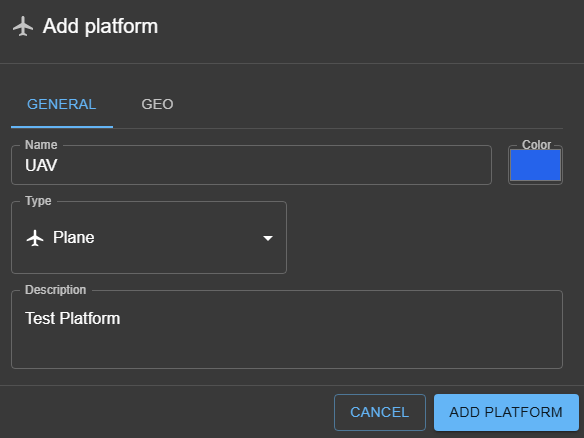
Steps to Configure a Platform
-
Add a New Platform
- Click the 'Add Platform' button to start the configuration process.
-
Enter Platform Details
- Provide a name and description for the platform. Choose a name that clearly identifies its purpose or location.
-
Select a color for UI display
- You can select a color for UI display. The chosen color will be used (for example) in the Map presentation to visually identify this platform in map views.
-
Configure Platform Type
- Select the platform type.
-
Configure Platform Geo Info
You can provide basic geo information for static platforms, such as stationary cameras, when KLV (Key-Length-Value) metadata is not available in the video stream. In this case, the client’s KLV window and the map will be periodically updated with the information you provide here.

To set the platform’s location, use the map interface to place a marker at the desired position, then drag to fine-tune the coordinates. You can also specify the altitude and heading for the platform using the provided fields. This information can be updated at any time, and clients will automatically see the latest location, altitude, and heading reflected in the KLV window and on the map.
-
Save the Configuration
- After entering all necessary information, click 'ADD PLATFORM' to create the platform.
-
Verify and Edit
- Once created, you can review the platform details and make edits if needed.
Exporting and importing the platform configuration
You can export and import the platform configuration, including all associated sensors (streams), to easily back up or transfer your setup between systems.
Export: - Use the export feature to download the current platform configuration and its sensors as a JSON file. This file contains all relevant details needed to restore or migrate your configuration.
Import: - Use the import feature to upload a previously saved JSON configuration file. The system will restore platforms and their sensors from the file, updating your configuration accordingly.
This process ensures that all platform and sensor settings are preserved and can be quickly replicated or restored as needed.