Progressive Web App (PWA)
Sky View can be installed as a Progressive Web App, providing:
- Standalone app window (no browser interface (tabs, address bar, etc.))
- Desktop/home screen icon
- Offline capability with cached resources
- Automatic updates when new versions are available

Installation: Localhost (No HTTPS Required)
Browsers treat localhost as a secure origin, so PWA installation works without HTTPS:
- Open
http://localhost:8100in Chrome, Edge, or Safari - Wait for the install prompt, or open the browser menu:
Desktop: Select Install app or Install Sky View
Mobile Safari (iOS/iPadOS): Tap Share → Add to Home Screen - The app installs as a standalone application with an icon
Installation: LAN with HTTPS (Recommended)
For full PWA and WebRTC functionality on the LAN, use HTTPS via a reverse proxy:
- Set up HTTPS access (see Scenario 3)
- Navigate to
https://skyview.local(or your custom domain) - Install via browser menu:
Desktop: Install app or Add to Home Screen
Mobile: Add to Home Screen - The app will cache resources and enable offline use
⚠️ HTTPS requirement: Browsers require HTTPS (except on localhost) for full PWA features and WebRTC.
Without HTTPS on LAN, the install prompt may not appear and WebRTC streams will be blocked.
Trust the certificate in your browser (LAN)
When using HTTPS on a private LAN with a self-signed or internal CA certificate, browsers will block PWA install and some WebRTC features until the certificate (or its issuing CA) is trusted. You need to install the certificate on each client device:
1) Export the certificate/CA from your reverse proxy
If you're using a default installation (Docker Compose with Caddy), any client can use a GUI to download the certificate:
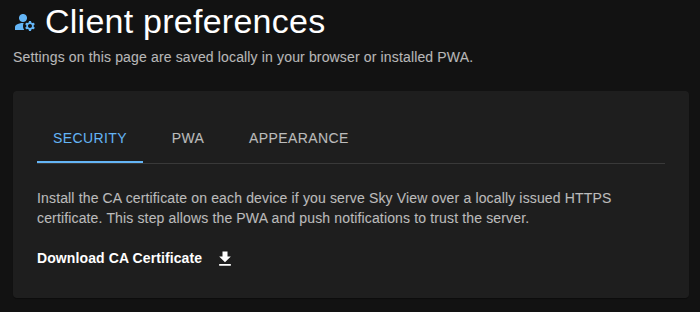
Otherwise:
- Using Caddy with
tls internal(recommended): the local CA root is stored under the Caddy data directory, typicallydata/caddy/pki/authorities/local/. The file is often namedroot.crt. - If running via Docker, this path is inside the Caddy container and mapped to your host via volumes. See Configuring Caddy for HTTPS for details.
- Using other proxies (Nginx, custom): export the root CA or the exact server certificate you issued for
skyview.local.
2) Install/trust on the client
- Chrome/Edge (Windows/macOS/Linux): these use the OS trust store
- Windows: double-click the
.crt→ Install Certificate → Local Machine → place in “Trusted Root Certification Authorities” - macOS: open the
.crtin Keychain Access → System keychain → set to “Always Trust” - Linux (Debian/Ubuntu): copy to
/usr/local/share/ca-certificates/asskyview-root-ca.crt→sudo update-ca-certificates→ restart browser - Linux (RHEL/Fedora): copy to
/etc/pki/ca-trust/source/anchors/→sudo update-ca-trust→ restart browser - Firefox: either enable “Use system trust store” (Settings → Privacy & Security → Certificates) or import the CA directly (View Certificates → Authorities → Import)
- Android (varies by vendor): Settings → Security → Encryption & credentials → Install a certificate → CA certificate → select your
.crt - iOS/iPadOS: AirDrop/email the
.crtto the device → install the profile → Settings → General → About → Certificate Trust Settings → enable full trust for the installed root
After trusting the certificate/CA, fully quit and relaunch the browser/PWA, then visit https://skyview.local and install the app.
Tip: If you can use a public DNS name and Let’s Encrypt, browsers will trust the certificate automatically and no manual install is needed.
Stream status notifications
When the PWA is installed you can also surface stream state changes as native OS notifications:
- Open Config → PWA and select the notification icon to edit the defaults.
- Enable the toggles for Stream goes online and/or Stream goes offline, then save.
- Allow the browser to display notifications the next time it prompts you (each client device must grant permission).
From then on the installed app will raise a notification whenever a monitored stream transitions. The message lists the stream label in the form platform / stream, the new state, and the local time of the event (for example: Falcon 1 / EO Sensor • Online at 14:37:05). Notifications appear even if the Sky View window is in the background, making it easier to keep tabs on mission-critical feeds.
Background (push) notifications
Use Web Push if you need alerts even after the PWA is closed:
- Generate a VAPID key pair (one-time) on any machine:
bash
   npx web-push generate-vapid-keys
- Provide the keys to the server via environment variables (for example in your systemd unit or
.envfile):
bash
   export SKY_VIEW_PWA_VAPID_PUBLIC_KEY="BBO...yourPublicKey..."
   export SKY_VIEW_PWA_VAPID_PRIVATE_KEY="kXx...yourPrivateKey..."
   # Optional contact shown to push services (mailto: or https:)
   export SKY_VIEW_PWA_VAPID_CONTACT="mailto:sky-view@example.com"
- Restart Sky View so the runtime picks up the keys.
- Each client can now opt in under Config → PWA → Background notifications. The switch stores a subscription for the current device only and requires browser notification permission.
Once enabled, Sky View sends Web Push payloads when a stream transitions online/offline. The service worker displays them with the same platform / stream label, so notifications arrive even if the PWA is not running. Disable the toggle on a device (or revoke browser permissions) to stop receiving background alerts.