Multiple streams playback
The Player page can play several video streams at the same time in both the desktop application and the browser client. Use the Stream selector to choose the feeds and Layout to arrange the players.
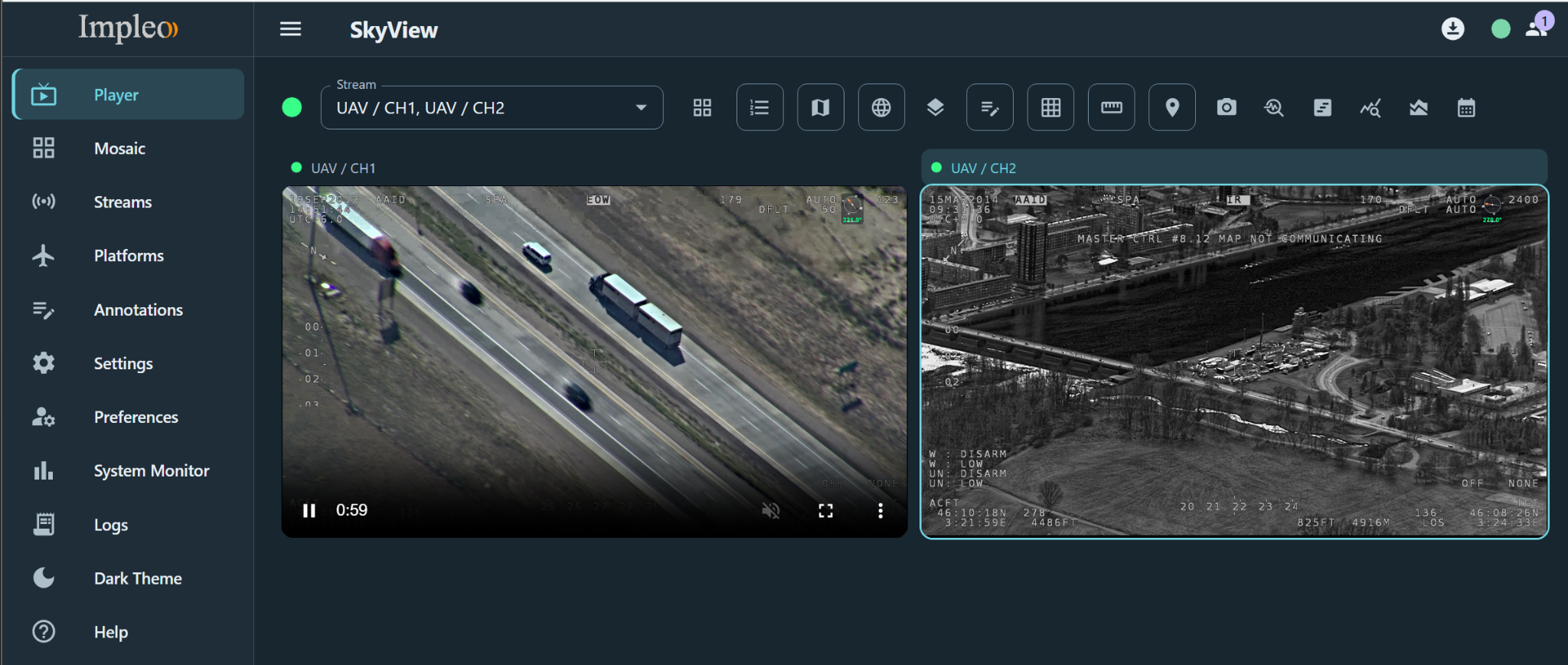
In this example, UAV / CH1 and UAV / CH2 play side by side. The highlighted title and border identify UAV / CH2 as the player whose stream is used by the toolbar tools.
Select streams
- Open Player from the sidebar.
- Open the Stream selector and check the streams you want to watch. Each selected stream gets its own player.
- Click outside the selector to close it.
To remove a player, reopen the selector and uncheck its stream. With one stream selected, the page returns to the single-player view.
The selector lists active streams that support playback. Data-only streams and streams configured in Recast mode are excluded. A selected stream can remain visible if it stops, so you can see its status or remove it from the selection.
Choose a layout
When more than one stream is selected, the Layout button (four-square grid icon) appears immediately after the Stream selector, before Klv Window.
- Click Layout to open the layout popup.
- Choose 1, 2, or 3 players per row using the grid previews.
- For another number, choose Custom, enter a whole number from 1 to 64, and click Apply.
Players fill successive rows automatically. For example, five streams with two players per row occupy three rows. If fewer streams are selected than the configured number of columns, only the needed columns are used.
The videos resize to fit the available width and height while keeping their original aspect ratios. Large selections can scroll when further shrinking would make the players too small. Changing the layout keeps the selected streams playing.
Remembered layout
SkyView saves the number of players per row in local storage for the current browser or desktop web view. The saved layout is applied the next time you select multiple streams, including after a page reload. Returning to a single stream does not reset it.
This preference is local to that browser or desktop web view; it is not shared with other clients or devices. It saves the layout, not the list of selected streams.
Choose a player for the toolbar tools
Click a player's video or its title to make it the focused player. Its title is highlighted and its video has a highlighted border. Other selected players continue playing.
The toolbar tools follow the focused stream, including:
- Klv Window, Map Window, and 3D View.
- Snapshots and the video overlay editor.
- Stream detection information, stream events, bitrate charts, and the stream calendar.
Each video displays its own stream's metadata overlay. Focusing a different player changes which stream the shared tools inspect.
Player or Mosaic?
Use Player when you want simultaneous video playback. Use Mosaic for an overview of many streams using periodically refreshed preview images. Mosaic can also show Recast-only streams, which cannot be opened as players.