File Streaming
In many operational environments, live feeds are not always available when you need to test, validate, or demonstrate a system. Using recorded MPEG-TS / STANAG 4609 files as a stream source allows you to recreate realistic mission scenarios inside SkyView - with full video, audio, and KLV metadata, exactly as they were captured.
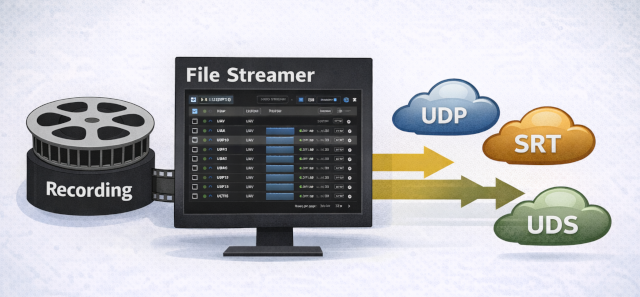
File streaming is especially useful for:
System simulation - reproduce UAV missions, ISR recordings, or archived exercises without a live sensor.
Debugging and validation - analyze timing issues (PCR/PTS/DTS), KLV synchronization, metadata parsing, or client playback behavior in a controlled environment.
Integration testing - forward (recast) recorded streams to external systems over UDP, SRT, or UDS to verify interoperability.
Demonstrations and training - run repeatable demo scenarios with loop mode enabled.
Offline development - test WebRTC playback, metadata overlays, and pipeline behavior without network dependencies.
Because SkyView processes file-based streams through the same internal pipeline used for live network inputs, the behavior closely matches real-time operation. You can preserve original timestamps for authentic replay, or regenerate them to simulate a live feed aligned to the current system clock.
This makes file streaming a powerful tool for development, QA, system acceptance testing, and operational rehearsals - all without requiring a live encoder or field equipment.
Before You Start
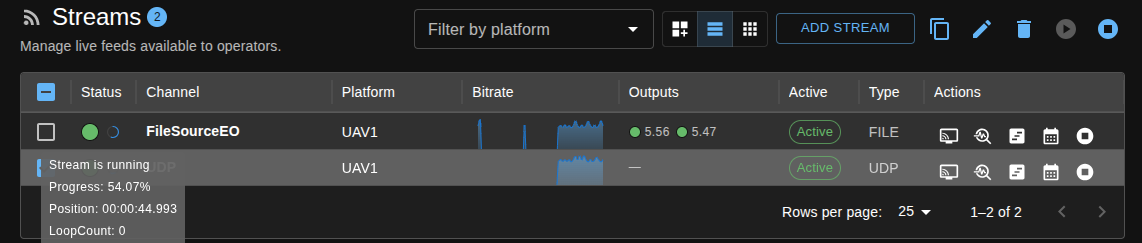
File inputs support TS/STANAG, MP4, and MKV with H.264/H.265 video, AAC audio, and supported embedded KLV. MP4/MKV use a paced remux helper for local playback; files without metadata do not acquire generated KLV. An RTSP Server target gives each client independent playback, pause/resume, and seeking. File URLs remain published after local playback ends, until you explicitly stop the stream.
To forward the stream to external outputs, your license must include the Recast option.
When running SkyView in a container, map a host folder into the container's host-media directory so the file picker can browse and manage files. In Docker Compose (or .env file), set SKY_VIEW_HOST_MEDIA to a host path (or let it default to ./host-media) and ensure the container user has permission to read and write to that folder (for file uploads).
Source and Target Model
File streaming follows the same model as network streams:
File source (.ts / .m2t)
   │
   ▼
Pipeline (demux/processing)
   │
   ├── WebRTC playback (optional, mode-dependent)
   ├── Recast target 1 (UDP / SRT / UDS)
   ├── Recast target 2
   └── ...
- The source is the input file you select from host media.
- Targets are optional outputs used to forward/recast the stream.
- In Recast mode, playback and forwarding are independent.
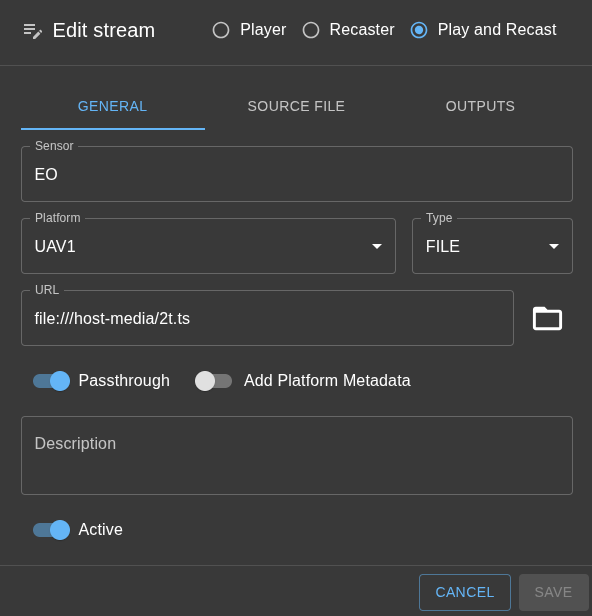
1. Create a File Stream
- Open Streams and click Add stream.
- In General:
- Set Type to FILE.
- Enter the source URL or click the folder icon to open Host media.
- Fill in Sensor (and optional Platform/Description).
- Choose stream mode:
- Play: browser playback only.
- Recast: forwarding only.
- Play and Recast: both playback and forwarding.
- Save the stream.
2. Select the Source File (Host Media)
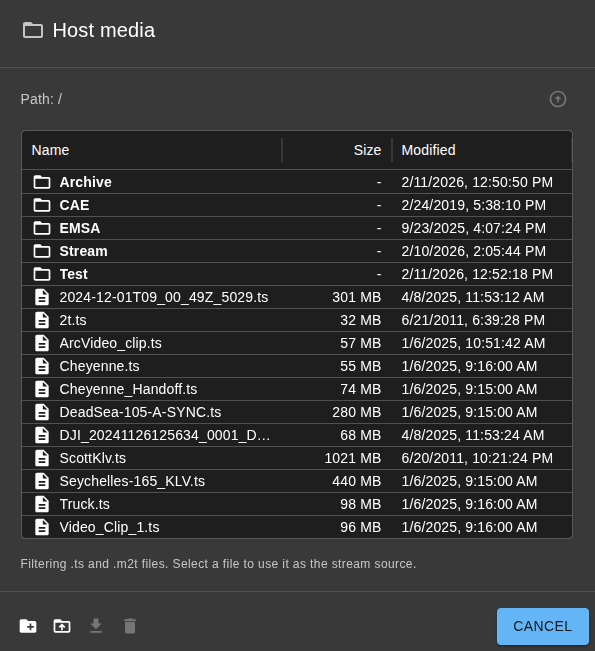
Use the folder icon next to URL to open Host media.
- Browse folders and select a file.
- The picker lists all files in the configured host media folder.
- You can also upload, download, create folders, and delete files/folders (if host media is writable).
After selection, SkyView fills the URL as a file:// path automatically.
3. Configure Source File Options
Open the Source File tab to configure file-specific behavior.
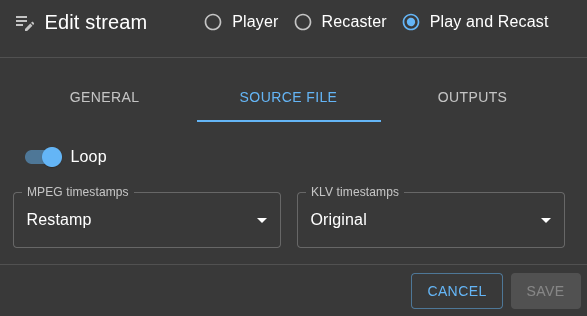
Loop
- Loop = ON: when the file reaches end-of-file, streaming restarts from the beginning.
- Loop = OFF: stream stops at end-of-file.
Use loop mode for continuous demo/replay channels and disable it for one-shot playback.
Timestamp Options
MPEG timestamps
- Original: preserve timestamps from file.
- Restamp: preserve source timing deltas and shift PCR/PTS/DTS to a monotonic output timeline.
- Regenerate: synthesize a new MPEG timeline from sender pace/bitrate and rewrite PCR/PTS/DTS.
KLV timestamps
- Original: preserve KLV timestamps.
- Restamp: regenerate KLV timestamps (set a start timestamp).
- Current time: align KLV timing to current time.
KLV Start Time
- Shown when KLV mode is set to Restamp.
- Sets the starting reference timestamp.
Timestamps
Default file-streaming settings use original timestamps, so incoming MPEG PCR/PTS/DTS are forwarded as-is. If mpegTimestampsMode is restamp or regenerate, SkyView rewrites MPEG timestamps and continuity counters per PID to keep transport timing stable. For PES packets carrying both PTS and DTS, SkyView rewrites DTS first and preserves the original PTS-DTS delta, which keeps B-frame reorder timing valid. If mpegTimestampsMode is original and klvTimestampsMode is restamp or currentTime, only detected KLV PIDs are restamped. On each loop restart, SkyView marks MPEG-TS discontinuity indicators on outgoing adaptation-field packets so receivers can resynchronize cleanly. For more info on MPEG-TS looping and timestamps
4. Configure Output Targets (Recast)
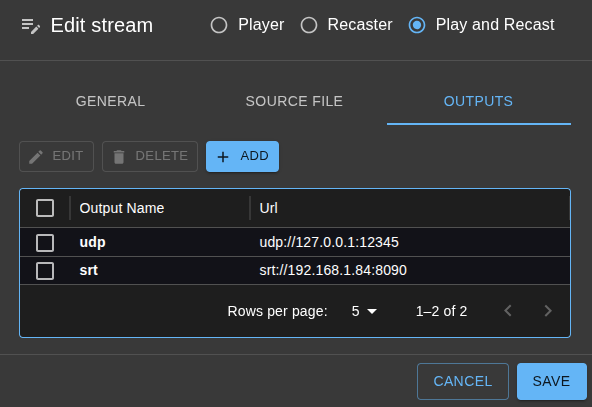
If stream mode is Recast or Play and Recast, the Outputs tab is available.
- Open Outputs and click Add.
- Set output Name, Type, and URL.
- Configure protocol-specific settings if needed.
- Repeat for additional targets.
Currently supported output target types in the form: - UDP - SRT - UDS
⚠️ Notes:
- You can configure multiple targets per stream.
- Targets are independent, one failing target does not require removing others.