📡 Stream Configuration
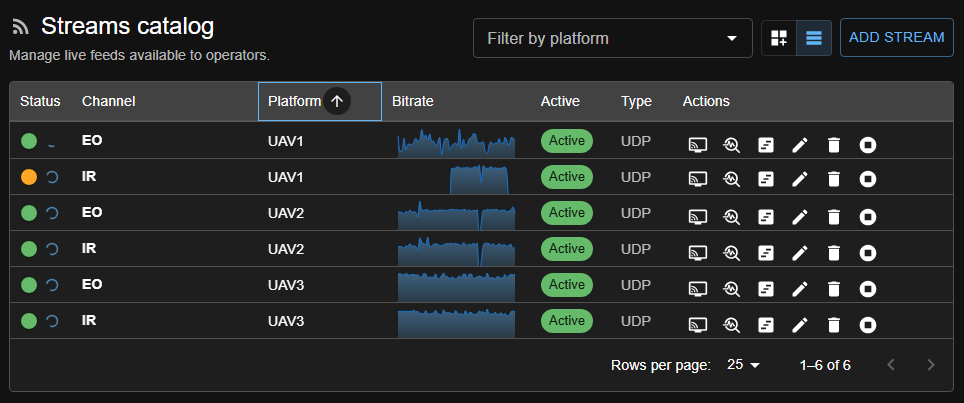
Streams (sensors) can be viewed or configured on the Sensor Configuration page.
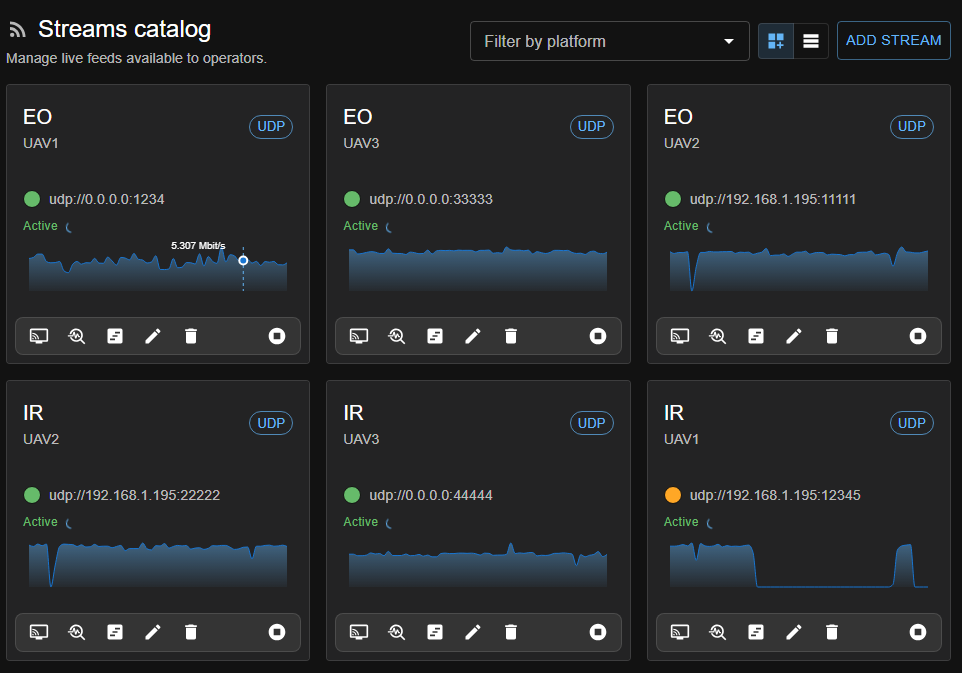
Streams can also be displayed in a card format.
If you have a large number of streams and want to monitor them all in one place, use the Masonry view.
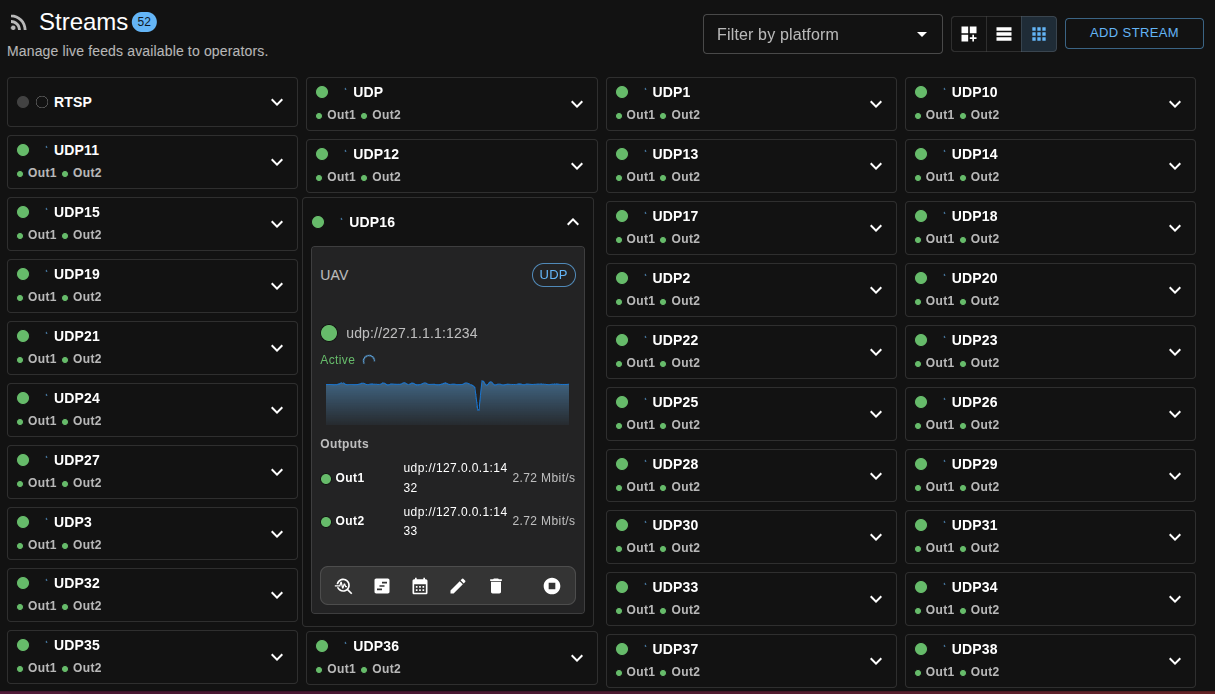 Open a card to view detailed information.
To add a new stream or edit an existing one, select Stream → Add or Stream → Edit from the menu.
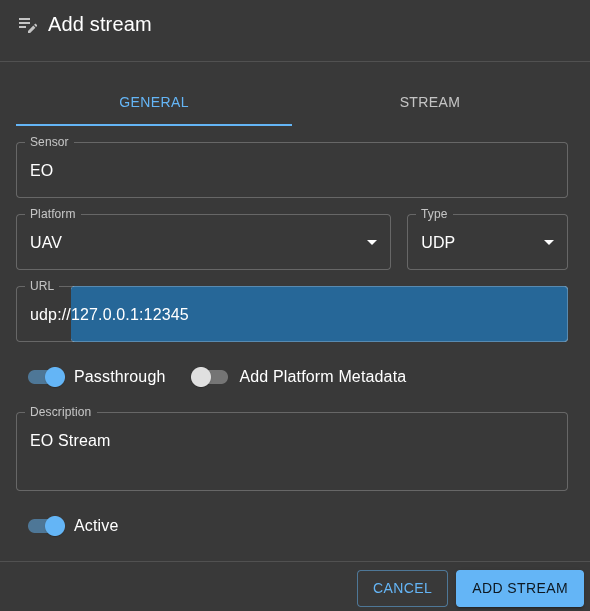
Steps to Configure a Stream
-
Select a Name for the Stream
- Choose a unique and descriptive name for your stream. This helps in identifying and managing streams easily.
-
Associate with an Existing Platform (Optional, but Recommended)
- You can link the stream to an existing platform. This is optional, but recommended for better organization and control.
-
Select the Stream Protocol
- Choose the appropriate protocol for your stream (e.g., UDP, SRT, etc.) based on your source and requirements.
-
Configure Video Payload and Transcoding
- If your stream's payload is H.264, it is recommended to select the Passthrough option. This ensures you get the original video quality with minimal CPU processing.
- If the payload is not H.264, select a suitable transcoding format and configure it in the Video tab according to your needs.
-
Active Switch
- The Active switch indicates whether the stream is available to run. When enabled, the stream can be started and controlled.
-
Auto-start Switch
- The Auto-start switch controls whether SkyView starts this stream automatically after you save it and when the server starts or restarts. It is disabled by default.
- The switch is unavailable while Active is disabled. Re-enable Active to change the stream's Auto-start setting.
- Saving starts the stream only when both Active and Auto-start are enabled. If Auto-start is disabled, save the configuration and then use the stream's Start action when you are ready.
- Automatic server startup also requires both Active and Auto-start, as well as the server-wide Start active streams on load setting. If the server-wide setting is disabled, no streams start automatically when SkyView launches.
Note
Existing streams created before the Auto-start option was introduced default to Auto-start disabled. Enable it individually for each stream that should resume automatically after a server restart.
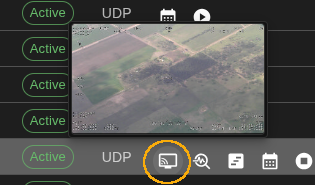
Stream preview
Hovering over the Play Stream button displays a video preview.
Platform metadata
If you set geo information for the parent platform, it is possible to inherit and send this information to the client’s KLV window and map. This is useful when the stream does not have its own KLV (Key-Length-Value) metadata. In this case, users will be able to see the video source location on a map, even without embedded KLV in the stream.
⚠️ Note: If the stream provides its own KLV metadata, this will take precedence and overwrite the inherited platform information for both KLV and map presentations.
Behavior when Add Platform Metadata is enabled:
- If real KLV is present immediately, no platform metadata is sent.
- If real KLV starts late, platform metadata may be sent briefly after approximately 5 seconds, then stops on first real KLV packet.
- Platform metadata does not merge or overwrite transport-stream KLV packets, it is sent as JSON on the WebRTC
klv-datachannel only.
Transcoding
When transcoding, you can choose to keep the original video resolution and frame rate (no scaling, use source frame rate), or set more suitable options for your use case. For example, if your video source has a high resolution that is not necessary for browser playback, you can reduce the resolution and/or frame rate to save bandwidth and improve performance.
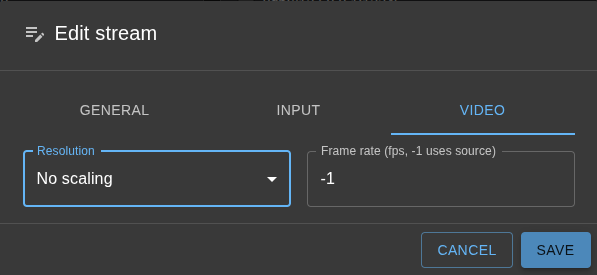
Adjust these settings in the Video tab as shown in the image above.
Transcoding to H264
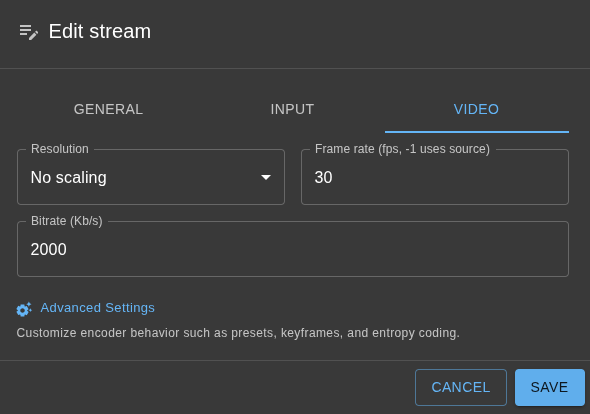
When transcoding to H264, you have similar options: you can keep the original resolution and frame rate, or set lower values to optimize for browser playback and bandwidth usage. This is especially useful if your source video is high resolution and you do not need full quality for streaming.
In addition, H264 transcoding offers advanced parameters for fine-tuning the output. Click the Advanced button in the Video tab to access these settings, as shown below:
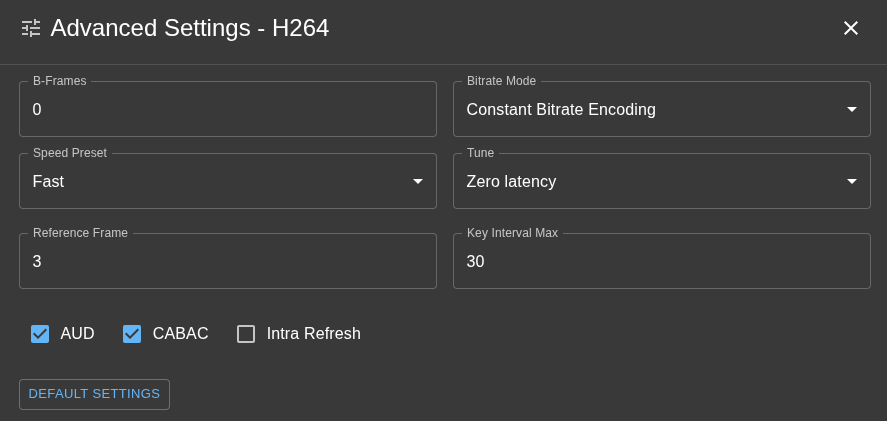
Here, you can configure options such as bitrate, profile, preset, and other encoding parameters to match your requirements for quality and performance.
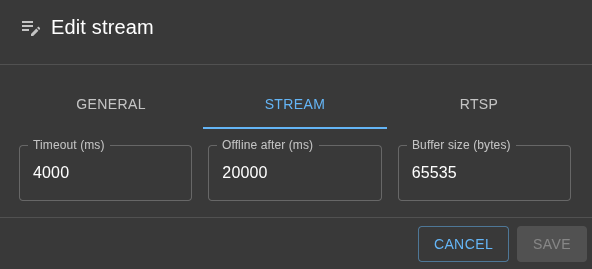
Other stream params
You can configure additionaly stream parameters.