Server notifications
Sky View can deliver stream status updates as Progressive Web App (PWA) notifications so operators receive alerts even when the dashboard is not in focus (or closed). Use the Config → PWA screen to define the server-wide defaults that newly installed clients inherit.
How PWA notifications work
When a user installs the Sky View PWA, the browser registers a service worker that acts as the app's background process. The server sends push payloads to the browser's push service using the VAPID keys that you configure. The service worker receives those payloads and raises a native notification, so stream events can be surfaced while the window is minimized, the tab is inactive, or the application is completely closed. As long as the device is online and the user has granted notification permission, push delivery continues without needing the site to be open.
Browser requirements and permissions
Browsers gate push alerts behind a few security controls. Make sure operators verify the following on every device that should receive notifications:
- Allow notifications for your Sky View origin. When prompted, choose Allow, or update the site permissions (Chrome/Edge: lock icon → Site settings → Notifications → Allow; Firefox: shield icon → Permissions → Send Notifications).
- Enable background activity. Desktop Chrome/Edge require "Continue running background apps when Google Chrome/Edge is closed" for notifications to appear after the last window closes. On macOS, also confirm that System Settings → Notifications lists Sky View with alerts enabled. Mobile browsers may require the PWA to be added to the home screen before push is supported.
- Permit sound/badges if needed. Each OS exposes additional toggles (Windows Focus Assist, macOS Do Not Disturb, Android/iOS per-app notification styles) that must allow alerts for the PWA.
If notifications stop arriving, first re-check the browser permission banner, then remove and reinstall the PWA to renew its subscription.
Minimal impact on background processing
The background activity required for push notifications has minimal impact on system resources. Service workers are designed to run only when needed - they remain dormant most of the time and are briefly woken by the browser to handle incoming push events. Once the notification is displayed or any quick background logic completes, the service worker is terminated automatically. This event-driven model means that no continuous background process is kept alive, conserving CPU, memory, and battery. Browsers also throttle or batch background tasks to further reduce overhead, ensuring push functionality remains efficient even on mobile devices.
Configure server defaults
The PWA configuration page lets administrators define the default notification profile that new devices adopt
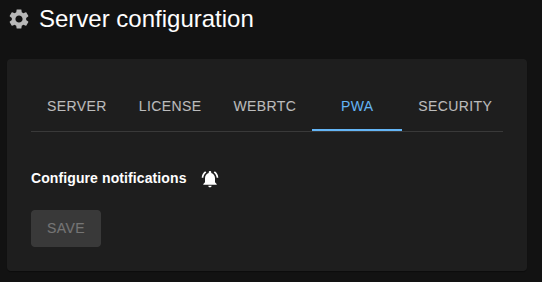
Selecting the bell icon opens the Notification preferences dialog for fine-grained control. The dialog shows the live settings that will be applied to the next push payload.
Managing individual notifications
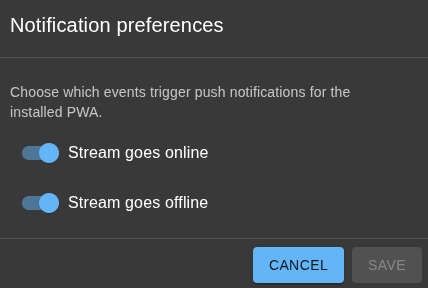
- Stream goes online – sends an alert when a monitored stream transitions to the
onlinestate. Disable if most operators only care about outages. - Stream goes offline – pushes an alert as soon as the stream drops. Keep this enabled for mission-critical feeds.
Notification status banner – the page displays success or error banners after saving so you can confirm the server accepted the new defaults.
Existing clients keep their personal preferences until they reset or reinstall the PWA.
Security and VAPID keys
Push messaging relies on the VAPID key pair that authenticates your server with the browser's push service. Configure the following environment variables (or entries in your deployment secrets) before enabling notifications:
SKY_VIEW_PWA_VAPID_PUBLIC_KEY– distributed to clients so they can subscribe. Rotating this value invalidates every existing subscription; clients must re-register.SKY_VIEW_PWA_VAPID_PRIVATE_KEY– kept on the server to sign push requests. Protect this value as you would any credential. If it leaks, revoke it by generating a new key pair.SKY_VIEW_PWA_VAPID_CONTACT– optional email or URL that appears in push-service dashboards. Update it to point to the current administrator or support channel.
Administrators can change these variables at any time (for example, to rotate credentials, move to a new domain, or hand over operations).
You can run the following command to create new keys:
npx web-push generate-vapid-keys
After updating the keys, restart Sky View so the runtime reloads them, then notify users to re-enable notifications in their PWAs to restore delivery. Keeping the contact information current helps third-party push providers reach your team about quota or abuse issues, and rotating the key pair periodically limits the blast radius of a compromised server.