👥 Usergroups
Overview
User groups bundle permissions into reusable profiles, making it easy to assign consistent access levels to multiple accounts. Every user may belong to at least one group to inherit the capabilities they need in Sky View.
Navigating to User groups
- Sign in with an administrator account.
- Go to → User Groups from the navigation menu.
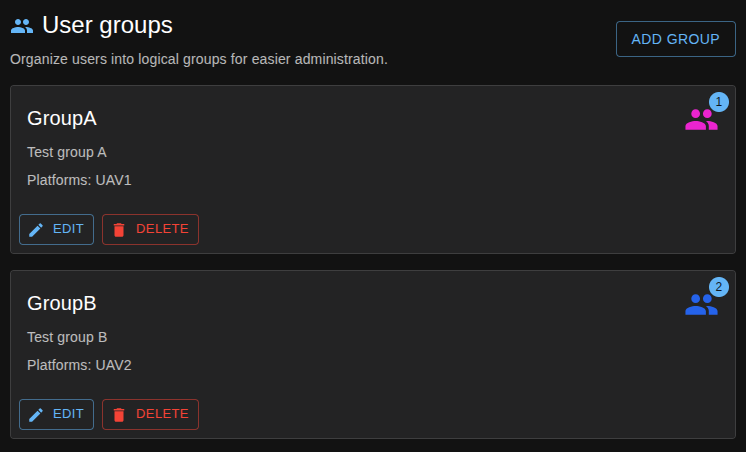
- The list shows available groups, their descriptions, and the number of members, similar to the interface above.
Creating a user group
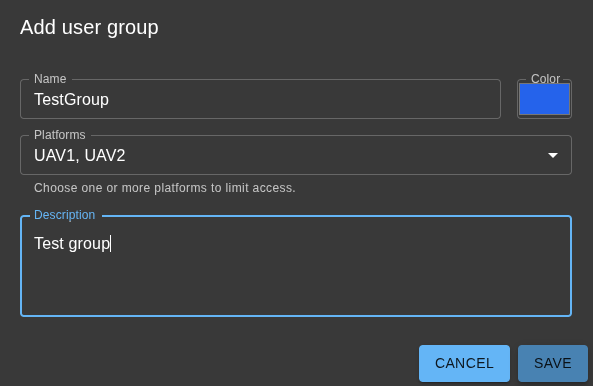
- Click Add Group.
- Provide a meaningful Name and optional Description that explains the role of the group.
- Select a color for the user interface group display.
- Select the platform(s) to which the user group should have access.
- Save the group. It becomes available immediately for user assignment.
Editing a user group
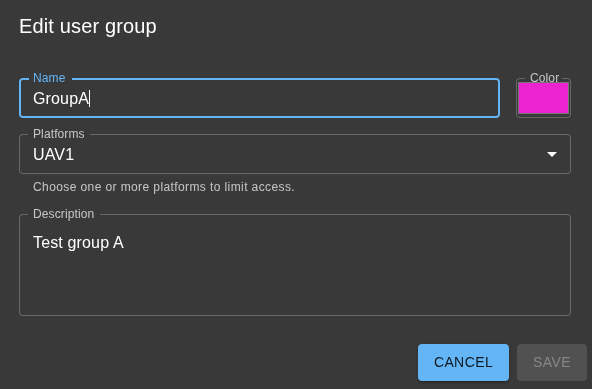 1. Choose an existing group and select Edit.
2. Update the parameters.
3. Save to apply the revised policy.
1. Choose an existing group and select Edit.
2. Update the parameters.
3. Save to apply the revised policy.
Assigning users to groups
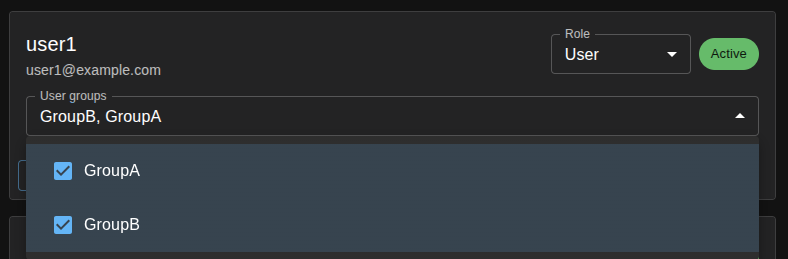 * Open the Users page, edit the desired user, and choose the appropriate groups in the membership list.
* Add multiple groups to combine permissions when needed.
* Open the Users page, edit the desired user, and choose the appropriate groups in the membership list.
* Add multiple groups to combine permissions when needed.
Deleting groups
- Delete a group only when it is no longer needed; users linked exclusively to that group will lose associated permissions.
Governance tips
- Maintain separate groups for administrators, operators, and viewers.
- Review groups quarterly to confirm the permissions still match operational roles.
- Document each group’s purpose so future administrators can manage access safely.