PCAP Playback
PCAP playback turns a recorded UDP flow into a SkyView stream. It is useful when a live feed is unavailable and you need to repeat an investigation, demonstration, integration test, or training scenario from the packets that were captured on the network.
SkyView supports .pcap and .pcapng capture files. A capture may contain several UDP flows, each PCAP stream configuration selects one flow by its source and destination IP addresses and ports. SkyView replays that flow's UDP payloads using the timing recorded in the capture.
Before You Start
PCAP recording and replay require a license with the Recast option.
Prepare a valid .pcap or .pcapng file containing the UDP flow you want to replay.
Create a PCAP Stream
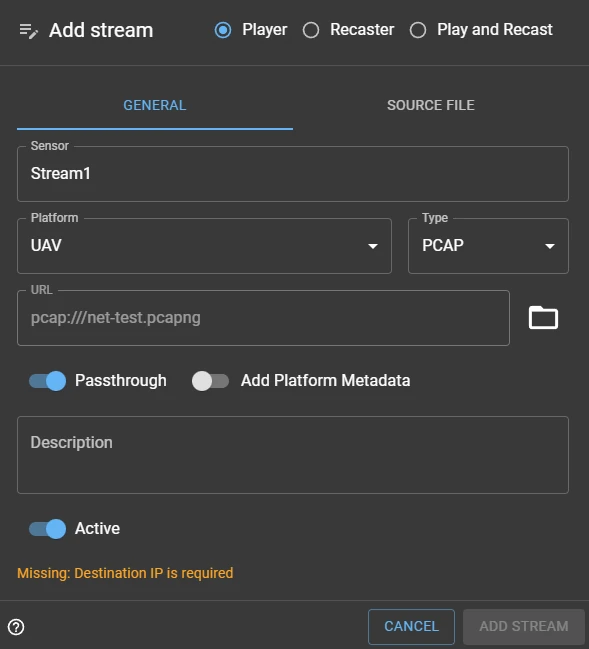
- Open Streams and select Add stream.
- On the General tab, enter the stream name/sensor and any required platform details.
- Set Type to PCAP.
- Choose the required stream mode:
- Play displays an MPEG-TS capture locally through WebRTC.
- Recast sends the replay only to configured output targets.
- Play and Recast both displays and forwards the replay.
- Open the Source File tab.
- Import or choose the
.pcapor.pcapngfile. SkyView stores local imports in the Host Mediacaptures/folder; server selection can use a capture anywhere under Host Media. SkyView then inspects the file for UDP flows. - Select the required entry in Captured UDP stream. Selecting a flow fills in its captured destination IP address and port.
- Select the payload type. Use MPEG-TS for a transport-stream capture that you want SkyView to decode or play. Use Data when the UDP payload should only be forwarded.
- Enable Loop replay if the capture should restart automatically at end of file.
- For Recast or Play and Recast mode, configure at least one target on the Outputs tab, then save the stream.
The stream starts automatically when it is active. Stop it before changing its configuration.
Choosing a Captured UDP Flow
The flow list identifies streams as:
source IP:source port -> destination IP:destination port
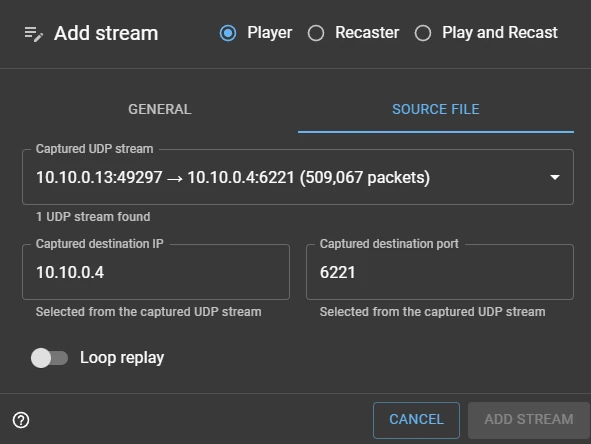
Choose the flow that contains the expected payload, not simply the flow with the most packets. A capture can include signalling, audio, video, and unrelated traffic. If the list is empty, the file either contains no UDP traffic that SkyView can inspect or is not a readable PCAP/PCAPNG capture.
The selected destination is part of the source selection. It can also be used by a Captured destination UDP output target. See PCAP Streamer.
Playback Requirements and Behavior
Local playback requires the selected UDP flow to contain a valid MPEG transport stream. SkyView validates the flow before starting the playback pipeline. A data payload can be recast, but it cannot be viewed in the browser.
Replay timing follows the packet timestamps in the capture. Very large timestamp gaps, capture loss, or malformed packets therefore remain visible during replay. Looping restarts the selected flow from its beginning; disable loop for a one-time replay that stops at end of file.
The playback/decoder path recreates UDP payload delivery. Recast targets can use the same payload path, or a Raw PCAP replay target can inject supported Ethernet/IPv4/UDP frames unchanged or with destination rewriting.
Troubleshooting
- PCAP type or upload controls are unavailable — confirm that the active license includes Recast and that you are authorized to manage streams.
- No UDP streams were found — confirm the file is a non-empty
.pcapor.pcapngfile and contains UDP packets. - The stream will not play locally — select the MPEG-TS payload type only for a valid MPEG-TS flow. Use Recast with Data for opaque UDP payloads.
- The stream stops immediately — check that Loop replay is enabled if continuous operation is intended; otherwise end of file stops the replay.
- The capture cannot be selected — verify that it is a
.pcapor.pcapngfile within the configured Host Media directory. Uploaded captures and recordings are stored in itscaptures/folder.
For information about recording live UDP streams into managed PCAPNG files, use the Recordings page. New recording files use the .pcapng format; replay accepts both .pcap and .pcapng.