Flywheel
Flywheel produces a continuous, normalized MPEG-TS output with KLV, regardless of whether a source stream is present. It requires both the Recast and Flywheel license options.
Picture quality and PSNR
See Flywheel quality comparison and PSNR for bitrate and resolution examples, how PSNR relates to visible quality, and integrity checks for concurrent channels on a shared GPU.
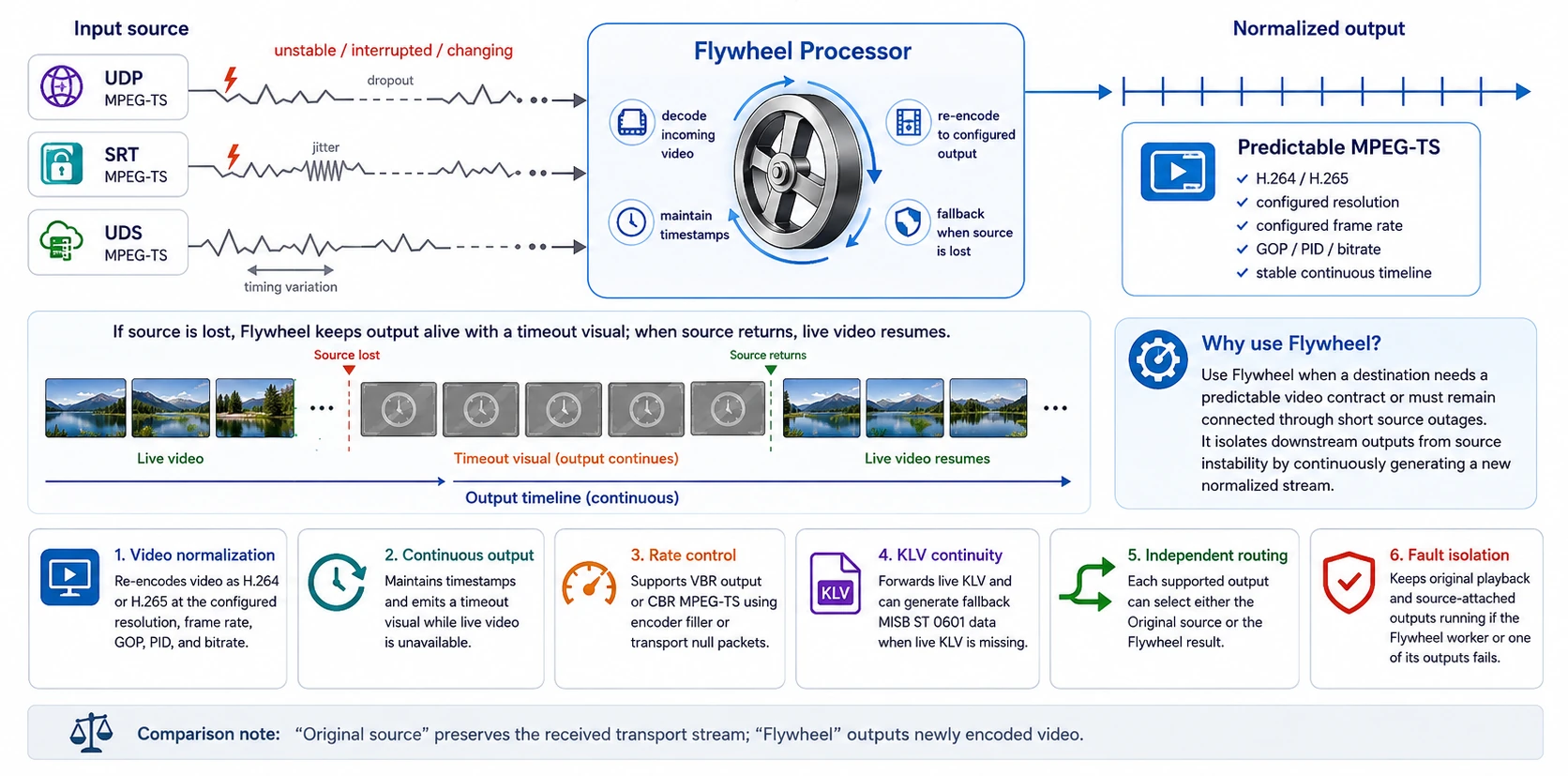
Why use Flywheel?
Live contribution streams are not always stable. A source can disappear temporarily, change timing, or deliver video in a format that is unsuitable for a downstream decoder, recorder, multiplexer, or distribution system. Forwarding that source unchanged also forwards those interruptions and variations.
Like a mechanical flywheel that smooths an uneven input, the Flywheel processor isolates downstream outputs from source instability. It decodes the incoming video and continuously creates a new output with the configured codec, resolution, frame rate, GOP, PID, and rate-control behavior. If the source is lost, Flywheel keeps the output timeline moving with a timeout visual. When the source returns, live video resumes without rebuilding the rest of the stream graph.
Flywheel is especially useful when several streams must be recorded or played back in synchronization. Without continuity, a temporary loss on one source can create a gap or shorten that recording while the other streams continue, making later time-aligned playback difficult. Flywheel preserves the affected stream's output timeline by inserting the timeout visual at the configured frame rate until live video returns. As a result, all recordings continue to cover the same elapsed time, and a synchronized player can keep the streams aligned instead of pausing, drifting, or requiring the missing interval to be reconstructed later.
Use Flywheel when a destination needs a predictable video contract or must remain connected through short source outages. Do not use it when byte-for-byte forwarding is required: outputs set to Original source preserve the received transport stream, while outputs set to Flywheel receive newly encoded video.
What Flywheel does
| Function | Behavior |
|---|---|
| Video normalization | Re-encodes video as H.264 or H.265 at the configured resolution, frame rate, GOP, PID, and bitrate settings. |
| Continuous output | Maintains timestamps and emits a timeout visual while live video is unavailable. |
| Rate control | Supports VBR or CBR video encoding; transport headers and metadata add bandwidth beyond the configured video rate. |
| KLV continuity | Forwards live KLV and can generate configurable fallback MISB ST 0601 packets when live KLV is missing. |
| Independent routing | Allows each supported output to select either the original source or the Flywheel result. |
| Fault isolation | Keeps original playback and source-attached outputs running if the Flywheel worker or one of its outputs fails. |
Flywheel currently outputs video and KLV only. Audio is neither generated nor passed through.
For picture-quality comparisons, bitrate and resolution examples, PSNR interpretation, and concurrent-channel checks on a shared GPU, see Flywheel quality comparison and PSNR.
How the stream is routed
Flywheel is a processor in the stream graph, not a separate stream type. The normal SkyView input remains authoritative:
- SkyView receives the source once and keeps local WebRTC playback, preview, KLV windows, analytics, and outputs set to Original source on that path.
- A private loopback branch feeds the Flywheel processor.
- Outputs whose Input is Flywheel receive the processor's continuous MPEG-TS output.
UDP, SRT, and UDS outputs can use Flywheel. Raw PCAP output always uses the original source. The internal loopback connections are private implementation details and do not appear as outputs or statistics.
Configure Flywheel
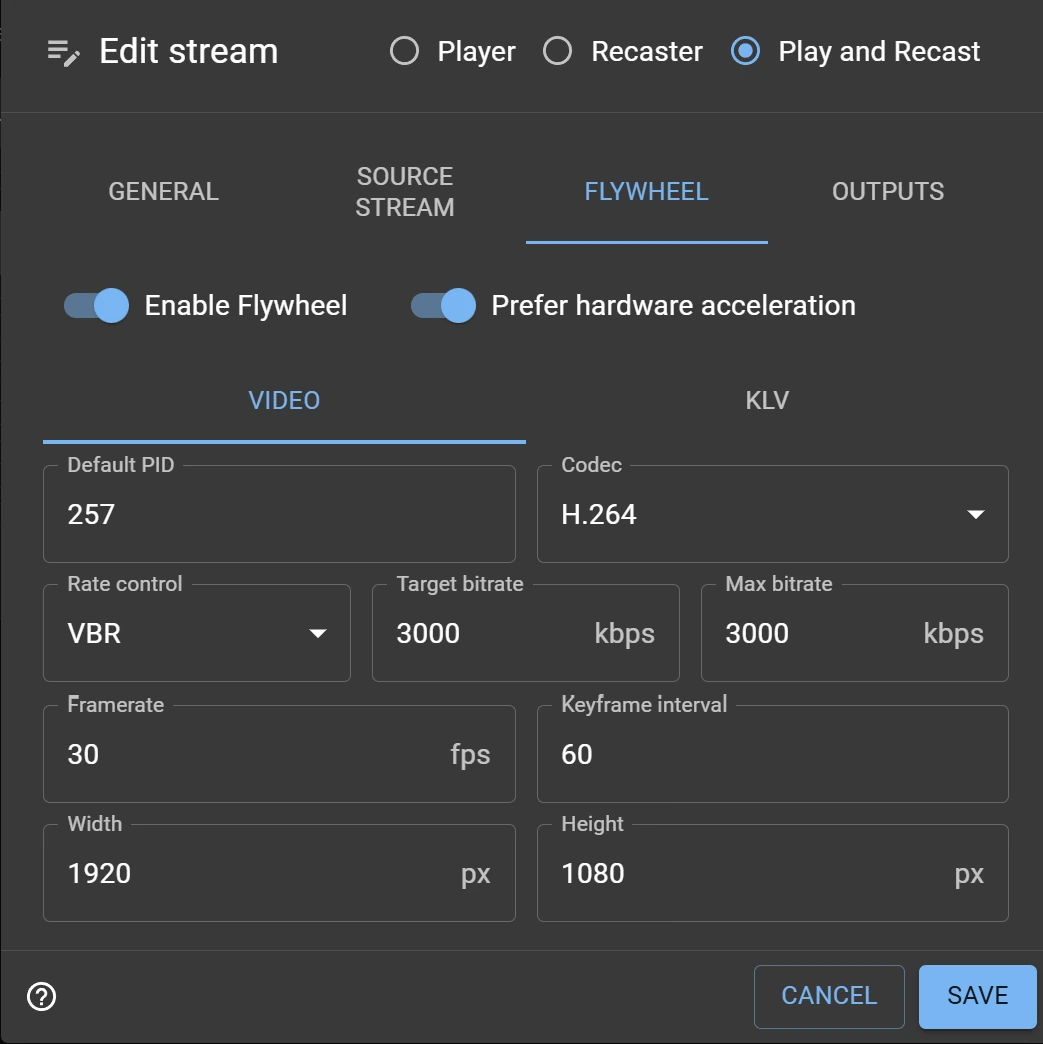
Choose a UDP, SRT, or UDS MPEG-TS stream, select Recast or Play and Recast, and open the Flywheel tab. Enable Flywheel and configure the video codec, rate control, bitrate, frame rate, resolution, keyframe interval (GOP), and video PID.
VBR is the default. Set both the target bitrate and a maximum bitrate that is at least as high as the target. VBR is not padded, so simple scenes and timeout visuals may use much less than the target rate. Encoder support for an explicit VBR maximum is best effort.
CBR applies to the video bitrate, not the total MPEG-TS or network rate. Transport headers, tables, and metadata require additional bandwidth. Software x264 uses encoder filler; hardware CBR precision depends on the encoder. Flywheel does not cap the total transport to the video rate or promise constant network bandwidth during timeout visuals.
Prefer hardware acceleration is enabled by default and applies to both decoding and encoding. SkyView reports the decoder and encoder actually selected. On Linux this setting is strict: decoded frames, composition, and encoder input remain in GPU memory, and the worker reports an error instead of silently copying video through CPU memory. Disable the setting explicitly only when a software Flywheel is acceptable. On Windows, compatible hardware encoders receive the composited frame directly as D3D11 memory, avoiding the former GPU readback and CPU upload. The system-memory path remains available when the installed encoder cannot accept D3D11 memory.
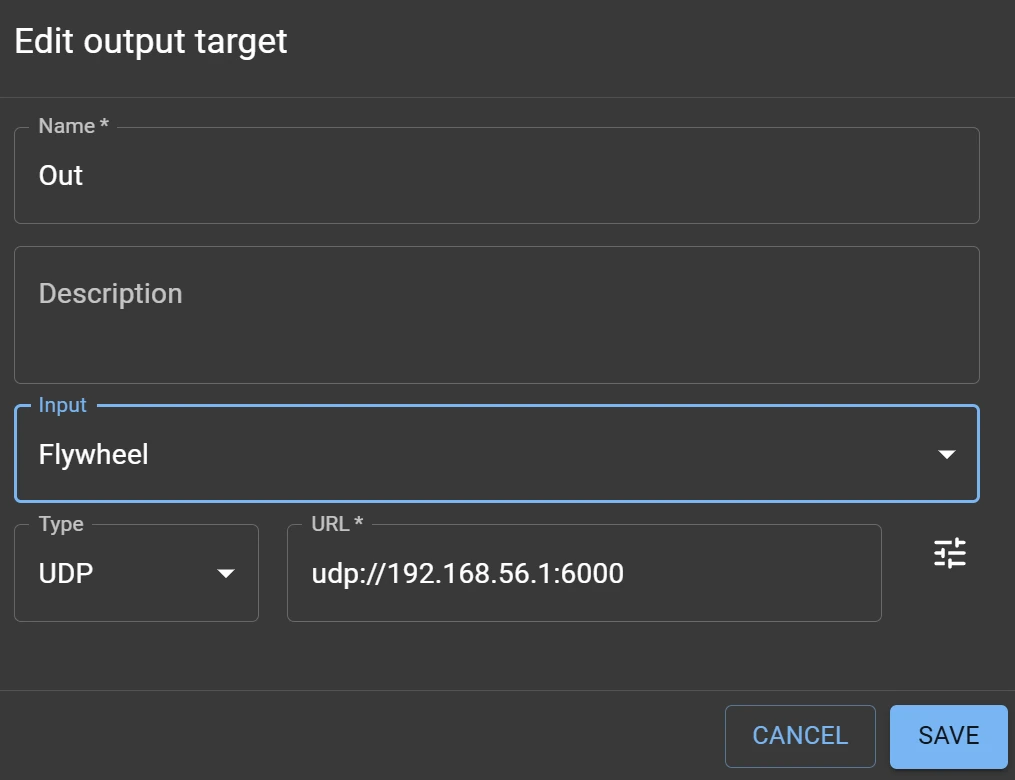
Add or edit an output and set Input to Flywheel. An enabled Flywheel cannot be removed while outputs still reference it; reassign those outputs to Original source or remove them first.
Source loss and recovery
In Flywheel → Video, enable Text and enter an optional single-line caption below the bitrate controls. The caption is centered near the bottom of the initial black clock screen before the first video arrives and of later offline screens. It disappears during live video and is included in outputs that select Flywheel, even when other overlays are excluded. Unicode text is supported and long captions are shortened with an ellipsis. Turning Text off retains the entered value; save the stream configuration to apply changes through the normal restart behavior.
The caption uses the SDK's outlined white font at 4% of video height, with a 14-pixel minimum. Older saved configurations default to Text disabled.
Flywheel keeps its output decodable and timestamped while the source is missing. It displays the configured timeout visual and resumes live video when the source returns. Local playback and preview always remain on the original source and therefore show the source's actual state.
KLV behavior
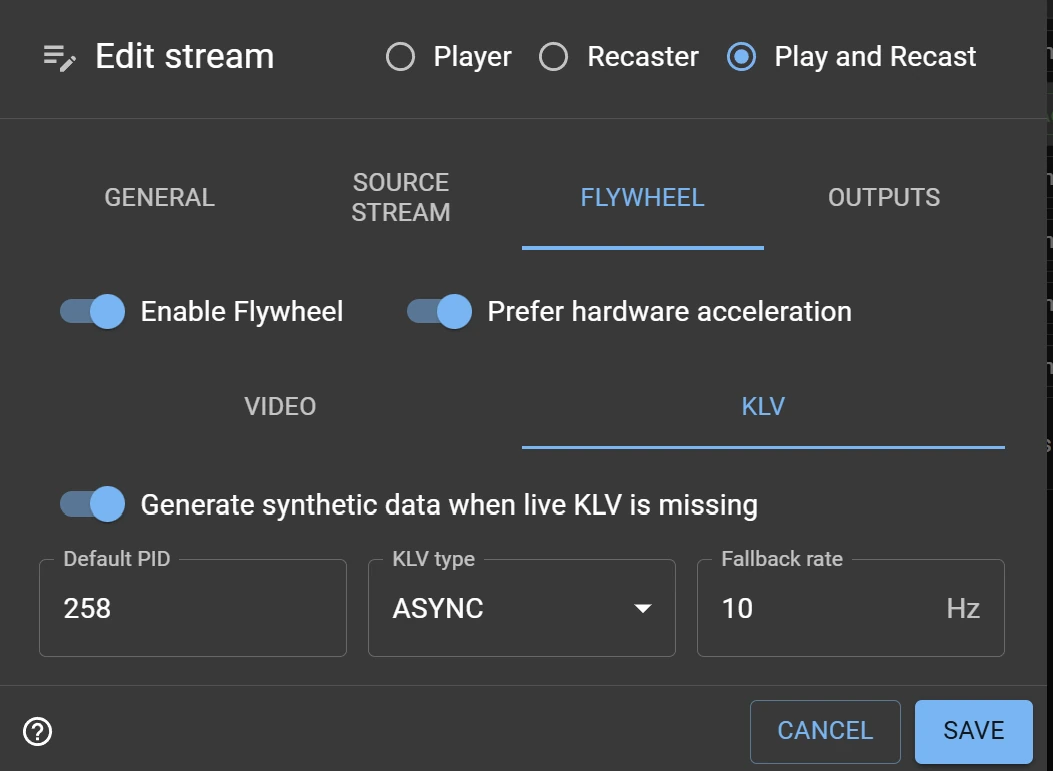
The KLV flywheel keeps a metadata elementary stream present when the input no longer provides KLV. Live source KLV is forwarded whenever it is available. If Generate synthetic data when live KLV is missing is enabled, Flywheel generates MISB ST 0601 packets at the configured Default PID and Fallback rate until real KLV resumes. The synthetic packet timing follows the continuous Flywheel output timeline.
This fallback is useful for recorders, multiplexers, and other downstream systems that expect both video and metadata continuity. The template affects synthetic packets only; it does not modify live KLV forwarded from the source.
Configure the KLV page as follows:
| Setting | Use |
|---|---|
| Generate synthetic data when live KLV is missing | Enables fallback packet generation. |
| Default PID | Sets the synthetic KLV elementary-stream PID. Valid values are 32 through 8186. |
| KLV type | Selects ASYNC or SYNC for the fallback elementary stream. |
| Fallback rate | Sets the synthetic packet cadence from 1 through 60 Hz. The default is 10 Hz. |
| Edit synthetic KLV fields | Opens the JSON template editor. Use the list action beside the synthetic-data switch. |
The video and fallback KLV PIDs must differ. This version supports one output KLV elementary stream.
Edit the synthetic packet template
Select Edit synthetic KLV fields to edit the exact MISB ST 0601 values inserted when source KLV is unavailable. The template is a JSON object whose top-level keys are decimal MISB tag numbers. For example, the default template is:
{
  "11": "NO SIGNAL",
  "47": 32,
  "48": {
    "1": "UNCLASSIFIED",
    "2": "GENC_TWO_LETTER",
    "3": "//US",
    "12": "GENC_TWO_LETTER",
    "13": "US"
  },
  "65": 16
}
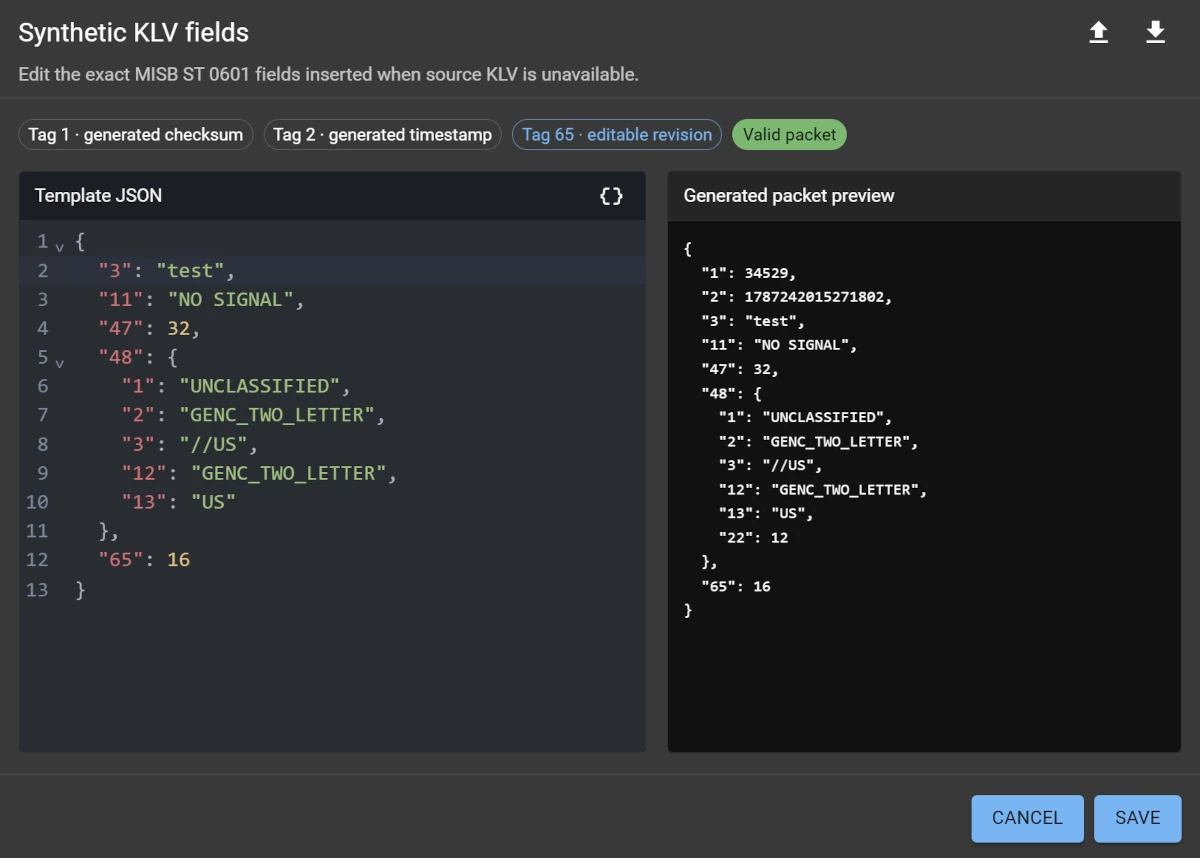
The default values identify the fallback condition with tag 11, mark the image as invalid with tag 47, include an UNCLASSIFIED/US Security Local Set in tag 48, and encode MISB ST 0601 revision 16 in tag 65. Streams created before template editing was available use this default when they are next loaded.
The full document shown in the editor includes tag 65 for convenience. SkyView separates that revision from the other template fields internally when the stream is saved.
Follow these template rules:
| Rule | Detail |
|---|---|
| Document shape | The document must be a JSON object, not an array or scalar value. |
| Tag keys | Top-level keys must be numeric tag numbers from 1 through 255. Each tag may appear only once at an object level; escaped or leading-zero spellings of the same number also count as duplicates. |
| Tag 1 | Do not add it. The Flywheel SDK generates the checksum for every packet. |
| Tag 2 | Do not add it. The Flywheel SDK generates the Precision Time Stamp for every packet. |
| Tag 65 | It is required and must be an integer from 1 through 19. It selects the MISB ST 0601 revision used to encode and validate the packet. |
| Tag values | Values must have the type and range required by the selected MISB revision. Nested local sets, such as tag 48, are JSON objects keyed by their local tag numbers. |
Tags 1 and 2 appear in the generated-packet preview even though they are not part of the editable template. The preview may also contain fields derived or normalized by the MISB encoder, so it is the authoritative representation of the packet SkyView can generate rather than a simple copy of the source JSON.
Validate, import, and export templates
SkyView first checks the JSON structure in the browser. After a valid document is entered, it sends the template to the same stview-core/libmisb implementation used by the native Flywheel worker. Validation starts automatically about 350 ms after editing stops, and only the latest result is displayed.
The editor provides these actions:
- Format JSON reformats a structurally valid document with canonical indentation.
- Import JSON replaces the editor contents with a selected
.jsondocument and validates it. - Export valid JSON downloads the canonical full template, including tag 65. Export is available only after successful validation.
- Generated packet preview shows the packet produced by the SDK, including generated tags.
- Validation findings reports MISB errors and warnings with the affected tag or path when available.
The dialog's Save button is enabled only after successful SDK validation. Selecting it updates the open stream form but does not immediately change the running processor. Select Save on the containing stream form to persist the template and apply the normal stream update/restart behavior. Selecting Cancel in the template dialog discards changes made since the editor was opened.
The server validates an enabled Flywheel template again when the stream is saved. This backend check is authoritative; browser validation is an early preview. Template validation requires an administrator account, the Recast and Flywheel license options, and an available native Flywheel worker.
KLV template troubleshooting
| Symptom | What to check |
|---|---|
| Save or export remains disabled | Wait for validation to finish, then correct the JSON error or reported MISB finding. |
| Tag 1 or tag 2 is rejected | Remove it from the template. Both tags are generated automatically and remain visible in the preview. |
| Tag 65 is rejected | Add tag 65 or set it to an integer from 1 through 19. Also verify that the other fields are valid for that revision. |
| Validation is unavailable | Confirm that the signed-in user is an administrator, both required license options are active, and the native Flywheel worker is installed and available. |
| The stream form rejects a previously edited template | Reopen the template editor and review the latest server findings; the server always revalidates enabled Flywheel templates before persistence. |
| Synthetic packets are not emitted | Confirm that Flywheel and synthetic generation are enabled, a Flywheel output is running, the PID differs from the video PID, and live source KLV is actually absent. |
Linux container runtime
The Linux processing path depends on the GPU, installed runtime, and selected configuration. Desktop versus VM deployment does not select a compositor by itself.
Current NVIDIA configuration: CUDA composition
Use docker-compose.yml together with the matching docker-compose.nvidia.yml, as described in NVIDIA GPU monitoring. The current NVIDIA overlay selects the headless CUDA Flywheel path:
NVIDIA hardware decoding → CUDA composition → NVIDIA hardware encoding (NVENC)
                             CUDAMemory handoff
The compositor uses GStreamer's cudacompositor; composited video reaches the encoder through CUDA GPU memory. NVIDIA EGL remains a runtime requirement for CUDA/GL graphics interoperability, but EGL rendering with GLMemory or DMA-BUF handoff is not the description of this selected CUDA path.
The overlay sets STVIEW_EXPERIMENTAL_CUDA=1. The SDK retains that variable name for compatibility; the current NVIDIA overlay uses it as its production selection. The image must include the CUDA compositor/conversion elements and NVRTC runtime libraries, while the host NVIDIA driver and Container Toolkit expose the GPU and matching driver libraries. Passing /dev/dri alone does not provide this NVIDIA runtime.
When this selection is enabled, container startup verifies the required CUDA components and a hardware Flywheel worker probe. Missing dependencies fail startup instead of silently selecting the EGL path or CPU video processing. A successful probe establishes availability; verify picture integrity with actual inputs and concurrent channels before making capacity claims.
EGL/GL and software alternatives
For a compatible Linux configuration that does not select CUDA, the worker can use the hardware EGL compositor with GLMemory or DMA-BUF/VA-memory handoff, depending on the decoder and encoder. DRI-based configurations require the relevant /dev/dri devices and device-group permissions, commonly the video or render group. These requirements depend on the host and should not be substituted for the NVIDIA Toolkit setup above.
With Prefer hardware acceleration enabled, the Linux Flywheel video path is strict: decoding, composition, and encoder input must stay in GPU memory. A missing compatible component produces an error rather than an implicit CPU video copy. Disable that setting explicitly when a software Flywheel is acceptable. Software processing shifts video work to the VM or desktop CPU and needs its own capacity measurement.
Desktop GPU versus a shared GPU in a VM
A desktop commonly uses a physical GPU directly, while a VM may receive a shared virtual GPU (vGPU) profile. A VM can also receive an entire GPU through passthrough, so running in a VM does not necessarily mean the GPU is shared. Time-sliced vGPU and hardware-partitioned configurations also have different isolation and scheduling properties; record the actual deployment type.
| Consideration | Physical GPU used directly on a desktop | Shared vGPU assigned to a VM |
|---|---|---|
| Video memory | The physical device's memory is available to local workloads, with some consumed by the desktop and other applications. | The VM sees its assigned profile's framebuffer budget, rather than all memory on the physical board. |
| GPU execution | SkyView competes with other local GPU workloads. | With time-sliced sharing, execution time is scheduled among VMs; available throughput and latency depend on the policy and competing workloads. |
| Runtime support | Depends on the GPU model, operating system, driver, and installed codecs. | Also depends on the vGPU profile, guest/host driver compatibility, hypervisor, and exposed features. |
| CPU resources | The local CPU still handles stream management and supporting work. | Allocated vCPUs and host CPU contention can limit performance even when GPU memory is available. |
| Channel capacity | Must be measured for the actual codec, resolution, bitrate, and background load. | Must be measured for the assigned profile and operating load; a physical-board benchmark is not a VM channel guarantee. |
For example, a vGPU reporting 4,096 MiB provides a 4 GiB device-memory budget to that guest. Decoder surfaces, reference frames, compositor buffers, encoder buffers, contexts, and desktop use all consume that budget. It does not provide the physical board's full memory or promise a fixed fraction of its encoding throughput.
NVIDIA describes the available deployment types in its vGPU features documentation and time-sliced execution policies in its vGPU scheduling guide. Resource sharing can affect timing and capacity; corrupted pictures or content from another channel are integrity failures, not an acceptable consequence of using a shared GPU.
Qualify at least two distinguishable moving sources simultaneously, then increase the channel count. Check each output against its own source for frame identity, picture fidelity, freshness, and timeout/recovery behavior. Keep other channels running when interrupting one source. A single-channel PSNR pass, a listed NVENC encoder, or a successful GPU probe does not establish concurrent correctness. See Flywheel quality comparison and PSNR for the comparison procedure.
Fractional frame rates and live KLV templates
Flywheel accepts fractional rates such as 23.976, 29.97, and 59.94. New forms use CBR and Preserve detected source KLV type. Existing saved VBR settings, hardware preferences, and integer frame rates keep their behavior. An omitted preservation setting in older records retains the previous forced-type behavior.
For an existing running processor, Save & apply in the synthetic KLV editor validates and persists only that processor's template and revision, then waits for acknowledgement from the worker. Playback and outputs remain running. Cancelling the parent stream form does not undo this explicit save. Other form settings remain drafts. If application fails, the saved template is retained for the next start and the error is shown separately. For an existing stopped processor, Save persists the template for the next start; for a new processor it updates the form draft.