📄 Stream events
To view the stream's detailed activity and error history, press the Stream Events Timeline button:

This opens the timeline view, which presents a chronological list of events related to the selected stream.

The timeline shows:
- Stream interruptions or timeouts
- Detected MPEG-TS errors such as Continuity Counter, PCR, DTS/PTS discontinuities, or TEI corruption flags
- Detected KLV errors such as decode errors, duplicate timestamps, and timestamp regressions
- Loss or recovery of the stream (Offline/Online)
- Any other important status changes
ᯤ Event filters configuration
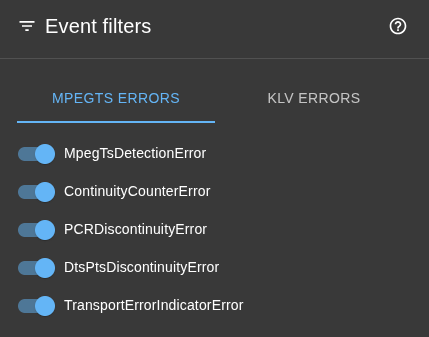
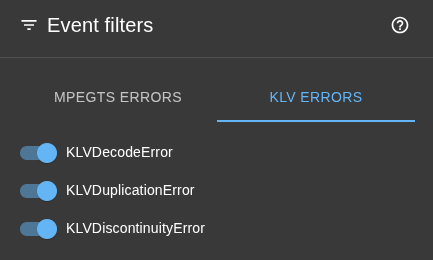
The Stream Events drawer includes a Config button that opens the Event filters dialog.
The dialog contains two tabs:
- MpegTs errors
- Klv errors
Each tab provides switches for individual error types.
Disabled error types are hidden from the timeline view.
MpegTs errors
Klv errors
Filter selections are saved in local browser storage and restored automatically when you return.
You can also open the relevant manual page from the Help icon in the drawer and in the Event filters dialog.
🎬 MpegTS errors detection
SkyView application detects common MPEG-TS transport stream integrity issues:
- Continuity Counter errors (
ContinuityCounterError) - PCR discontinuities (
PCRDiscontinuityError) - DTS/PTS discontinuities (
DtsPtsDiscontinuityError) - Transport Error Indicator flags (
TransportErrorIndicatorError) - PAT/PMT detection failures during probing (
MpegTsDetectionError)
These checks help identify packet loss, duplication, corruption, or timestamp irregularities in transport streams.
Hovering the mouse over an event displays a tooltip with additional detailed information about that event - for example, the PID involved or a more descriptive explanation of the detected error.
Continuity Counter (CC) Errors
Each MPEG-TS packet contains a Continuity Counter (CC) field - 4 bits in the packet header (byte 3, bits 0–3).
It increments by 1 (mod 16) for consecutive packets with the same PID that carry payload data.
If packets are lost, repeated, or reordered, the counter sequence will break.
Common Causes:
- Lost UDP packets
- Reordered network traffic
- Encoder or remultiplexer bug
- PID reuse without reset
PCR (Program Clock Reference) Discontinuities
The Program Clock Reference (PCR) provides a 27 MHz clock used to synchronize timing between the encoder and decoder.
It is carried in the adaptation field of packets whose PID matches the PMT-declared PCR PID.
The PCR value must increase monotonically and appear at least every 100 ms (ISO/IEC 13818-1).
Errors detected:
- Backwards/out-of-order PCR if delta < 0 (no wrap).
- Long gap if delta > 2.7 × 10⁶ ticks (≈ 100 ms at 27 MHz).
Common Causes:
- Encoder clock instability
- Bad timestamp rewriting after remux
- Missing PCR packets
DTS/PTS Discontinuities
SkyView monitors PES timestamps (per PID) and reports DtsPtsDiscontinuityError when it detects one of these conditions:
- DTS goes backward
- DTS jumps too far forward
- Duplicate DTS
- Missing DTS after that PID has started carrying DTS
- Invalid
PTS < DTSordering (excluding valid wraparound cases) - Wraparound handling anomalies
Why it matters:
- Timestamp instability can cause jitter, decoder issues, A/V sync problems, or dropped/reordered frames downstream.
Transport Error Indicator (TEI) Errors
SkyView inspects the MPEG-TS packet TEI bit and reports TransportErrorIndicatorError when a packet is marked corrupted.
Why it matters:
- TEI indicates lower-layer reception/FEC problems and is often an early indicator of RF/network transport quality issues.
MpegTsDetectionError
SkyView may report MpegTsDetectionError if PAT/PMT probing fails during stream detection.
Why it matters:
- Detection failures usually indicate malformed/incomplete transport stream structure or an input that is not valid MPEG-TS at that moment.
📄 Klv errors detection
SkyView validates ancillary KLV metadata for common issues:
- Checksum/decoding errors (malformed KLV that fails integrity checks is reported as a decode error)
- Timestamp-related errors (duplicate timestamps and timestamp regressions/discontinuities)
KLV Timestamp Duplication
When processing ancillary KLV metadata, SkyView checks the embedded timestamp values for each packet (per PID). A duplication occurs when two consecutive KLV packets for the same PID carry an identical timestamp.
Why it matters:
- Indicates potential encoder or multiplexer defects producing repeated metadata frames.
- Can reflect stalled metadata generation (sensor not updating position/telemetry).
KLV Timestamp Discontinuity (Regression)
A discontinuity (regression) occurs when a KLV timestamp decreases relative to the previous packet for the same PID (i.e., current < previous). Timestamps are expected to be monotonic for proper temporal correlation of metadata with video.
Why it matters:
- Downstream consumers may mis-order metadata or drop frames assuming clock skew.
- Can signal clock resets, wrap handling bugs, or malformed remuxing.