🪟 Mosaic
The Mosaic page provides a live, at-a-glance grid of stream previews so you can monitor multiple feeds at once. Previews are low-FPS JPEG snapshots, optimized for quick scanning rather than full playback.
Double-clicking a playable stream opens full-framerate playback. Recast-only streams display an explanation instead.
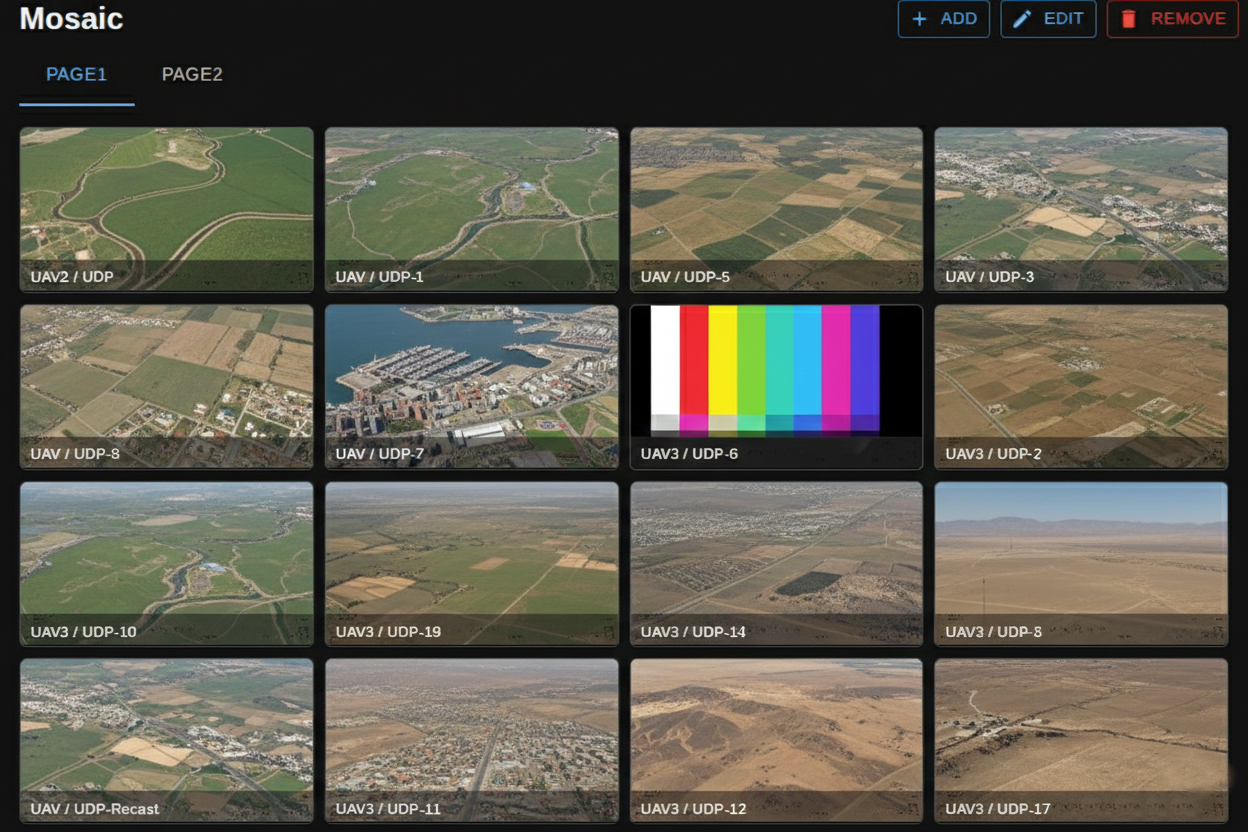
Open Mosaic
- Navigate to Mosaic from the left sidebar.
- Only streams marked as active appear in the grid.
Mosaic pages (tabs)
Mosaic is organized into pages (tabs) so you can group streams by mission, team, or geography.
- Add - creates a new Mosaic page.
- Edit - rename the current page and reassign streams using the Available/Assigned lists.
- Remove - deletes the current page (disabled when only one page exists).
To add streams to the mosaic page, use the transfer list in the edit dialog:
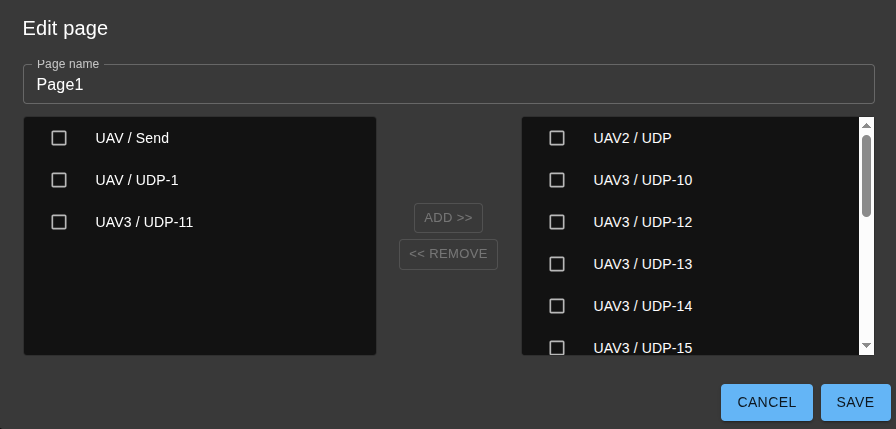
Mosaic pages, assignments, and ordering are stored in your browser's local storage. They are not shared with other users or devices.
Organize streams
- Reorder within a page: drag a stream card and drop it onto another stream card to reposition it.
- Move between pages: drag a stream card and drop it onto a different tab.
- Open a stream: double-click a card to jump to the Player view for that stream.
- Select a card: click once to highlight; click outside to clear the selection.
Preview behavior
- Previews refresh automatically.
- Refresh cadence is adaptive: faster when fewer than 10 streams are shown, slower for larger mosaics.
- No preview means the server has not produced a snapshot yet.
- Timeout indicates the stream is waiting for data.
- Each image shows its capture age. A successful browser refresh can return the same cached image, so its age continues increasing until the server captures a new frame.
- The last valid image remains visible during temporary capture failures. Offline and timeout states take precedence.
Configuration parameters
Mosaic previews are configured in Server Configuration -> Preview. These values control how the backend captures preview frames for the Mosaic grid (and other preview consumers).
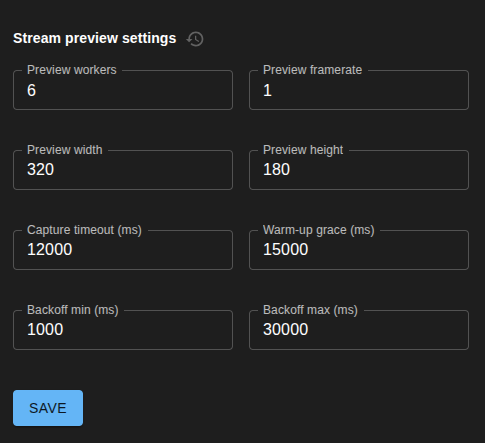
| Setting | Field | Default | Description |
|---|---|---|---|
| Preview workers | previewWorkers |
6 | Number of parallel preview capture workers. Increase for more concurrent streams, higher values use more CPU. |
| Preview RAM budget (MiB) | previewMemoryBudgetMiB |
512 | Operating budget for adaptive preview helpers and their owned queues/cache. Zero restores 512 MiB. Does not include playback/recast decoding. |
| Preview framerate | previewFramerate |
1 | Target frames per second for preview snapshots. Higher values update more often but increase load. |
| Preview width | previewWidth |
320 | Output width of preview images in pixels. |
| Preview height | previewHeight |
180 | Output height of preview images in pixels. |
| Capture timeout (ms) | previewCaptureTimeoutMs |
12000 | Maximum time allowed for one preview capture attempt before it is treated as a miss and retried later. |
| Warm-up grace (ms) | previewTargetWarmupGraceMs |
15000 | Grace period after creating a preview target where misses are tolerated while the stream starts producing frames. |
| Backoff min (ms) | previewBackoffMinMs |
1000 | Initial delay before retrying after a capture miss. Retry delay increases exponentially on consecutive misses. |
| Backoff max (ms) | previewBackoffMaxMs |
30000 | Upper limit for retry delay between capture attempts after misses. Must be greater than or equal to Backoff min. |
Notes:
- Values must be zero or positive. Setting a value to
0uses the built-in default. - For best results, keep width/height close to a 16:9 ratio to match the Mosaic card aspect ratio.
- Changes apply at runtime; the next snapshot cycle will use the new settings.
- Actual preview cadence depends on CPU load, stream profile/encoding complexity, the number of active streams, and worker availability. Setting a framerate is a target, not a guarantee.
Adaptive preview rollout (Windows and Linux)
The adaptive implementation is currently opt-in, pending the cross-platform media and memory release checks. Start the server with SKY_VIEW_ADAPTIVE_PREVIEW=1 to test it. Package the matching skyview-jpeg-extractor helper alongside the server; SKY_VIEW_JPEG_EXTRACTOR_PATH can select its location. An absent or incompatible helper disables adaptive previews with a diagnostic.
With adaptive previews enabled:
- A small set of streams can keep their own decoder processes running for frequent images.
- Larger sets take turns within the worker and memory limits. Each reassignment creates a fresh process; decoder state is never reused between streams.
- The worker count includes processes still stopping. Hung processes are terminated; unreaped processes retain their slots until exit.
- The server reserves 20% memory headroom. RSS sampling allows brief overshoot, so this setting is not a hard operating-system memory limit. Streams too large for the budget are deferred until their source or settings change.
- Every eligible running stream receives background preview service, including streams not shown on the selected Mosaic tab. Actual freshness may be slower than the requested framerate under load.
- Changing preview settings restarts preview sessions without restarting playback or recasting. RTSP previews temporarily use an additional source connection while their helper is assigned.
Without the adaptive flag, the existing preview implementation remains active and the new RAM budget does not apply. The older external extraction path uses one-shot captures; it does not keep a persistent helper for every worker.