👤 Users
Overview
The Users section lets administrators provision accounts, assign permissions, and manage credentials for viewers who access Sky View. Every account can be associated with one or more user groups that define effective access rights across the platform.
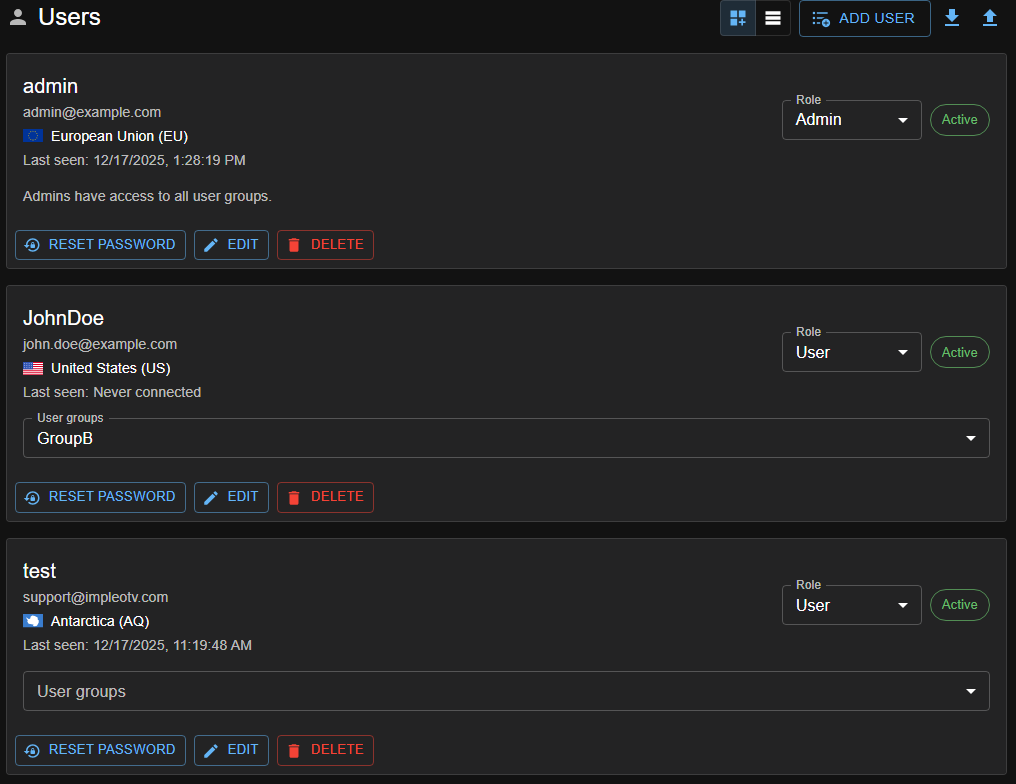
You can also use the table view.
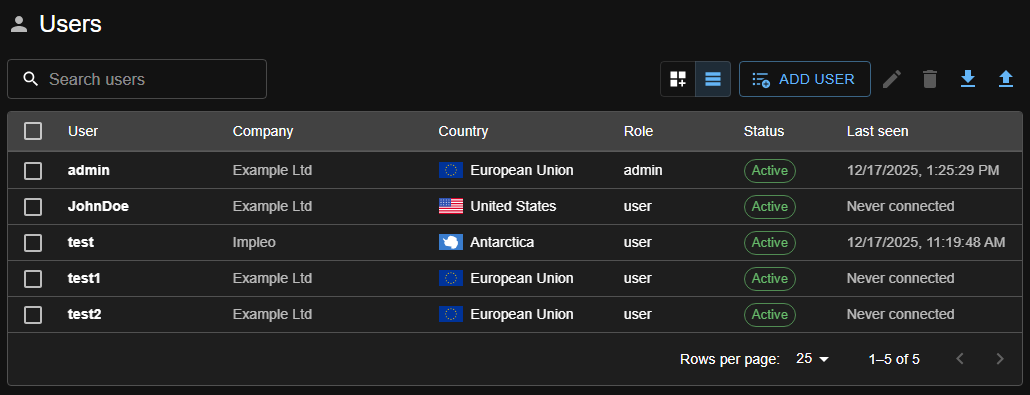
Opening the Users panel
- Sign in with an administrator account.
- Navigate to → Users from the navigation menu.
- The list view displays existing accounts with their usernames, linked groups, and current status, as shown in the screenshot above.
Creating a new user
Users typically need to register themselves in the application.
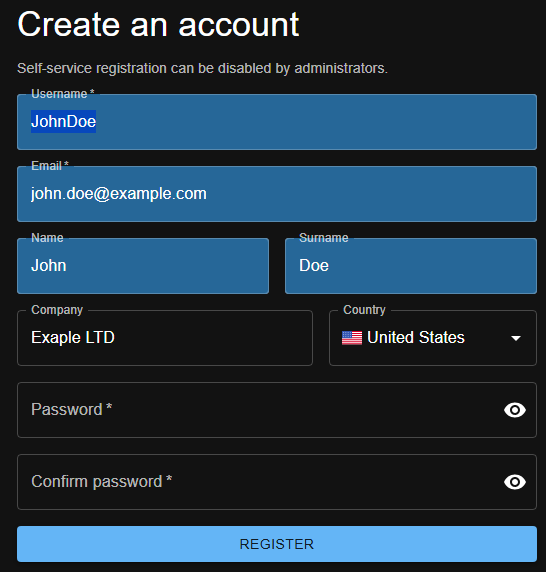
- Logout and click Register.
- Enter the operator's full name, email address, and unique username.
- Set a password.
- Save the user. The account will appear in the list and immediately inherit the default user rights.
- The administrator can now assign the user to user groups or grant admin rights.
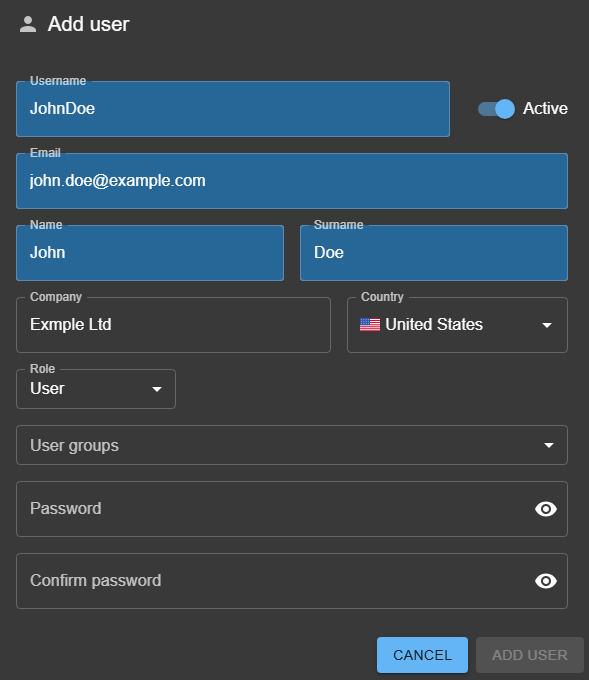
Admin can also create a new user.
Editing an existing user

- Select a user from the table and click Edit.
- Update profile details such as name, email, or contact information.
- Save to apply the modifications.
Group membership
The administrator can adjust group membership to change the user's access scope.
Resetting passwords
- Click Reset Password to choose a new password at the next login.
- Alternatively, assign a temporary password and communicate it directly if email delivery is unavailable.
Exporting and importing users
You can back up or bulk restore users from the toolbar:
- Click Export users. This downloads a JSON file containing basic profile fields only (username, email, name, surname, company, country, active). Sensitive fields such as Role, User groups, and Last seen are intentionally stripped and will not be preserved.
- Click Import users and select a previously exported (or compatible) JSON file to re-create accounts.
Post-import steps
- Imported users are created with a random password and are flagged to change it. They cannot sign in with the exported credentials.
- After import, an administrator must:
- Set a temporary password (Reset password) for each imported user, and
- Reassign Role and User groups for every account, since those fields are not included in the export.
- When users log in with the admin-provided temporary password, they will be redirected to set their own password before accessing the app.
Deactivating or deleting users
- Use Delete only when you no longer need the account or historical data.
Best practices
- Keep at least two administrator accounts active to avoid lockouts.
- Audit user membership regularly to ensure each operator has only the permissions they require.
- Revoke or disable accounts immediately when personnel leave the organization.