Stream Playback

Open live or network media from File > Open Stream. STView supports UDP, RTSP, HTTP, HTTPS, and SRT sources.
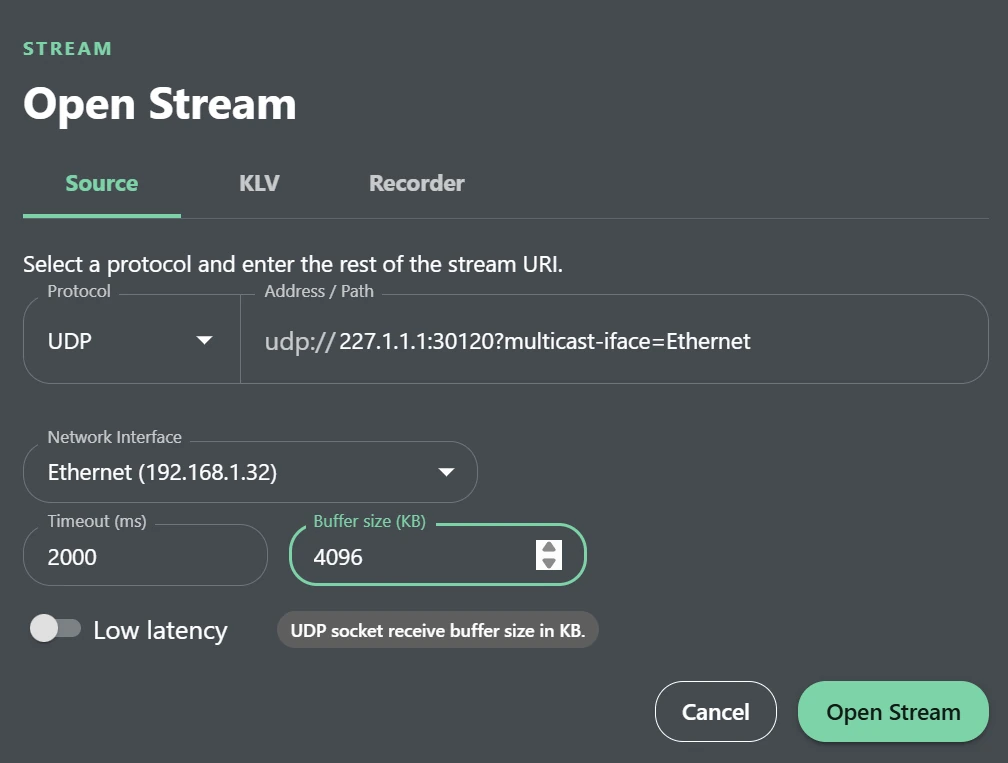
Basic workflow
- Open File > Open Stream.
- Select the Source tab.
- Choose the required Protocol.
- Enter the stream URI in Address / Path.
- Configure the fields shown for the selected protocol.
- Open the KLV, Flywheel, Recast, or Recorder tabs when those features need source-specific settings.
- Click Open Stream.
Example UDP multicast URI:
udp://227.1.1.1:30120?multicast-iface=Ethernet
For UDP unicast reception, you can enter just a port, such as 5000 or
:5000. STView expands it to udp://0.0.0.0:5000 and listens on all local
IPv4 interfaces. Multicast still requires a group address and port.
For SRT with Connection Mode set to Listener, a port such as 5000 or
:5000 also listens on all local IPv4 interfaces. Rendezvous requires the
remote peer's address and port. Port numbers must be between 1 and 65535.
UDP options
| Option | Description |
|---|---|
| Network Interface | Selects the local adapter used for multicast joins. Auto lets the operating system choose. |
| Timeout (ms) | Sets how long STView waits without UDP packets before showing the stream timeout state. The minimum is 1000 ms. |
| Buffer size (KB) | Sets the UDP socket receive buffer. A larger value can reduce packet loss during high-rate traffic or short processing stalls. |
| Cache (ms) | Sets a fixed decoded-frame buffering delay from 0 to 5000 ms. It is used only when Low latency is off. |
| Low latency | Reduces buffering when low delay is more important than smooth recovery. |
With Low latency off, the playback cache adds a fixed delay. If display falls behind, STView skips stale decoded frames to catch up instead of accumulating more delay. This can briefly reduce visual smoothness while keeping playback close to the configured delay.
RTSP options
RTSP sources support optional User and Password fields for authenticated cameras or servers. Transport can be Auto, TCP, UDP, or UDP Multicast. Auto lets the media runtime negotiate an appropriate transport.
RTSP also provides Cache (ms) and Low latency. Cache is used only when Low latency is off. Prefer TCP when reliability is more important than delay; try UDP or Low latency when minimizing delay is the main requirement.
HTTP and HTTPS
Enter the complete http:// or https:// media URL. These protocols do not
show additional source controls. Any required authorization must be represented
by a URL or server flow supported by the media runtime; STView does not provide
separate HTTP credential fields.
SRT options
| Option | Description |
|---|---|
| Connection Mode | Listener waits for a sender. Rendezvous is for peers that both initiate the handshake. |
| Latency (ms) | Sets receive latency for jitter and retransmission tolerance. Higher values improve tolerance at the cost of delay. |
| Poll Timeout (ms) | Sets how long socket polling waits for a state change. This is not video latency. |
| Stream ID | Sends an optional identifier during the SRT handshake. |
| Passphrase | Enables encryption when it matches the sender's passphrase. |
| Key Length | Selects No key, 16, 24, or 32 bytes. Choose a key length only when using a passphrase. |
| Auto reconnect | Keeps listening and recovers after the sender disconnects and starts again. |
With Auto reconnect enabled, STView also retries after parser, demuxer, or decoder errors. It shows the configured timeout visual while video is unavailable and resumes when decoded frames return. Press Stop to cancel reception and pending retries.
KLV filtering
The KLV tab can filter unusually short decoded packets before they reach application subscribers:
- Enable Filter short packets to turn the filter on.
- Set Minimum tags to the minimum number of top-level KLV tags required.
The minimum accepted value is
3.
Packets below the threshold are not forwarded to the KLV window, overlay, map, or other application subscribers. Leave the filter off when short packets are valid for the source or when diagnosing missing metadata.
Recent streams
The Source tab lists recently opened stream URIs below the protocol controls. Select an entry to restore that stream and its protocol-specific dialog state, then review the settings before opening it.
Output configuration
The remaining tabs configure optional processing and outputs:
- Flywheel creates a controlled encoded program feed.
- Recast publishes Original or Flywheel media to UDP, SRT, or WHIP.
- Recorder writes Original or Flywheel media to disk.
See Flywheel, Recasting, and Recording for their complete workflows.