MCP Server
STView includes a companion Model Context Protocol (MCP) server named
stview_mcp. It lets LLM applications control STView with model-callable
tools, then read playback status, recording state, KLV metadata, object
detection state, and other session statistics back from the application.
Typical clients include Claude Desktop, Claude Code, Codex-style clients, Ollama-compatible MCP hosts, and ChatGPT integrations that can reach a Streamable HTTP MCP endpoint.
From the user's point of view, the flow is simple: the LLM app calls MCP tools,
stview_mcp sends those requests to the running STView application, and STView
returns status and statistics. Internally, stview_mcp uses STView's existing
Local Automation API, so MCP, scripts, and test
tools share the same automation behavior.

Requirements
Before connecting an LLM app:
- Start STView and keep the main window open.
- Open Settings > Options > Application.
- Turn on Allow automation.
- Generate or copy the automation token.
- Confirm
stview_mcpis next to the STView executable in the app install or build output directory.
Packaged STView may start its local backend on a dynamic loopback port. The
application writes the active backend URL to its runtime descriptor, and
stview_mcp discovers that URL automatically by default.
Use -backend only when you intentionally run a backend at a fixed address,
such as a development backend:
http://127.0.0.1:47792
The MCP server needs the same bearer token used by the Local Automation API.
The token can be passed with -token or through STVIEW_MCP_AUTOMATION_TOKEN.
What LLMs Can Control
Once connected, an LLM can use MCP tools to:
- Open local files,
file://URIs, and supported stream URIs. - Start, stop, pause, resume, seek, step frames, and change playback speed.
- Resize or toggle fullscreen for the STView window and open or close the Map, KLV, Options, and Session windows.
- Start and stop recordings in MPEG-TS, MP4, or HLS formats.
- Start and stop UDP, SRT, or WHIP Recast outputs.
- Export cut clips in MPEG-TS, MP4, PCAP, or PCAPNG formats.
- Save snapshots from the current video frame.
- List, create, update, and delete persisted bookmarks and bookmark tags.
- List, create, update, delete, save, and play persisted missions.
- Configure KLV PID selection and object detection settings.
- Pause KLV updates, select brief or detailed KLV presentation, update an allowlisted set of application options, and refresh license unlock state.
- Read status, session, KLV, object detection, and recording statistics.
Local Stdio Mode
Use stdio mode when the LLM app runs on the same machine as STView. This is the
recommended local setup because the MCP client launches stview_mcp as a child
process and no additional listening port is needed.
Example command:
stview_mcp -token <token>
Example Claude Desktop-style configuration:
{
  "mcpServers": {
    "stview": {
      "command": "C:/Program Files/ImpleoTV/STView/stview_mcp.exe",
      "args": [
        "-token",
        "<token>"
      ]
    }
  }
}
On macOS or Linux, use the installed stview_mcp path for your package. In a
local build tree, use the copy staged next to the STView executable.
If you run stview_backend yourself at a fixed address, pass that address as
an override:
stview_mcp -backend http://127.0.0.1:47792 -token <token>
Streamable HTTP Mode
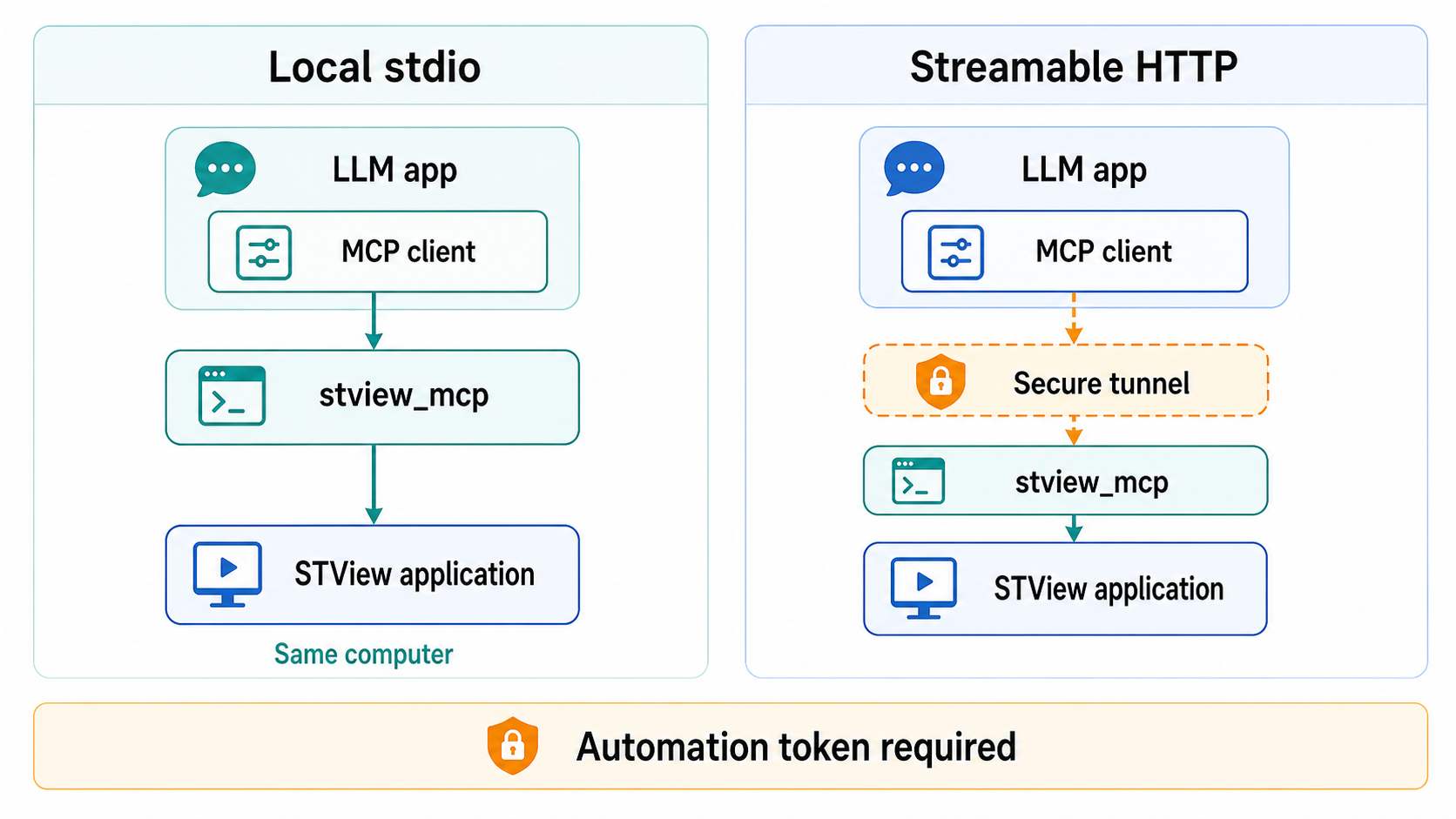
Use Streamable HTTP mode when the LLM app expects a URL. Start stview_mcp
with -http:
stview_mcp \
  -token <token> \
  -http 127.0.0.1:47892
Add -backend http://127.0.0.1:47792 only for a fixed-address development
backend. Normal packaged-app use should rely on automatic discovery.
The MCP endpoint is:
http://127.0.0.1:47892
HTTP mode requires:
Authorization: Bearer <token>
stview_mcp binds only to loopback addresses in HTTP mode. For ChatGPT or API
clients that need a remote MCP URL, expose the local MCP endpoint through a
secure tunnel that you control. Do not expose STView's local ports directly to
the public internet.
Tools
The MCP server exposes model-callable tools with structured JSON results. Most
control tools return ok, state, commandId, data, error, and
completedAt, so the LLM can verify what happened before deciding on a next
step.
| Tool | Parameters | Purpose |
|---|---|---|
stview_status | none | Return current playback status. |
stview_get_command_status | commandId | Check an earlier queued command. |
stview_open_media | uri, optional lowLatency, playbackCacheMs, loop | Open and start a file, file:// URI, or stream URI. |
stview_start | none | Start current media. |
stview_stop | none | Stop playback. |
stview_pause | none | Pause playback. |
stview_resume | none | Resume playback. |
stview_toggle_pause | none | Toggle pause/resume. |
stview_seek | positionSeconds | Seek to an absolute position. |
stview_step_frame | direction | Step one frame backward or forward using the native presentation clock, preserving metadata alignment. |
stview_set_playback_rate | playbackRate | Set playback rate from -32 to 32. |
stview_set_audio_volume | audioVolume | Set audio volume from 0 to 1. |
stview_resize_window | width, height | Resize the main application window. |
stview_show_window | window | Open options, klv, map, or session. |
stview_close_window | window | Close options, klv, map, or session. |
stview_toggle_fullscreen | none | Toggle fullscreen mode for the main window. |
stview_start_recording | recording parameters | Start recording. |
stview_stop_recording | none | Stop active recordings. |
stview_check_recording_output | recording parameters | Check whether the output already exists. |
stview_start_recast | Recast parameters | Start a UDP, SRT, or WHIP Recast output. |
stview_stop_recast | none | Stop active Recast output. |
stview_save_snapshot | snapshot parameters | Save the current frame. |
stview_check_clip_export_output | outputPath | Check whether a clip export output already exists. |
stview_export_clip | clip export parameters | Export a cut clip. |
stview_get_state | resource | Read cached state or statistics. |
stview_set_klv_pid | pid, optional target | Set the KLV PID for klv or session. |
stview_set_klv_paused | paused | Pause or resume KLV window updates. |
stview_set_klv_detailed | detailed | Select detailed or brief KLV presentation. |
stview_set_options | allowlisted option fields | Merge supported application options into settings. |
stview_refresh_license_unlock | none | Refresh SDK license unlock state. |
stview_set_object_detection | detection options | Merge object-detection options into settings. |
stview_list_bookmarks | optional assetId, sourcePath, sourceUriOrPath | List persisted bookmarks. |
stview_create_bookmark | bookmark fields | Create a persisted bookmark. |
stview_update_bookmark | bookmark fields with id | Update a persisted bookmark and replace its tag assignments. |
stview_delete_bookmark | id | Delete a persisted bookmark. |
stview_list_missions | optional id, limit | List persisted missions. |
stview_create_mission | mission fields | Create a persisted mission with ordered sensors. |
stview_update_mission | mission fields with id | Update a mission and replace its sensors and tags. |
stview_delete_mission | id | Delete a persisted mission. |
stview_play_mission | missionId or name | Open and play a persisted mission. |
stview_save_current_session_as_mission | none | Save the current source/session as a recent mission. |
stview_list_tags | none | List persisted bookmark tags. |
stview_create_tag | text, optional color | Create or return a persisted bookmark tag. |
stview_update_tag | id, text, optional color | Update a persisted bookmark tag. |
stview_delete_tag | id | Delete a persisted bookmark tag. |
Supported media URI schemes are the same as the Local Automation API: local
paths, file://, udp://, rtsp://, http://, https://, and srt://.
The MCP server does not browse the filesystem. Give it the path or URI that
should be opened.
Recording
stview_start_recording accepts the same recorder payload as the Open Stream
dialog and Local Automation API.
Supported recording formats:
mode | Output |
|---|---|
mpegts | MPEG-TS recording, continuous or segmented. |
mp4 | MP4 recording, continuous or segmented. |
hls | HLS playlist with segmented media. |
For HLS, hlsSegmentFormat can be mpegts or mp4.
Example MPEG-TS recording:
{
  "mode": "mpegts",
  "outputDirectory": "D:/Recordings",
  "baseName": "mission-001",
  "segmentDurationMs": 0,
  "videoPassthrough": true,
  "overwrite": false
}
Example HLS recording:
{
  "mode": "hls",
  "outputDirectory": "D:/Recordings",
  "baseName": "mission-hls",
  "hlsSegmentFormat": "mp4",
  "segmentDurationMs": 2000,
  "videoPassthrough": true,
  "overwrite": true
}
Use stview_check_recording_output with the same fields before starting a
recording when you need to know whether an output file, segment, or playlist
already exists.
Recasting
stview_start_recast publishes the current live stream from the original or
flywheel source. Recast is not available for file sources. Required fields
are source and targetProtocol; targetProtocol can be udp, srt, whip,
or llhls. targetUri is required except for LL-HLS, which returns its hosted
playback URL in Recast state.
Optional Flywheel fields include videoCodec, rateControl,
videoBitrateKbps, videoMaxBitrateKbps, videoKeyframeInterval, videoPid,
framerateFps, resolutionWidth, resolutionHeight,
syntheticKlvEnabled, syntheticKlvDefaultPid, klvType,
preserveDetectedKlvType, and syntheticKlvRate. WHIP also accepts
webrtcVideoMode, webrtcVideoCodec, and webrtcKlvMode.
LL-HLS accepts hlsPlaybackUrl, hlsSegmentFormat (mpegts or mp4), hlsBindAddress,
hlsAdvertisedHost, hlsPort, hlsSegmentDurationMs, hlsPartDurationMs,
hlsWindowSegments, hlsTlsCertificatePath, and hlsTlsKeyPath.
For example, {"source":"original","targetProtocol":"llhls","hlsSegmentFormat":"mp4"}
publishes CMAF on an automatically selected loopback port with a separate KLV
sidecar. Set hlsPlaybackUrl: "http://127.0.0.1:56700/live/camera1/index.m3u8"
for a stable hosted URL across starts. targetUri is accepted as a fallback
when hlsPlaybackUrl is empty. The URL overrides advertised host and media port;
hlsBindAddress continues to select the local interface. Clients must follow
redirects and resolve relative resources against the final response URL.
The normal asynchronous command completion path still applies.
Example Original-source UDP Recast:
{
  "source": "original",
  "targetProtocol": "udp",
  "targetUri": "udp://239.1.1.2:5000"
}
Use stview_stop_recast to stop the active output. See
Recasting and Flywheel for target behavior
and format restrictions.
Clip Export
stview_export_clip exports a cut range from a source into mpegts, mp4,
pcap, or pcapng. Pass startSeconds and endSeconds for the selected
range, or use startOffsetNs and endOffsetNs when you already have native
nanosecond offsets.
Example MPEG-TS cut export:
{
  "sourceUriOrPath": "file:///D:/Media/source.ts",
  "format": "mpegts",
  "outputPath": "D:/Exports/source-cut.ts",
  "startSeconds": 12.5,
  "endSeconds": 42,
  "overwrite": false
}
For PCAP/PCAPNG exports, set pcapAllTraffic to false and provide
pcapStreamIds to export selected streams only. Use
stview_check_clip_export_output with outputPath before exporting when you
need an explicit overwrite decision.
Bookmarks, Missions, And Tags
Bookmark and tag tools operate on STView's persisted app database. They do not control playback directly, so their result data is returned immediately from the backend instead of through an asynchronous command queue.
List all bookmarks for an asset:
{
  "assetId": 42
}
Create a bookmark:
{
  "assetId": 42,
  "positionSeconds": 12.5,
  "normalizedTimeNs": 12500000000,
  "label": "Vehicle enters frame",
  "note": "Review with metadata overlay enabled",
  "color": "#ffcc00",
  "tags": [
    {
      "text": "review",
      "color": "#ffcc00"
    }
  ]
}
If assetId is not known, pass sourcePath or sourceUriOrPath and STView
will resolve the matching imported asset. positionSeconds and
normalizedTimeNs are both accepted; when one is omitted, STView derives it
from the other. thumbnail, when supplied, uses the same base64 JSON encoding
as the app database API and can be paired with thumbnailMime.
Update a bookmark by passing its id with the fields to keep:
{
  "id": 17,
  "assetId": 42,
  "positionSeconds": 14.0,
  "label": "Updated note",
  "tags": [
    {
      "text": "urgent",
      "color": "#ff6633"
    }
  ]
}
Updating a bookmark replaces its tag assignments with the supplied tags
array. Delete a bookmark with:
{
  "id": 17
}
Create or update a tag:
{
  "text": "urgent",
  "color": "#ff6633"
}
{
  "id": 3,
  "text": "needs export",
  "color": "#00aaff"
}
Deleting a tag removes that tag and its bookmark assignments. It does not delete the bookmarks themselves.
Bookmark, mission, and tag tools validate that automation is enabled and that the current automation token is accepted before accessing the application database.
Missions
Mission tools use the same records as the Missions window. A mission can
contain a name, description, platform, time range, thumbnail, tags, and an
ordered sensors array. Each sensor can identify an asset and/or a source URI
or path.
Create a mission:
{
  "name": "Morning patrol",
  "description": "Primary review sources",
  "platform": "UAS-1",
  "tags": [{ "text": "review", "color": "#ffcc00" }],
  "sensors": [
    {
      "sourceUriOrPath": "file:///D:/Media/patrol.ts",
      "type": "file",
      "orderIndex": 0
    }
  ]
}
Pass id with the fields to keep when using stview_update_mission; updating
replaces the mission's sensor and tag assignments. stview_delete_mission
deletes by id. Play a mission with a positive missionId or, when its ID is
unavailable, a non-empty name.
stview_save_current_session_as_mission creates a recent mission from the
source currently selected in STView. It fails when no source is selected.
Application Options
stview_set_options deliberately exposes an allowlisted subset of settings:
overlayEnabled, decodeAudio, audioVolume, timeoutVisualMode,
checkForUpdates, ingestMedia, storeKlvPackets, ingestSessionsToKeep,
autoStart, markerEnabled, and rulerEnabled. It cannot change automation
authorization, tokens, license values, or arbitrary layout data.
Application Windows And State
Open the map window:
{
  "window": "map"
}
Open the KLV metadata window:
{
  "window": "klv"
}
Resize the main window:
{
  "width": 1280,
  "height": 720
}
Read state with stview_get_state:
{
  "resource": "session"
}
State resources are:
statussessionklvobjectDetectionrecording
STView publishes these state snapshots while automation is enabled. Responses
include updatedAt, ageMs, and stale. A stale response means STView has not
published a fresh snapshot recently.
Stored ingest summaries within session refresh in the background and may
appear shortly after the live playback and ingest-progress fields. Snapshot
timestamps describe publication of the overall state, not a database query.
Resources
MCP clients can also read these resources:
stview://statusstview://sessionstview://klvstview://object-detectionstview://recordingstview://capabilities
Resources are useful when an LLM wants context without performing a control action.
KLV packet representation
The klv state resource exposes KLV window state under window, including its
selected feed, paused, jsonMode, and the decoded, tag-number-keyed packet in
window.packet.briefJsonText. Existing top-level PID and statistics fields
continue to describe the Session view. The KLV window’s Brief/Detailed choice affects its presentation
only; it does not change the packet supplied to MCP clients. The former
detailedJsonText packet field is no longer emitted.
Security Model
Automation and MCP are opt-in. When Allow automation is off, queued commands, results, and cached state are cleared, and MCP tools are rejected.
Keep these rules in mind:
- Treat the automation token like a password.
- Rotate the token if it was copied into a client you no longer trust.
- Prefer stdio mode for local desktop LLM apps.
- Keep Streamable HTTP bound to
127.0.0.1. - Use a secure tunnel for remote MCP clients instead of opening STView ports to the network.
- Do not ask an LLM to open arbitrary paths unless you are comfortable with the file being accessed by STView.
Troubleshooting
automation is disabled means Allow automation is off, or an environment
override disabled it.
automation token is required means stview_mcp was launched without -token
or STVIEW_MCP_AUTOMATION_TOKEN.
invalid bearer token in HTTP mode means the MCP client did not send the same
token to stview_mcp.
invalid automation token from a tool means STView's automation token was
rotated after the MCP host configuration was written. Copy the new token from
STView settings and update the MCP host configuration, or pass the new token
with STVIEW_MCP_AUTOMATION_TOKEN.
automation request failed: connection refused usually means STView is not
running, or stview_mcp was forced to a stale -backend URL. Remove the
-backend argument for normal packaged-app use so stview_mcp can discover the
active dynamic port.
automation state snapshot is not available means STView has not published
state yet. Keep STView open and wait a moment after enabling automation.
A tool result with state: "queued" means the command did not complete before
the MCP server's wait timeout. STView may still complete it if the main window
is running and automation remains enabled. Call stview_get_command_status
with the returned commandId to retrieve its eventual result.
If a command never completes, confirm that STView is running, the main window is open, and any explicit backend URL points to the same STView instance.
Output telemetry in status
The existing status resource includes recastTargets and recorderOutputs
arrays. Each entry contains id, source (original or flywheel),
destination, state, bitrateBps (number or null when unavailable),
sizeBytes, currentError, lastError, and lastErrorAt (Unix milliseconds,
zero if no error). States are connecting, waiting, active, disconnected,
and error; successfully stopped outputs are omitted. Failed start attempts
may use the ID attempt. The UI alone adds transient starting/connecting
feedback while a native start request is pending.
The existing scalar fields remain available. recastLastError continues to
represent the current output error and clears on recovery, while each array
entry's lastError retains the previous error and original occurrence time.
No new automation action or authentication behavior is introduced. Output
addresses and errors in these arrays redact URI credentials and query strings.
Pattern sources with KLV
Set klv_diagnostics=1 to include source-frame diagnostics (requires ST 0601
revision 13–19). This defaults to off. With time=1, the video shows elapsed
and absolute UTC time regardless of diagnostics. See Pattern sources
for field mappings, frame timing, and template override behavior.
Use the existing source-opening tools with a pattern:// URL to configure
synthetic KLV. The URL fields and validation are the same as the
local automation API. No separate
metadata injection tool is needed. Existing recording actions can record
H.264/H.265 Pattern video and KLV to MPEG-TS, or video only to MP4.
3D window
The existing showWindow and closeWindow actions also accept scene (alias 3d) for the detached 3D presentation. This uses the same queued main-view executor as the other windows.