StanagOnDemand
STView can connect to StanagOnDemand servers, so you can browse remote missions, choose a sensor, and play the selected stream in the main viewer. Use it when mission media is hosted on a StanagOnDemand server instead of being opened directly as a local file or manually entered stream URL.
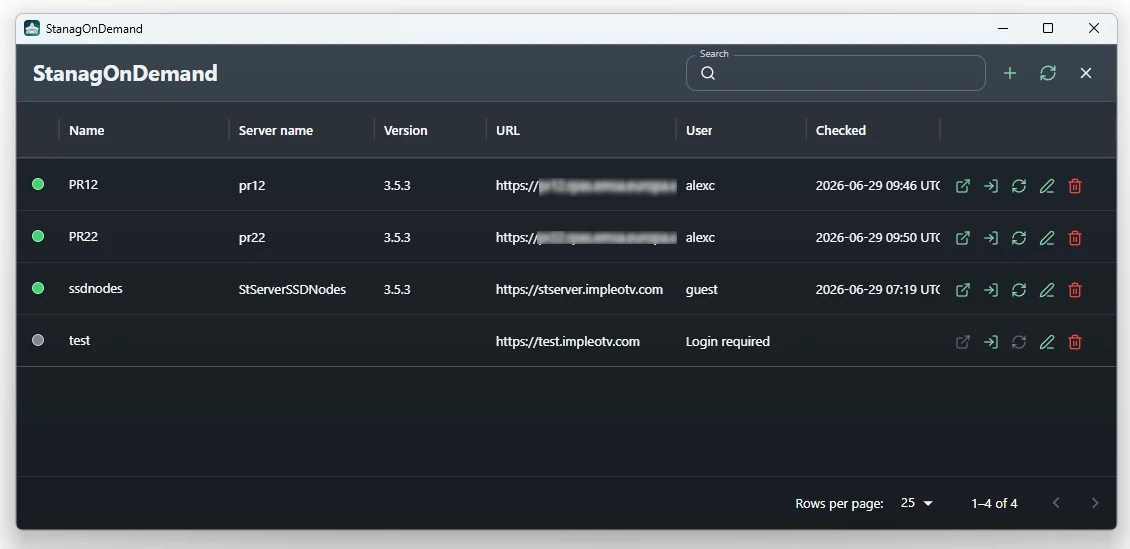
Open the StanagOnDemand window from View -> StanagOnDemand.
Workflow
StanagOnDemand uses two levels of selection:
- Configure and log in to a server.
- Open that server's mission list.
- Expand a mission to inspect its sensors.
- Play the mission's first sensor or a specific sensor.
Playback is requested through STView's local backend. The backend authenticates with the remote server, resolves the selected sensor stream, proxies the remote media through a local STView URL, and then asks the native player to open that stream.
Server Configuration
The first StanagOnDemand window lists configured servers.
| Column or control | Purpose |
|---|---|
| Status | Shows whether the last check reached the server successfully. |
| Name | The local display name for the server. Hover to view its description when one exists. |
| Server name | The server-reported name returned by the remote STServer. |
| Version | The server-reported version. |
| URL | The base http or https URL for the server. |
| User | Shows the active username or that login is required. |
| Checked | Shows when STView last checked the server. |
| Search | Filters by name, description, URL, server name, version, username, and status. |
| Add server | Creates a new server entry. |
| Refresh | Reloads the saved server list. |
Each server row also provides actions:
| Action | Result |
|---|---|
| Open missions | Opens the mission and sensor browser for an online, logged-in server. |
| Login | Saves credentials for the server after a successful authentication check. |
| Refresh | Rechecks server information and online status. |
| Edit | Changes the local name, URL, description, or username. |
| Delete | Removes the server entry and its stored credentials after confirmation. |
Double-clicking a server row also opens its missions when the server is online and credentials are configured.
Adding or Editing a Server
Click Add server or Edit to open the server dialog.
| Field | Meaning |
|---|---|
| Name | Local display name. If left empty, STView uses the URL. |
| URL | Server base URL, for example https://stserver.example.com. The URL must be absolute and must not include credentials. |
| Description | Optional local note shown as a tooltip in the server list. |
| Username | Username used for the remote STServer login. |
| Password | Password used for login. Existing stored credentials are kept unless a new password is entered during login. |
Use Save when you only want to store or update the server entry. Use Login when you want STView to authenticate immediately and store the credentials.
Credentials are stored through the operating system keyring under the STView StanagOnDemand credential service. The application database stores server metadata and a credential reference, not the password itself.
Server Status
Logging in checks the remote server's authenticated user endpoint and then reads server information. A successful login marks the server online, stores the active username, and updates the server name and version shown in the grid.
Refreshing a server repeats the check with the stored credentials. If the server cannot be reached or authentication fails, STView marks it offline. You can still edit or delete an offline server, but mission browsing requires a successful login.
Mission and Sensor Selection
Open Open missions for a configured server to show its remote mission list. The window title includes the selected server name.
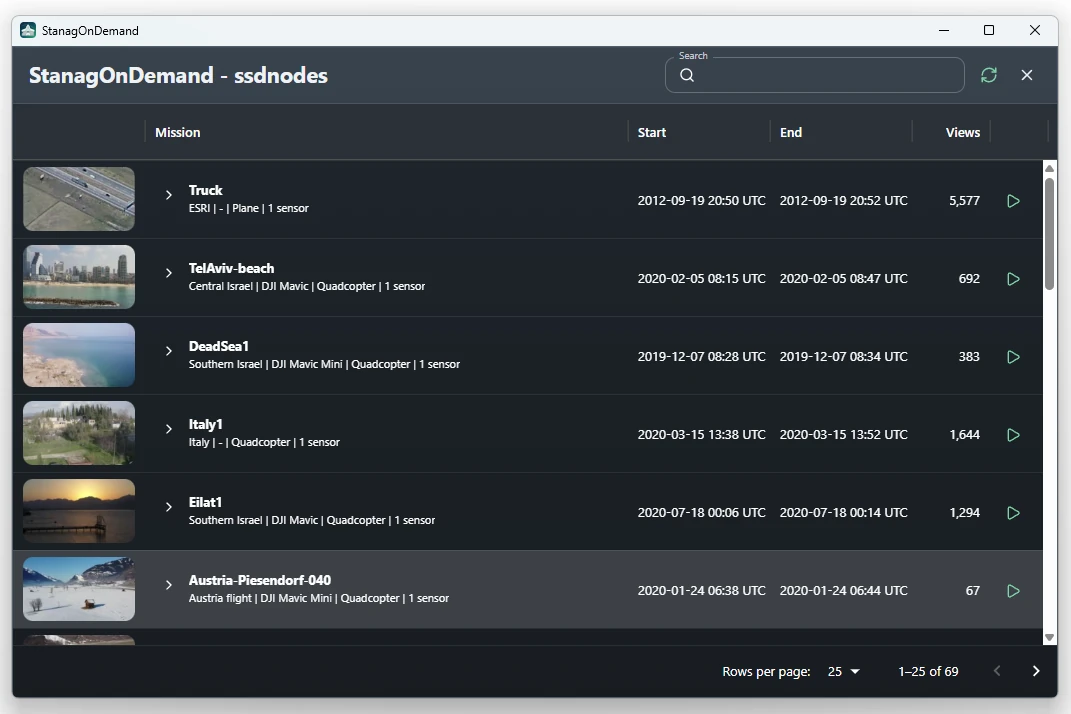
The mission table includes:
| Column or control | Purpose |
|---|---|
| Preview | Shows the mission thumbnail when the remote server provides one. |
| Mission | Shows the mission name, description, platform, platform type, and sensor count. |
| Start | Shows the mission or sensor start time in UTC when available. |
| End | Shows the mission or sensor end time in UTC when available. |
| Views | Shows the mission view total or the selected sensor's view count. |
| Search | Filters by mission name, description, platform, country, sensor name, sensor description, and sensor type. |
| Refresh | Reloads missions from the selected server. |
Mission rows can be expanded with the arrow button. Expanded missions show their sensors as indented rows. The first mission in the list is expanded automatically when the window opens.
Use the play button on a mission row to play the first available sensor. Use the play button on a sensor row, or double-click the sensor row, to play that exact sensor.
Double-clicking a mission row expands or collapses its sensor list.
Playback Behavior
When you request playback, STView asks the server for the selected mission and sensor. If you play a mission without selecting a sensor, STView requests the server's sensor list for that mission and uses the first playable sensor.
STView registers a temporary local media session, rewrites playlist references through the local backend, and sends the proxied stream URL to the native player. The selected StanagOnDemand stream behaves like a stream source in playback controls. Live-style limitations may apply depending on the remote media and manifest. For example, seeking and bookmark preview behavior can be more limited than for indexed local files.
Troubleshooting
If the mission list does not open, confirm that the server row is online and shows a configured user. Use Login again if the password changed or the stored credential is unavailable.
If a server remains offline, check that the URL is the server base URL, that it
uses http or https, and that the machine can reach the server from the
current network.
If a mission cannot play, expand the mission and try a specific sensor. The mission must contain at least one sensor with an available media manifest and access token.
If thumbnails fail but playback works, the remote thumbnail path or access token may be unavailable. Refresh the mission list and retry.