Flywheel
The Flywheel Engine is designed to provide a continuous and valid output stream even when the original source stream becomes unavailable, unstable, or temporarily impossible to decode.
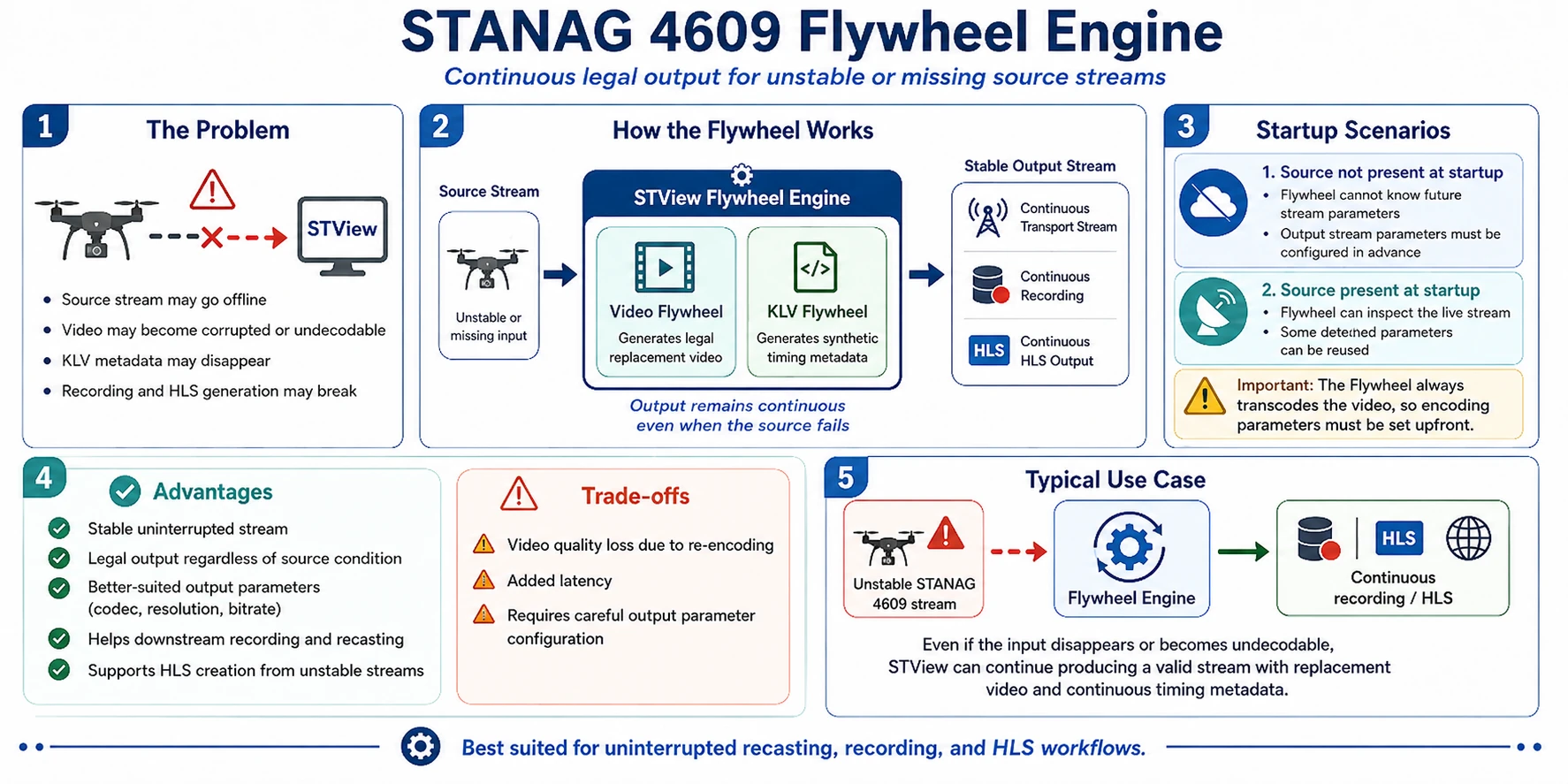
In real-world STANAG 4609 workflows, source streams are not always perfect. A stream may disappear, go offline, lose packets, contain corrupted video, or include video data that cannot be decoded and presented correctly. In such cases, a regular recasting or recording pipeline may produce interruptions, invalid output, or files that are difficult to process later.
The Flywheel Engine solves this problem by keeping the output stream alive.
When the input stream is available and valid, STView receives and processes the original stream. When the input stream disappears or becomes unusable, the Flywheel Engine automatically replaces the missing or corrupted content with a valid synthetic stream. This allows recasting, recording, and HLS generation to continue without interruption.
Why Use the Flywheel Engine?
The Flywheel Engine is especially useful when uninterrupted output is required, for example:
- Recording long-running STANAG 4609 streams for synchronized multichannel processing
- Creating HLS output from unstable live streams
- Recasting streams to downstream systems that expect a continuous transport stream
- Avoiding recording failures caused by short input interruptions
- Preserving a valid stream structure even when the source temporarily disappears
Without the Flywheel Engine, corrupted or missing source data may cause gaps in the video, missing metadata, broken recordings, or invalid HLS segments. With the Flywheel Engine enabled, the output remains a legal and continuous stream.
Startup Behavior
There are two typical startup scenarios.
In the first scenario, the source stream is not available when the application starts. In this case, the Flywheel Engine cannot automatically detect what the real source stream will look like when it eventually appears. Therefore, the required output stream parameters must be configured in advance.
In the second scenario, the source stream is already available when the application starts. In this case, the Flywheel Engine can inspect the incoming stream and reuse some of its detected parameters.
In both cases, the Flywheel Engine always transcodes the video. Because of this, the required video encoding parameters should be configured before starting the Flywheel Engine. These parameters may include codec, resolution, bitrate, frame rate, GOP structure, and other encoding-related settings.
Video Flywheel
When the original video stream cannot be used, the Flywheel Engine can generate replacement video. This replacement video may be color bars, a test pattern, or another valid synthetic video source.
This ensures that the output still contains decodable video frames, even while the real source video is unavailable. Downstream systems can continue receiving, displaying, recording, or segmenting the stream as usual.
Because the Flywheel Engine transcodes the stream, it can also create an output stream with parameters that are better suited for further use. For example, the output may use a different codec, resolution, bitrate, or encoding profile than the original source stream.
KLV Metadata Flywheel
In STANAG 4609 streams, when the source stream disappears, the video is not the only component that may be lost. KLV metadata may also disappear.
To handle this, the Flywheel Engine includes a metadata flywheel in addition to the video flywheel. When the original KLV metadata is no longer available, STView can generate synthetic timing metadata so the recorded stream remains continuous from the metadata point of view as well.
The default KLV flywheel template includes tag 11 with the value NO SIGNAL, so
synthetic packets include it automatically. You can edit the template to change
or remove this tag when needed.
This is important for systems that rely on KLV timing information, synchronization, or continuous metadata presence. Even during a source interruption, the output stream can continue to contain valid timing metadata, allowing the recording to remain structurally consistent.
Dual Flywheel Operation
The Flywheel Engine uses a dual-engine approach:
- Video Flywheel — generates valid replacement video when the original video is unavailable or unusable.
- KLV Flywheel — generates synthetic timing metadata when the original KLV metadata is missing.
Together, these two mechanisms allow STView to maintain a continuous STANAG 4609 output stream during input stream interruptions.
From the point of view of the recording or downstream processing system, the output stream remains valid and uninterrupted. When the original source stream returns to a usable state, STView can resume using the real stream content.
Advantages
The main advantages of using the Flywheel Engine are:
- The output stream remains stable and uninterrupted, regardless of the source stream state.
- The output stream can be created with parameters that are better suited for downstream use, such as codec, resolution, bitrate, or profile.
- Recording, recasting, and HLS generation can continue even when the original source stream is temporarily unavailable or corrupted.
- Missing video can be replaced with valid generated video.
- Missing KLV timing metadata can be replaced with synthetic metadata.
Limitations
Because the Flywheel Engine always transcodes the video, there are some trade-offs:
- Video quality may be reduced due to re-encoding generation loss.
- Additional latency may be introduced by the transcoding and flywheel processing pipeline.
- Output parameters should be configured carefully, especially when the source stream is not available at startup.
Typical Use Case
A common use case is recording a live STANAG 4609 stream into HLS.
HLS generation requires a stable and continuous input. If the original UDP or MPEG-TS stream contains severe errors, disappears for several seconds, or cannot be decoded, the HLS pipeline may fail to produce valid segments.
By enabling the Flywheel Engine, STView can continue producing a valid output stream even during these interruptions. The missing source video is replaced with legal generated video, and missing KLV timing metadata can be replaced with synthetic metadata.
As a result, the recording can continue, HLS segments can still be created, and the final output remains easier to play, inspect, and process.
Flywheel creates a new encoded output from the STView presentation pipeline. It
is different from source recording or source recasting: Flywheel starts from the
rendered viewer canvas, encodes it at a fixed resolution and frame rate, and can
feed other STView features such as Recasting and
Recording.
Use Flywheel when you need a controlled program output rather than a direct copy of the incoming source. Typical reasons include producing a fixed 1280x720 or 1920x1080 feed, normalizing frame rate, burning in the composed presentation for recording, or keeping an output alive when a live source temporarily stops delivering fresh frames.
Basic workflow
- Open File > Open Stream.
- Select the source on the Source tab.
- Open the Flywheel tab.
- Enable Enable Flywheel.
- Choose the Flywheel Codec.
- Choose CBR or VBR rate control. Set the Video bitrate for CBR, or the Target bitrate and Max bitrate for VBR, along with the Keyframe interval, Default PID, Framerate, Width, and Height.
- Open KLV inside the Flywheel tab if you need to adjust synthetic KLV fallback settings.
- Use the Recast or Recorder tab to select Flywheel as that feature's source.
- Open the source and start playback.
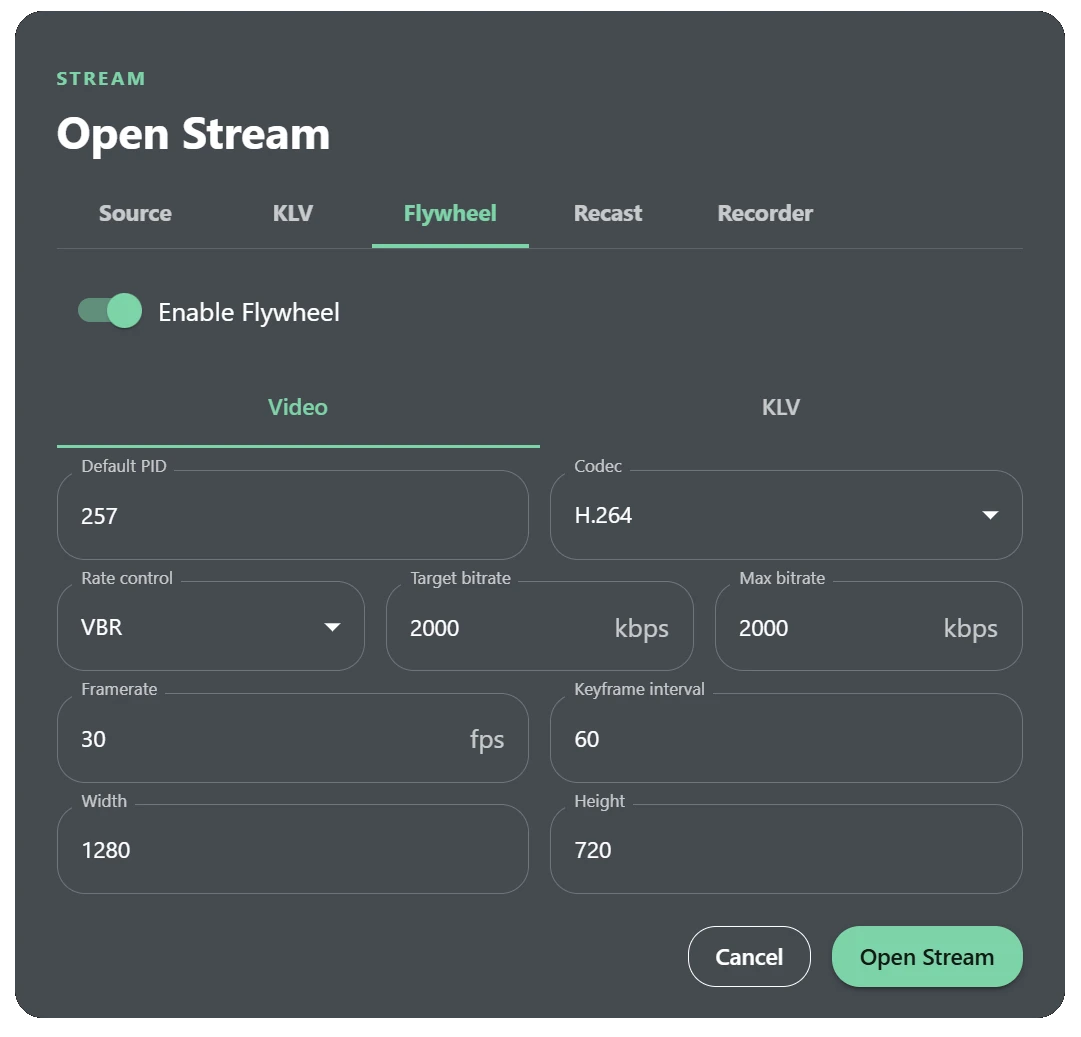
Output video settings
| Setting | Use |
|---|---|
| Codec | Selects H.264 or H.265 for the Flywheel video encoder. |
| Rate control | Selects constant bitrate (CBR, the default) or variable bitrate (VBR). |
| Video bitrate / Target bitrate | Sets the CBR bitrate or the VBR target bitrate in kbps. Higher values usually preserve more detail and produce larger outputs. |
| Max bitrate | Sets the maximum bitrate for VBR and must be at least the target bitrate. This control is shown only for VBR. Encoder support varies; unsupported controls use the encoder's best available target-bitrate behavior. |
| Keyframe interval | Controls how often the encoder requests keyframes. Shorter intervals can improve segmenting and recovery, at the cost of larger output. |
| Default PID | Sets the Flywheel MPEG-TS video PID when output starts before a source video PID is known. The default is 256. If the source video PID is already detected when Flywheel starts, STView uses the source PID instead. |
| Framerate | Sets the fixed Flywheel output frame rate. Decimal values such as 29.97 are supported; 29.97 uses the exact 30000/1001 rate. |
| Width and Height | Set the encoded output resolution. |
How Flywheel changes the output
Flywheel is an encoded presentation feed. It re-encodes video, so it does not preserve the original encoded video bitstream in the way source passthrough can.
The Flywheel output has its own timing. When source frames are sparse or a live stream temporarily stops producing new frames, Flywheel can continue at its configured cadence by repeating the latest presentation frame or emitting the SDK timeout visual while the app remains running.
For MPEG-TS sources with KLV, Flywheel can forward decoded KLV packet payloads into MPEG-TS output targets. The outgoing KLV timing follows the Flywheel output timeline, not the original source packet timeline.
KLV
The Flywheel tab contains separate Video and KLV pages. The KLV page controls synthetic KLV fallback generation for Flywheel outputs.

When Generate synthetic data is enabled, STView starts the synthetic KLV
scheduler when Flywheel video generation starts. Real source KLV is still
forwarded whenever it is available. If no live KLV is available for a source KLV
PID, Flywheel emits minimal MISB ST 0601 packets for that PID. If no source KLV
PID has been detected, Flywheel emits on the configured Default PID, which
defaults to 497.
When a source KLV PID is already known, STView uses that source PID for real and synthetic fallback KLV packets. The KLV Default PID is only used when Flywheel starts without any source KLV PID available.
Preserve detected source KLV type is enabled by default. When enabled and a source KLV stream is present at Flywheel startup, the output keeps the detected ASYNC or SYNC type. If no source KLV type is detected, Flywheel uses the selected KLV Type. Disable the switch to force the selected type even when the source type is known.
The Fallback rate controls the synthetic packet cadence and defaults to
10 Hz.
Generated packets include:
| Tag | Value |
|---|---|
| 2 | Incrementing Precision Timestamp. |
| 3 | Last known Mission ID, when available. |
| 4 | Last known Platform Tail Number, when available. |
| 10 | Last known Platform Designation, when available. |
| 11 | NO SIGNAL. |
| 47 | Generic Flag Data with Image Invalid set. |
| 48 | Last known Security Local Set, when available. |
| 65 | Last known UAS LS Version Number, or 16 when unknown. |
You can edit the klv packet template:
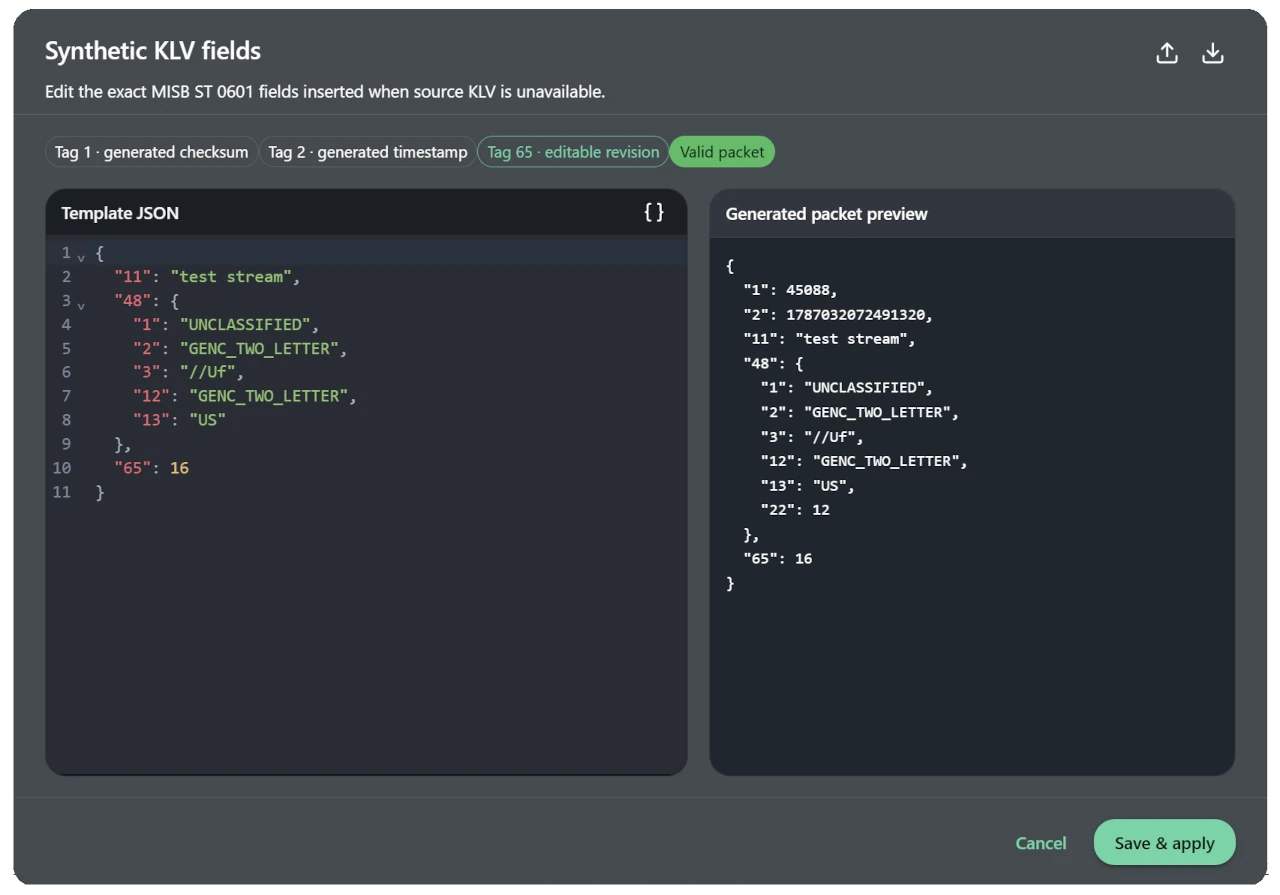
Each tag may appear only once at an object level. The editor rejects duplicate keys before validation, including escaped or leading-zero spellings of the same numeric tag. Tags 1 and 2 are generated automatically, while tag 65 is required and selects the editable MISB ST 0601 revision.
Viewing Flywheel KLV in the KLV window
The KLV window can present the original source feed and the Flywheel output feed side by side in its PID selector. Original entries are labeled PID n and Flywheel entries are labeled PID n · Flywheel. If both feeds use the same numeric PID, they remain separate choices.
A Flywheel entry presents the complete successfully submitted output feed for that PID: source KLV passed through while it is available and synthetic fallback KLV generated while it is not. Its packet timing follows the Flywheel output timeline.
The Flywheel PID appears only while a KLV-capable Recorder or Recast output is running with Flywheel and synthetic KLV enabled. Enabling Flywheel in the source configuration alone does not start an output or add a PID to the selector. The entry is removed when the output stops. If several eligible Flywheel outputs are running, the KLV window follows the most recently started one.
Selecting PID n · Flywheel affects only the KLV window. The video overlay, Map, Session Information, and indexed KLV features continue using original source metadata. See KLV Metadata for the selector, packet views, pause behavior, rates, downloads, and troubleshooting information.
Using Flywheel With Recasting
On the Recast tab, set Source to Flywheel when you want Recast to publish the Flywheel-encoded program feed instead of the original source.
This changes Recast behavior in these ways:
- Recast uses the Flywheel codec, rate control, target/maximum bitrate, keyframe interval, frame rate, width, and height settings.
- Recast always encodes from the Flywheel path. It does not use original-source video passthrough.
- In the current STView recast path, the Flywheel source is started without overlay burn-in for the recast output.
- UDP and SRT targets always receive MPEG-TS output generated by the Flywheel path. This output is not suitable for reopening in STView as an MPEG-TS source.
- WHIP targets publish a WebRTC feed generated from the Flywheel path.
See Recasting for Recast target setup and target-specific notes.
Using Flywheel With Recording
On the Recorder tab, set Source to Flywheel when you want the recording to capture the Flywheel output instead of the original media source.
This changes Recording behavior in these ways:
- Recording uses the Flywheel codec, rate control, target/maximum bitrate, keyframe interval, frame rate, width, and height settings.
- Video passthrough is not available because Flywheel is already a newly encoded presentation feed.
- Flywheel recording supports MPEG-TS and HLS with MPEG-TS segments. MP4 output and HLS MP4 segments are not available for Flywheel recording.
- Flywheel-generated MPEG-TS files and HLS MPEG-TS segments are not suitable for reopening in STView as normal MPEG-TS input.
- Flywheel recording can be used while looping file playback, where original source recording is disabled.
See Recording for file naming, segmentation, overwrite behavior, and recording monitoring.
Notes and limitations
- Encoding cost depends on codec, resolution, frame rate, bitrate, and available hardware encoder support. If output falls behind, reduce resolution, framerate, bitrate, or source workload.
- A single Flywheel configuration has one output size and frame rate. Change the Flywheel settings before starting a Recast or Recording target that uses it.