Object Detection
Object detection analyzes video frames with an ONNX neural-network model and can draw detection boxes over the live viewer. STView runs detection as a video processor: decoded frames are sampled from the current source, resized for the detector, converted into the tensor format expected by the model, passed to ONNX Runtime for inference, filtered by class and confidence settings, and then drawn as an overlay above the video.

The detection overlay is a live viewer overlay. It is not burned into recordings, snapshots, or the source media unless a separate workflow captures the composed screen.
ONNX is an open model-exchange format for machine-learning models. In STView,
the ONNX file contains the trained object detector, such as a YOLO-family model.
ONNX Runtime is the execution engine that loads that model and runs inference
on CPU or, when available and selected, a platform acceleration provider. STView
does not train models inside the application; you select a compatible .onnx
model that was exported elsewhere.
Object detection is optional and requires the Detect license option, an ONNX Runtime library staged with the application, and a compatible ONNX model.

How Detection Works
When object detection is enabled and playback is running, STView creates an ONNX detector for the current stream. The detector receives frames at the configured maximum analysis rate, scales them to the configured input size, and runs the selected model. The result is a set of boxes, class IDs, labels, and confidence values in source-frame coordinates.
STView then applies:
- the global confidence threshold;
- the global IoU threshold for suppressing overlapping boxes;
- the class filter, if one is configured;
- any per-class confidence thresholds.
If Draw overlay is enabled, accepted detections are rasterized into a transparent overlay and composited over the video. STView keeps the latest fresh inference result available between detector passes so the overlay can remain responsive even when the detector runs slower than the display frame rate.
This is object detection, not full target tracking. Boxes identify detected objects in recent frames, but STView does not assign stable target identities or preserve unmatched targets across missed detections.
Enabling Detection
Open Settings or Options, then select the Detection tab.
- Stop playback. Detection settings are editable only while the player is stopped.
- Enable Object detection.
- Select an ONNX model file. Use the folder button to browse for a
.onnxfile. - Choose a provider, input size, FPS limit, thresholds, class filter, and overlay settings.
- Save the settings.
- Start playback. Use the toolbar object-detection button to enable or disable detection quickly with the saved settings.
If detection is enabled without a model path, STView warns that no model is
selected. Some builds may also try a staged default model such as
models/yolo26n.onnx, but production use should select the intended model
explicitly.
ONNX Model Selection
The ONNX model field should point to a YOLO-family object-detection model
exported as .onnx. The model determines what can be detected. A COCO-trained
model may detect generic classes such as cars, buses, trucks, boats, and
people, while a mission-specific model may detect domain-specific targets.
Choose a model that matches the scene and object types you care about. A model trained for street-level imagery may perform poorly on aerial, maritime, thermal, or low-light video. For operational UAV or surveillance workflows, use a model trained or fine-tuned on representative footage.
STView reads class labels from ONNX metadata when the model contains them. If the model does not provide labels, STView falls back to the default COCO class label list so class IDs can still be displayed and selected.
The selected model must be compatible with STView's detector path. The SDK detector expects a YOLO-family output layout and a single RGB float tensor input. If startup fails, check that the model file exists, that it is a valid ONNX model, and that its input/output layout is supported.
Use Input scale to choose how RGB float values are packed for the model.
Auto selects the detector input scale for common YOLO-family exports.
Existing Ultralytics-style models use normalized 0..1 RGB input, while models
identified as YOLOX use raw 0..255 RGB input. If a YOLOX model is renamed so
the model path and metadata no longer contain yolox, select 0..255. STView
also decodes YOLOX anchor-free grid outputs before confidence filtering and
NMS.
Runtime Provider
The Provider setting chooses how ONNX Runtime should execute the model:
| Provider | Meaning |
|---|---|
| Auto | Let STView choose a platform-appropriate default. |
| CPU | Run inference on the CPU. This is usually the most predictable option. |
| DirectML | Prefer the Windows DirectML provider when it is available and allowed. |
| CoreML | Prefer the macOS CoreML provider when it is available. |
| CUDA | Prefer the Linux CUDA provider when a compatible ONNX Runtime GPU package, NVIDIA driver, CUDA, and cuDNN runtime are available. |
Provider availability depends on how STView was packaged and what runtime libraries are installed beside the application. If the selected provider cannot initialize, STView may fall back to CPU in supported cases or report a detector startup error in Session Info > Detection.
CPU is a good first troubleshooting choice because it removes GPU-provider setup from the problem. GPU providers can improve throughput, but they also depend on driver versions, ONNX Runtime provider libraries, and supported model operators.
Input Size and FPS
Input W and Input H set the frame size submitted to the detector. Larger sizes preserve more detail and can improve small-object detection, but they increase resize, tensor-packing, and inference cost. Smaller sizes are faster but may miss small or distant targets.
The default is 960 x 960, with valid values from 1 to 4096 pixels in each
dimension. Use square sizes when the model was trained that way. Use the model's
native input size for fixed-shape models when known.
FPS limits how often STView submits frames to the detector. The default is
10. Lower values reduce CPU/GPU load and can keep playback smoother. Higher
values reduce detection latency but cost more. A value of 0 removes the
analysis-rate throttle.
If playback becomes less responsive, reduce FPS first, then reduce input size.
Confidence and IoU
Confidence is the global minimum score required for a detection to be kept.
The default is 0.25. Raising it reduces false positives but can miss weak or
partially visible targets. Lowering it shows more candidates but may introduce
noise.
IoU controls non-maximum suppression for overlapping boxes. The default is
0.45. Lower values suppress overlapping boxes more aggressively. Higher
values allow more overlapping detections through.
These values are normalized from 0 to 1. Tune them with representative
video, not only a single frame, because lighting, motion blur, compression, and
object scale can change confidence behavior.
Classes
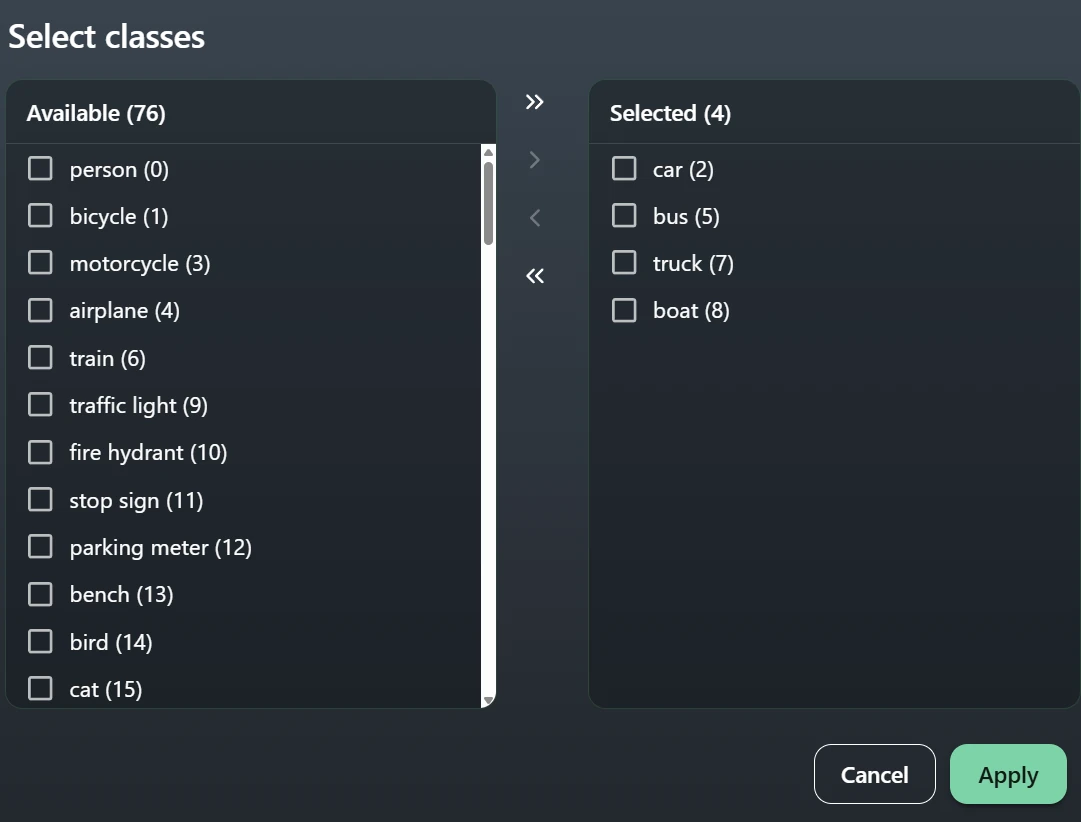
The Class filter controls which model classes are accepted after inference. Use comma-separated class IDs such as:
2,5,7,8
The default filter is 2,5,7,8, which corresponds to COCO car, bus,
truck, and boat. This default is useful for broad vehicle and maritime
detection, but it is only meaningful for models whose class IDs match COCO.
Leave the field empty, or use all, to accept every class emitted by the
model. Use the class-selection button to open a picker based on labels read from
the selected model, or from the fallback COCO label list when model metadata is
not available.
Per-Class Thresholds
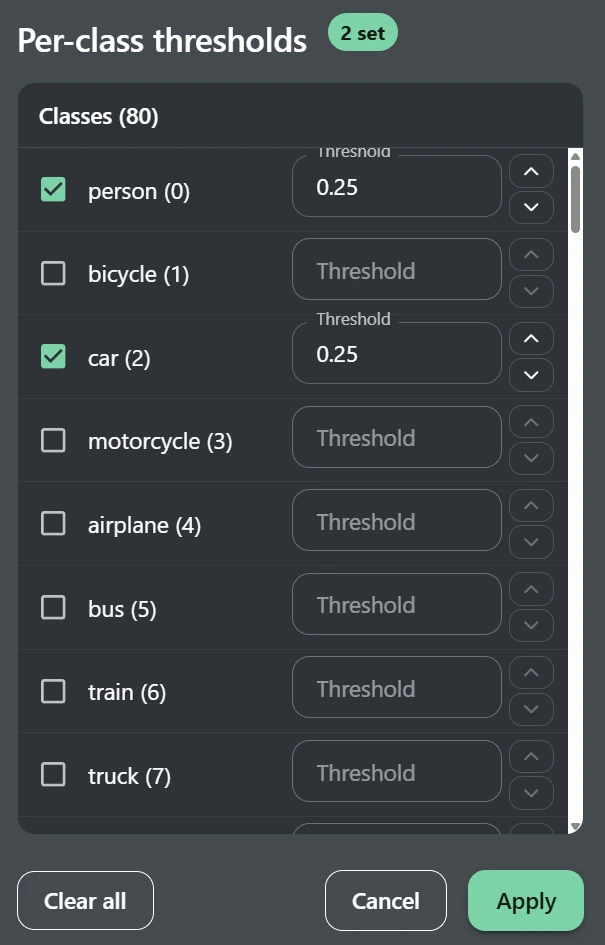
Per-class thresholds let you require different confidence levels for different classes while keeping the global Confidence value for everything else. The text format is:
CLASS_ID:THRESHOLD,CLASS_ID:THRESHOLD
For example:
2:0.65,7:0.70,8:0.55
This means class 2 must reach 0.65, class 7 must reach 0.70, and class
8 must reach 0.55. Accepted classes without a per-class entry use the
global confidence threshold.
Use the threshold button to edit these values through the class list. Per-class thresholds are useful when one class is noisy and needs a higher gate, while another class is important enough to keep at a lower gate.
Overlay Settings
Draw overlay controls whether accepted detections are drawn over the video. Disable it if you want detection statistics and callbacks without visible boxes.
Box px controls detection box line thickness in source-overlay pixels. A
value of 1 is the default. Larger values can improve visibility on high
resolution video. A value of 0 is accepted by the settings UI, but it can make
boxes difficult or impossible to see depending on the rendering path.
Detection boxes are drawn in the viewer overlay and follow the current video presentation. They are separate from manual overlay-editor items and from KLV VMTI metadata overlays.
Monitoring Detection
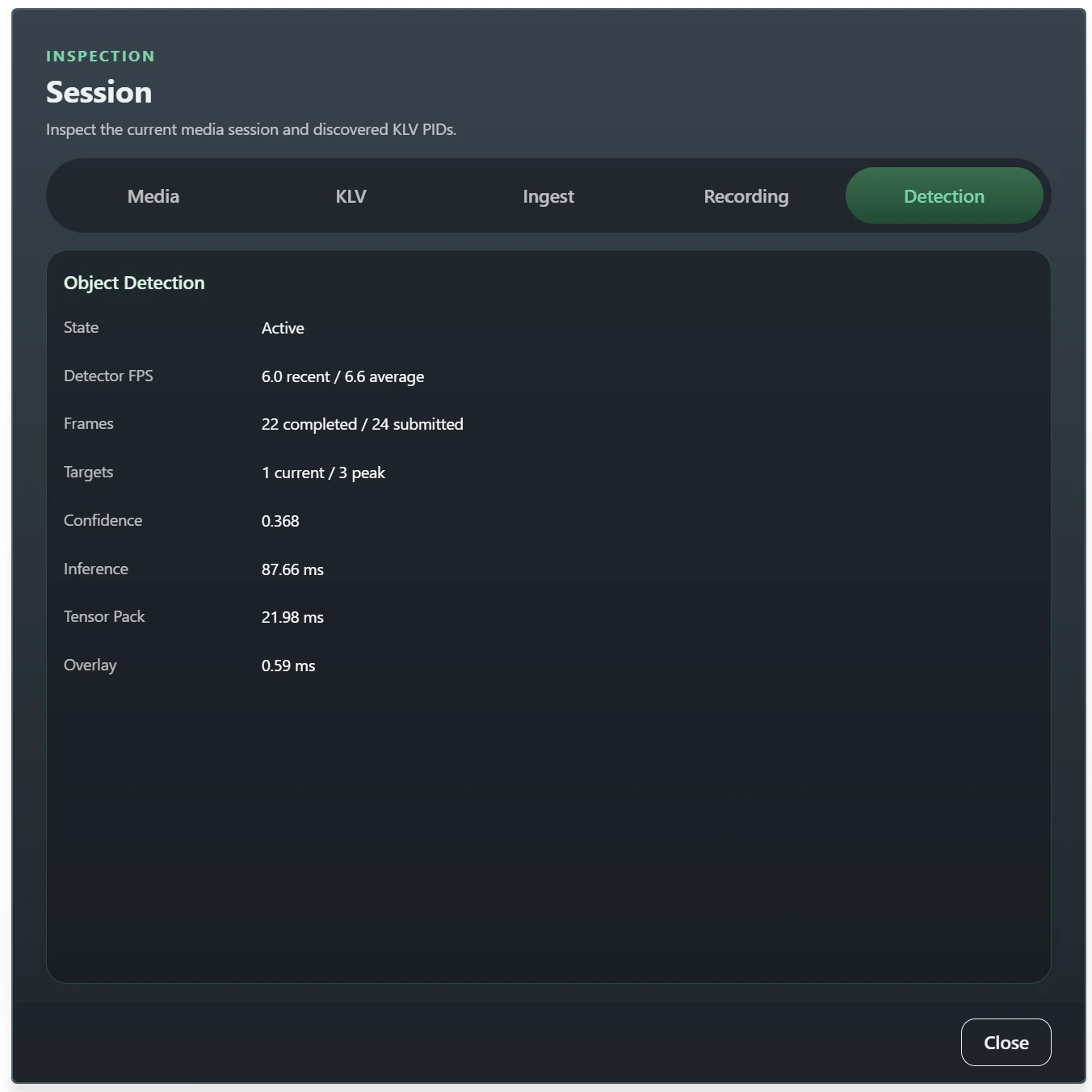
Open View > Session Info and select the Detection tab to inspect runtime state.
The tab reports whether detection is disabled, pending, or active. If detector startup fails, it shows the error reported by the native detector setup. When detection is active, the tab shows recent and average detector FPS, submitted and completed frame counts, current and peak target counts, average confidence, ONNX inference time, tensor-packing time, and overlay rasterization time.
Use these numbers to diagnose performance:
- Low detector FPS usually means the model, provider, input size, or hardware is too heavy for the requested rate.
- Submitted frames much higher than completed inferences means the detector is falling behind and dropping stale work.
- High ONNX inference time points to model/provider cost.
- High tensor-packing or overlay time points to preprocessing or drawing cost.
Troubleshooting
If no boxes appear, first confirm that Object detection is enabled, playback is running, Draw overlay is on, and the selected class filter includes classes the model can emit.
If startup fails, check:
- the ONNX model path is correct and readable;
- the model is a supported YOLO-family ONNX detector;
- ONNX Runtime libraries are staged beside the application;
- the selected provider is available on the machine;
- the license includes the Detect option.
If detection is active but inaccurate, use a more suitable model, adjust the class filter, raise or lower confidence thresholds, and test with video that matches the operating conditions. Generic demo models are useful for proving the pipeline, but domain-specific footage usually needs a domain-trained model.