File Playback
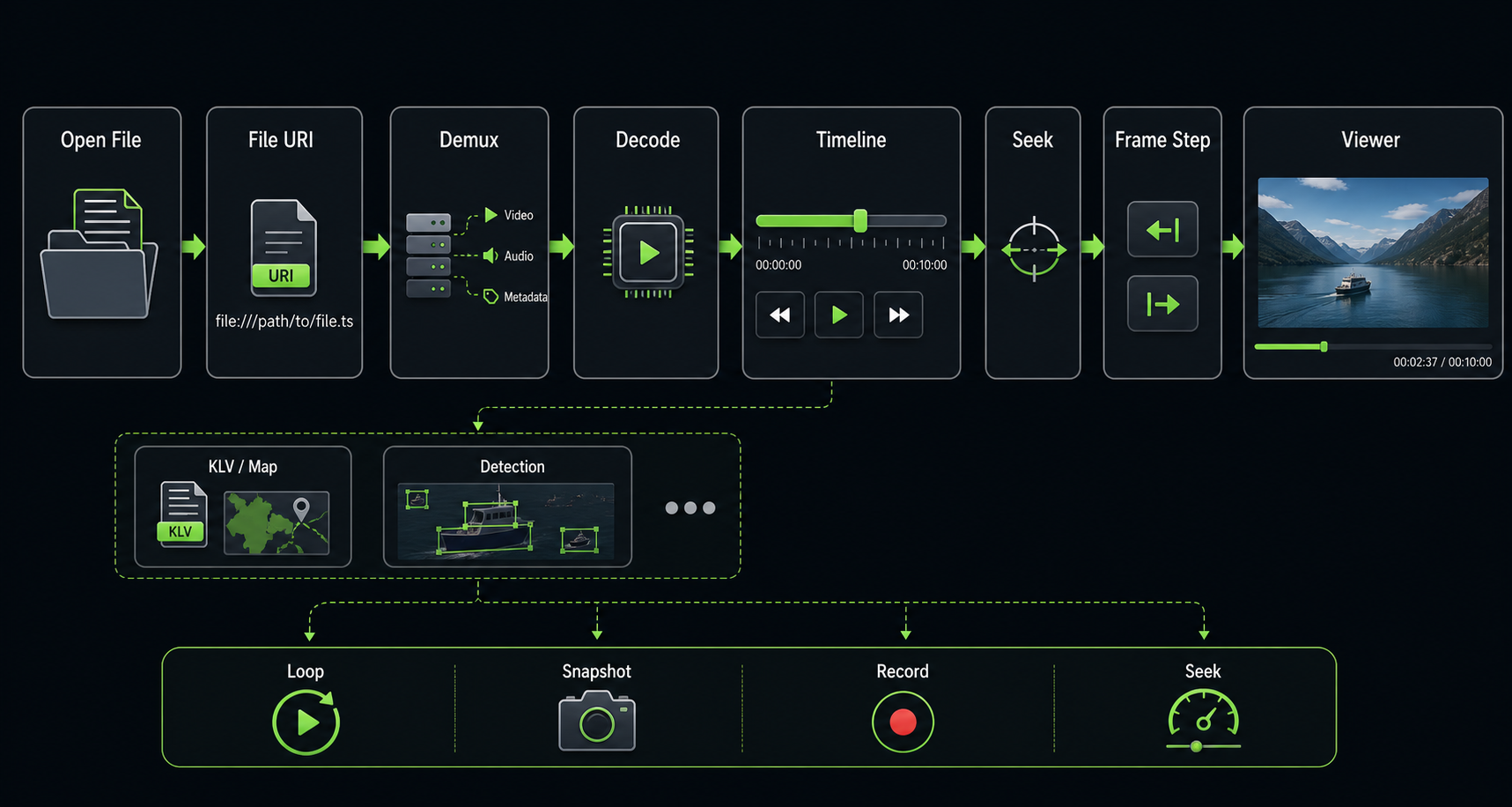
Use the Open File dialog to load a local video or STANAG 4609 file for playback and inspection.
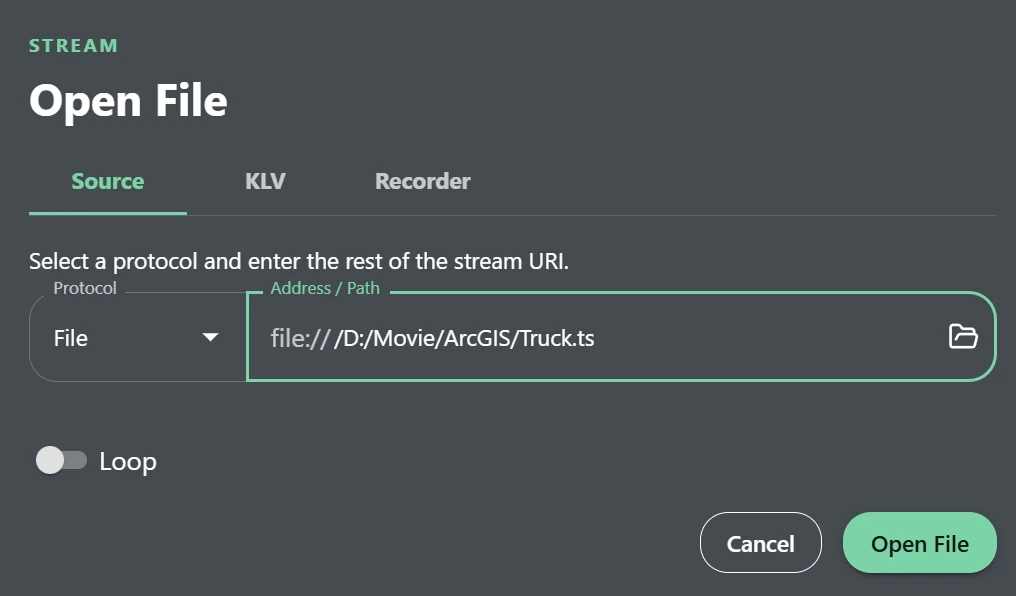
Source Tab
The Source tab defines the media source to open.
- Open the Open File dialog.
- Select the Source tab.
- In the Protocol field, select File.
- In the Address / Path field, enter the file path or click the folder button to browse for a file.
- Enable Loop if the file should automatically restart when playback reaches the end.
- Click Open File to load the selected file.
Example file URI:
file:///D:/Movie/ArcGIS/Truck.ts
After the file is opened, it is loaded into the player and can be reviewed using the playback controls, seek slider, frame stepping, recording, snapshot, map, KLV metadata, object detection, overlays, and full-screen view.
PCAP and PCAPNG Playback
STView can open packet capture files with the .pcap and .pcapng extensions when they contain playable MPEG-TS over UDP traffic. Select the capture through the same File protocol flow: enter the capture path in Address / Path or choose it with the folder button.
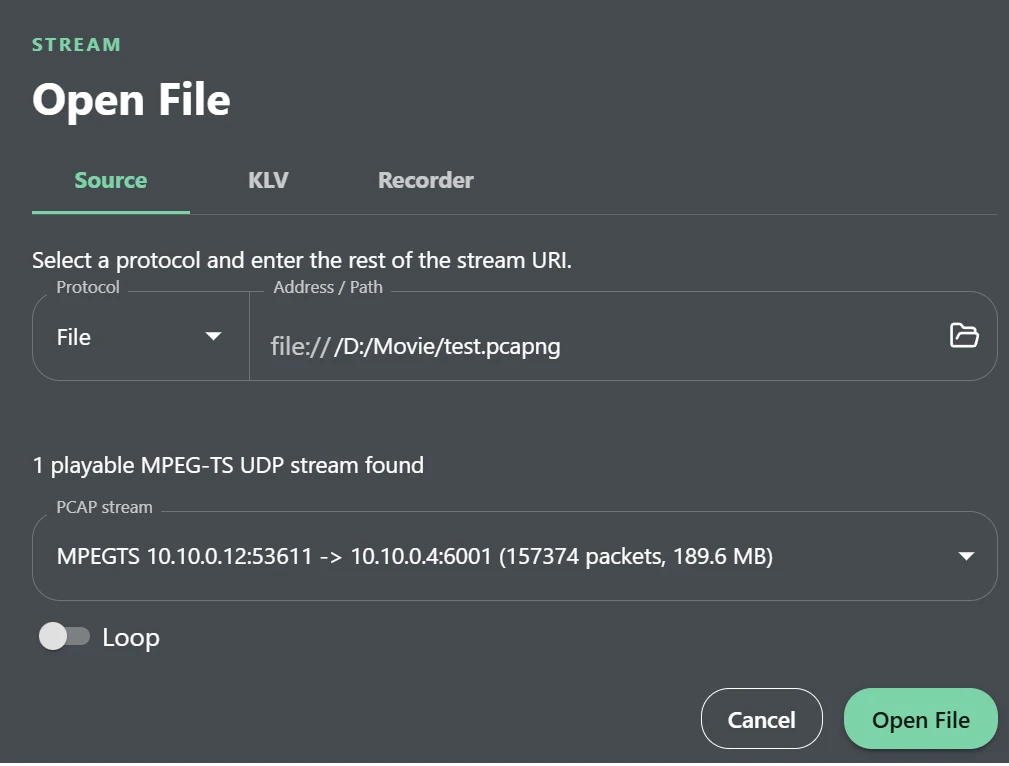
When a PCAP or PCAPNG file is selected, STView automatically scans the capture before opening it. This stream discovery step looks for UDP packet flows that carry MPEG-TS payloads and lists the playable streams in the PCAP stream field. Each discovered stream is shown with:
- the detected payload kind, such as
MPEG-TS; - the source IP address and port;
- the destination IP address and port;
- the packet count and payload size found for that flow.
If multiple playable streams are present, choose the stream you want to review before clicking Open File. STView opens only the selected stream from the capture. Unsupported flows may be shown as unsupported, and the dialog prevents playback until a playable MPEG-TS UDP stream is selected.
If no playable stream is found, confirm that the capture contains MPEG-TS over UDP packets and that the selected file is a valid .pcap or .pcapng capture. Other traffic in the same capture is ignored for playback.
| Button | Description |
|---|---|
| Open File | Opens the selected file and starts or prepares playback. |
| Cancel | Closes the dialog without opening a file. |
| Folder Button | Opens a file browser so the operator can select a local file instead of typing the path manually. |
Loop Playback
The Loop option is useful for repeated analysis, demonstrations, testing, and operator training. When enabled, playback automatically returns to the beginning of the file after reaching the end.