Cut
The Cut tool exports a selected time range from the current file source. Use it when you need to pull a short clip or packet-capture slice out of a larger source without recording a new session.
Open the tool from Tools > Cut in the transport controls. STView shows a range selector on the playback timeline. Drag the start and stop handles to choose the section to export, then click Export.

Basic Workflow
- Open a file source and start playback.
- Open Tools > Cut.
- Drag the range handles to the required start and stop offsets.
- Click Export.
- Choose the file format.
- Choose a destination folder.
- Enter or confirm the file name.
- Click Export in the dialog.
The export dialog shows the source name, start offset, stop offset, and selected duration before writing the output. STView remembers the last destination folder used for cut exports.
If the output file already exists, STView asks before overwriting it. Export progress and the final output path are shown in the dialog.
Range Selection
The range is selected on the playback timeline using source-relative offsets. The Cut tool is available for file playback when the timeline is visible. It is not shown for live-only sources that do not have a file-backed timeline.
The selected range must be shorter than the full source and must meet the minimum range enforced by the tool. For long sources, that minimum is 10 seconds. For sources shorter than 10 seconds, the tool uses the source duration as the minimum, so there may be no shorter range available to export.
Export Formats
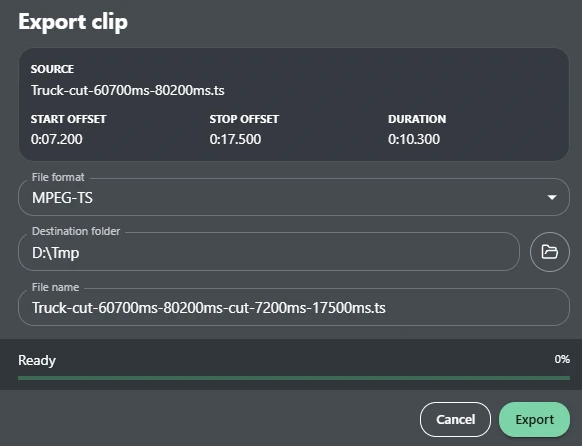
For regular media files, the Cut dialog offers:
| Format | Extension | Use when |
|---|---|---|
| MPEG-TS | .ts | You want transport-stream output and need to keep KLV metadata when the source contains it. |
| MP4 | .mp4 | You want broad media-player and editor compatibility, and only need video and audio. |
MPEG-TS export preserves the original KLV information when KLV exists in the selected source range. A cut from a STANAG 4609 MPEG-TS source therefore remains a STANAG 4609 transport stream, with video, audio, and KLV metadata kept together.
MP4 export remuxes only MP4-compatible video and audio streams. KLV metadata is
not written to the .mp4 output.
STView builds the default file name from the source name and selected range, for example:
mission-cut-12000ms-45000ms.ts
You can edit the file name before export. STView applies the extension for the selected format.
PCAP Cutting
When the current source is a .pcap or .pcapng file, the Cut dialog adds a
packet-capture export format that matches the source capture type:
| Source | Cut export |
|---|---|
.pcap | .pcap |
.pcapng | .pcapng |
STView does not convert between legacy PCAP and PCAPNG during cut export. A
capture opened from .pcap exports as .pcap, and a capture opened from
.pcapng exports as .pcapng. Use that packet-capture format when you need to
keep the result as a network capture for tools such as Wireshark instead of
extracting a media-only .ts or .mp4.
PCAP cutting uses the same selected start and stop offsets as the visible timeline. Use it to create a smaller capture around the segment you reviewed in STView.
The dialog can also export MPEG-TS or MP4 while playing from a packet capture. In that case, STView exports the playable MPEG-TS stream selected from the capture, not a new packet capture:
| Format | Result from .pcap / .pcapng playback |
|---|---|
| MPEG-TS | Extracts the selected media stream into .ts. If that stream contains KLV, the KLV is preserved and the output is a STANAG 4609 transport stream. |
| MP4 | Extracts the selected media stream and remuxes compatible video and audio into .mp4. KLV metadata and other packet-capture traffic are dropped. |
| PCAP / PCAPNG | Writes a smaller packet-capture file using the PCAP options below. |
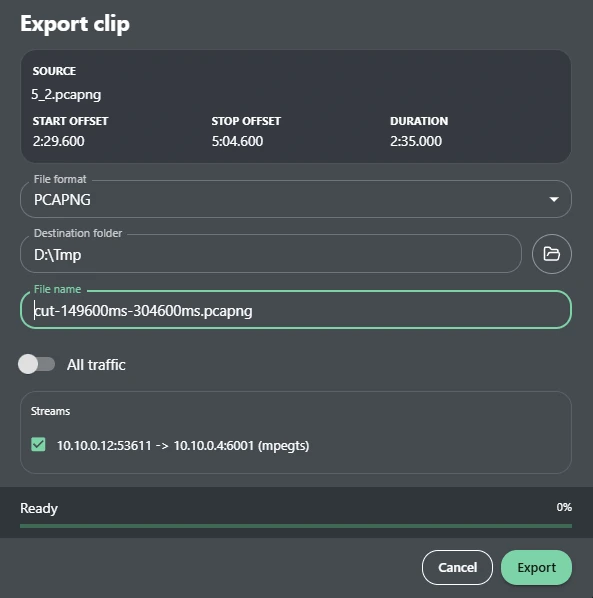
The PCAP export options include an All traffic switch:
| Option | Result |
|---|---|
| All traffic on | Writes all packets in the selected capture range, including unrelated network traffic between the first and last matching media packets. |
| All traffic off | Lets you choose specific detected streams before exporting. |
When All traffic is off, STView probes the capture and lists detected streams by source address, source port, destination address, destination port, and payload kind. Select one or more streams to include in the cut. Export is disabled until at least one stream is selected.
Use All traffic when you need the exported capture to preserve surrounding network context. For the indexed single-stream playback path, STView finds the capture records that bracket the selected media range, seeks to the beginning of that range, and copies the original capture bytes through the end of the range without re-parsing or rebuilding each packet. This preserves the original packet records in that slice, while keeping the same outer capture-file format as the source. If STView cannot use the indexed copy path, it falls back to the general PCAP exporter, which scans packet timestamps and writes matching packets into a new capture file of the same format.
Turn All traffic off when you want a smaller capture focused on selected detected streams. In that mode, STView writes only packets from the chosen streams that fall within the selected time range.
Notes and Limitations
- Cut export is a file-source workflow. Use Recording for live stream capture.
- For encoded media, exact visual boundaries can depend on the source encoding and keyframe layout.
- MPEG-TS export preserves KLV only when KLV exists in the selected source range. It does not synthesize metadata that was not present.
- MP4 export is video/audio only; use MPEG-TS or PCAP/PCAPNG when KLV retention matters.
- PCAP stream selection depends on what STView can detect during probing. If no streams are listed, use All traffic or inspect the source capture outside STView.
- Closing the Cut tool only hides the range selector. It does not change playback or delete exported files.