Missions
Missions are saved playback entries for media sources that STView can reopen later. A mission stores the source, display name, optional description, platform, tags, time range, thumbnail, and last-played information.
Use missions when you need to return to previously opened files or streams, keep a working catalog of reviewed sources, or associate bookmarks with a named review context.
Opening Missions
STView exposes missions in two places:
| Entry point | Purpose |
|---|---|
| File menu recent missions | Quickly reopens one of the most recent saved missions. |
| File -> More missions ... | Opens the full Missions table. |
| View -> Missions | Opens the full Missions table. |
Selecting a mission requests playback of its primary source. STView restores the source and updates the mission's last-played time. If the mission has no playable source, playback cannot start.
Recents
The File menu shows recent missions directly below Open File and Open Stream. These entries are the fastest way to reopen sources you have used recently.
Recent mission entries are taken from the same local mission database as the Missions table. Opening a recent mission starts playback of its saved source and updates its last-played time, which keeps actively used sources near the top of the recent list. If two recent missions have the same display name, the menu adds a short source qualifier so you can tell which saved source each entry will open.
Use File -> More missions ... when the source you need is not visible in the recent list. That opens the full Missions table, where you can search, refresh, edit, delete, or play any saved mission.
Saving the Current Source
STView saves mission records for sources you open so they can appear in recent missions and in the Missions table. You can also save the currently loaded source from the Missions window:
- Open a file or stream.
- Open View -> Missions.
- Click Add current source.
- STView saves or updates the mission for the current source.
If no source is selected, STView reports that there is nothing to save.
For file sources that are known to STView's ingest database, the mission can be enriched with start time, end time, and a thumbnail. Stream missions may have less timing information because streams do not always have a fixed media duration or indexed metadata.
Mission Details
Each mission can include:
| Field | Meaning |
|---|---|
| Thumbnail | A preview image captured from the source when available. |
| Name | The mission display name. New missions are named from the source. |
| Description | Free text for review notes or mission context. |
| Type | The source type, such as file, stream, or mixed when multiple sensors differ. |
| Platform | Optional platform or collection-system label. |
| Tags | Reusable labels for grouping and search. Manage the shared catalog from View > Tags; see Tags. |
| Start time | The first known mission time, usually derived from ingested file metadata. |
| End time | The last known mission time, usually derived from ingested file metadata. |
| Sensors | Source records used to reopen the mission. Current UI workflows create a primary source entry. |
Mission names, descriptions, platform values, and tags can be edited from the Missions table. Source records and timing are managed by STView from the current source and ingest data.
Missions Table
Open the full table from View -> Missions or File -> More missions ....
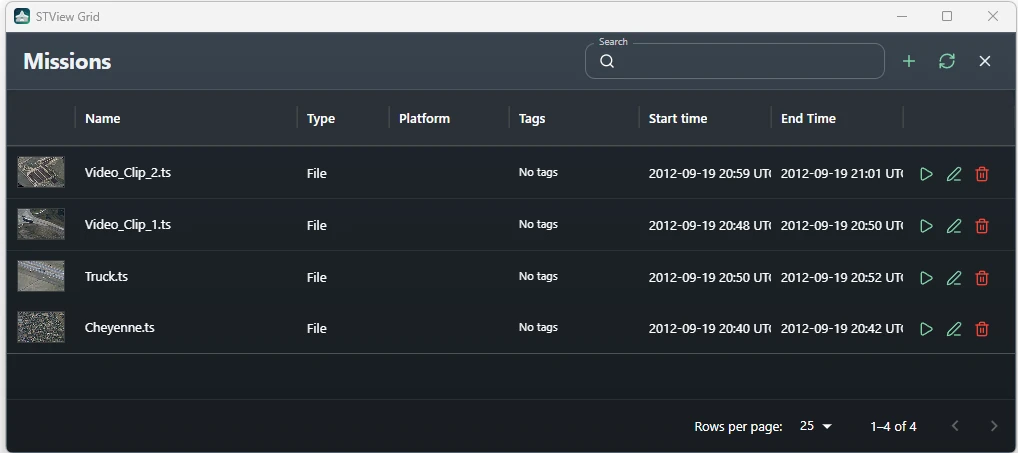
The table includes:
| Column or control | Purpose |
|---|---|
| Preview | Shows the saved thumbnail. Hover it for a larger preview. |
| Name | Shows the mission name. Hover to view the description when one exists. |
| Type | Shows the source type. |
| Platform | Shows the optional platform value. |
| Tags | Shows selected mission tags. |
| Start time | Shows the mission start time when available. |
| End time | Shows the mission end time when available. |
| Search | Filters by name, description, type, platform, tags, and mission times. |
| Add current source | Saves the currently loaded source as a mission. |
| Refresh | Reloads missions from the local database. |
Each row also provides actions:
| Action | Result |
|---|---|
| Play mission | Reopens the mission source and starts playback. |
| Edit mission | Opens the edit dialog for name, description, platform, and tags. |
| Delete mission | Removes the mission after confirmation. |
Double-clicking a mission row also plays the mission.
Missions and Bookmarks
Bookmarks created while a mission is active store the current mission context. This helps STView play a bookmark through the matching mission when possible. The bookmark still keeps its own source and position, so it can also be found from the Bookmarks window and shown on the seek slider for the current source.
Deleting a mission does not delete its bookmarks. Existing bookmarks are detached from that mission and remain available by source.
Notes and Limitations
- Missions are local STView records stored in the application database.
- Current UI workflows focus on saving the current primary source as a mission.
- Start and end times depend on available ingest and metadata information.
- Editing a mission changes catalog metadata such as name, description, platform, and tags; it does not rewrite the underlying media source.