KLV Metadata
The KLV window is a live packet inspector for metadata detected in the source stream and metadata produced by an active Flywheel output. Each source is kept separate so that an original packet and its Flywheel counterpart can be inspected independently, even when they use the same PID number.
Start playback, then use the KLV window button in the playback toolbar to open the inspector. The window begins updating as soon as a packet is available for the selected feed.
Tag view
Brief mode presents the decoded tags in a compact tree for quick inspection. Expand objects and arrays to inspect their nested values.

Detailed info view
Detailed mode keeps the expandable tree and presents the same decoded packet with descriptive MISB labels supplied by the bundled libmisb library. Each label begins with its actual MISB tag followed by the canonical description, for example 5. Platform Heading Angle. Fields inside nested local sets also show their own tag numbers, including repeated local sets represented as arrays. For example, an ST 0102 Security Local Set field appears as 3. Classifying Country. Switching modes changes only the presentation. It does not decode the packet again or wait for another packet. Both views remain available while paused.
Common values are formatted for reading:
- timestamps such as tags 2, 72, and 131 use
MM/DD/YYYY HH:mm:ss.SSS UTC; - absolute latitude and longitude use degrees, minutes, seconds, and a compass
direction, for example
45° 41' 6.518'' N; - angular and offset-coordinate values include
°; and - altitude, elevation, height, range, width, and distance values include
m.
These formats affect the display only. Unknown fields, special values, and unsupported nested structures retain their decoded representation. Known fields remain formatted even when a packet includes unknown tags. Pause the display first when you need to inspect a rapidly changing packet.
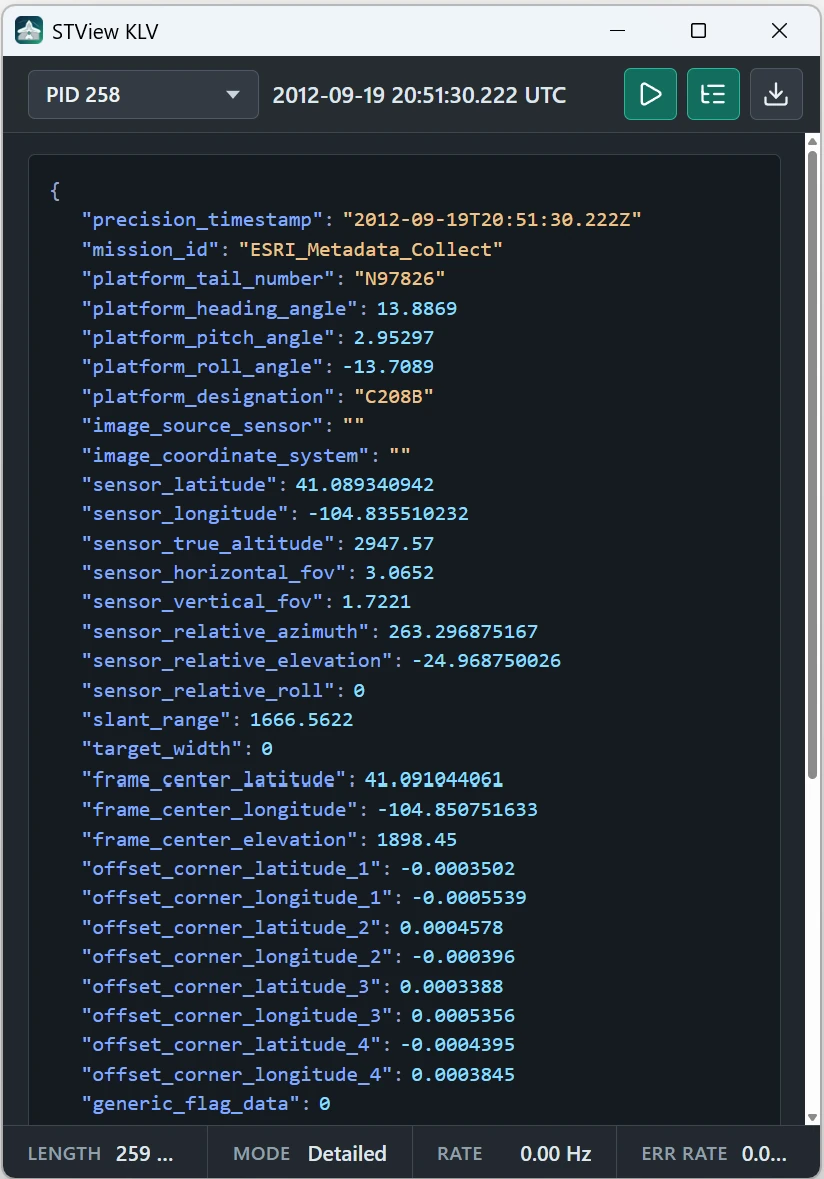
Selecting a KLV feed
The selector at the left of the toolbar lists all currently available KLV feeds.
| Entry | Data shown |
|---|---|
| PID 258 | KLV decoded directly from the original source stream. |
| PID 258 · Flywheel | KLV submitted by the active Flywheel output. |
Original entries appear first, followed by Flywheel entries. Identical PID numbers remain separate choices because they represent different packet feeds. Changing the selection changes the live packet, pause snapshot, status rates, detailed data, and downloaded content together.
Selecting a Flywheel entry does not change the original KLV PID used by the video overlay, Map, Session Information, or indexed KLV features.
If no feed has been discovered, the selector displays Waiting for KLV PID. After a feed becomes selectable, Waiting for decoded KLV... means that no decoded packet has arrived for that particular origin and PID yet.
Window options
| Option | Description |
|---|---|
| PID selector | Chooses an original or Flywheel KLV feed. Available choices update while the window is open. |
| Pause / Resume | Freezes or resumes the displayed packet. Pausing the KLV window does not pause video playback or the incoming stream. |
| Brief / Detailed | Switches between the decoded tag view and the descriptive Detailed presentation of the same packet. |
| Local time / UTC time | Switches the packet timestamp between local time and ISO 8601 UTC. The selection is remembered the next time the KLV window opens. |
| Download | Saves the packet's raw, tag-number-keyed Brief JSON. Numeric decoded values are not replaced by Detailed display text, even when Detailed mode is selected. The action is unavailable until a packet has been received. |
The timestamp beside the selector is the packet's decoded Precision Timestamp (MISB tag 2), displayed in local time by default. Use the time button to switch to ISO 8601 UTC. No tag 2 is shown when that tag is absent.
The status line at the bottom reports:
- Length — the size of the current KLV payload in bytes.
- Mode — whether the brief or detailed representation is active.
- Rate — the rolling packet rate for the selected origin and PID.
- Err Rate — the rolling decode-error rate for the selected origin and PID.
Packet fields retain their decoded order. Downloaded JSON is always the machine-readable Brief representation regardless of the selected display mode. If structured JSON is unavailable, the window can show the packet or local-set bytes as hexadecimal data instead. Decode failures are reported in the packet view and counted in Err Rate.
Flywheel data presentation
A Flywheel choice represents the complete KLV feed successfully submitted by the running Flywheel output for that PID. It can contain:
- original source KLV packets passed through by Flywheel; and
- synthetic fallback packets generated when source KLV is unavailable.
Flywheel timestamps and packet timing follow the Flywheel output timeline. The PID shown in the selector is the logical Flywheel KLV PID. A transport output may remap that value when it muxes the final stream.
A PID n · Flywheel entry is available only when all of the following are true:
- Flywheel and synthetic KLV are enabled in the source configuration.
- A KLV-capable Recorder or Recast target is configured to use Flywheel.
- That Recorder or Recast output has been started and is currently running.
Merely enabling Flywheel in Open Stream or Open File does not start an output, so it does not add a Flywheel PID to the KLV selector. The entry is removed again when the corresponding output stops or is no longer operational.
When several eligible Flywheel outputs are running, the KLV window follows the most recently started one. If that output is replaced and the same PID remains available, the selection is preserved. If the selected Flywheel PID disappears, STView selects the matching original PID when possible, or another available original PID.
Troubleshooting
If original KLV is missing, confirm that playback has started, allow time for stream detection, and verify that the source actually contains KLV metadata.
If a Flywheel PID is missing, check the Flywheel KLV settings and confirm that the Recorder or Recast output - not only the source playback - is running. Also verify that the chosen output format supports KLV. If a Flywheel entry is present but the window still waits for decoded KLV, confirm that packets are being successfully submitted to the output.
Pattern source metadata
Enable Generate synthetic data under the Pattern source's KLV tab to create MISB ST 0601 metadata without an input stream. This appears as source KLV using the configured PID, even without Recorder or Recast running. The source feed resets when playback stops or the source changes. See Pattern sources.