Settings
Open Settings from Settings > Options. The Options window contains the main application preferences for playback behavior, updates, ingest, local automation, licensing, decoder selection, encoder capabilities, object detection, and overlays.
Most settings are persisted by the local backend in the STView application configuration file under the current user's operating-system config directory:
ImpleoTV/STView/config.json
Settings are saved when you press Save. Some runtime options are also applied to the native player after saving, such as audio decoding, decoder selection, ingest behavior, timeout display mode, and object detection configuration.
Many controls are editable only while playback is stopped. If the player is playing or paused, the Options window shows the current playback state and keeps those controls disabled. Stop playback before changing decoder, detection, overlay timeout, ingest, or automation settings.
Application Options
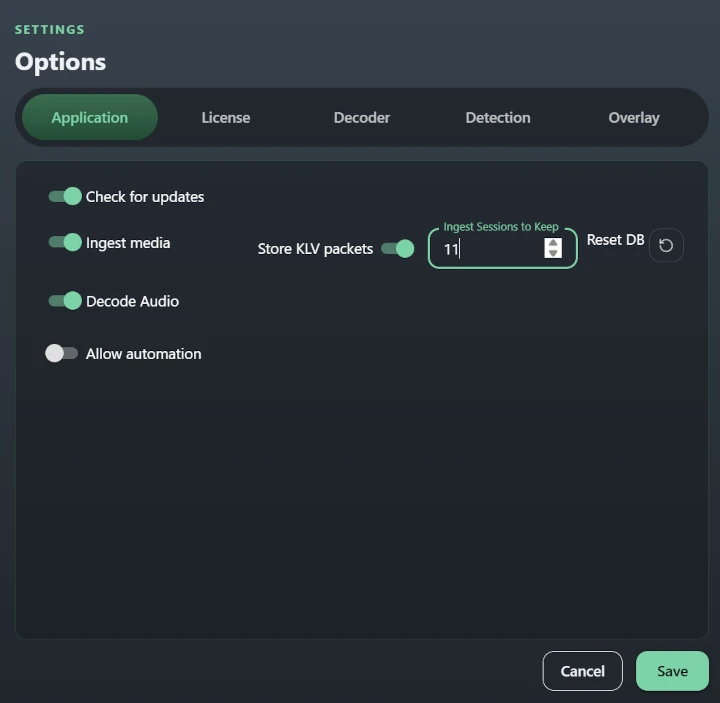
The Application tab contains general behavior that affects the whole app.
Check for updates allows STView to check the configured release repository for a newer version. When enabled, STView checks during the session and then periodically while the app is open. If an update is available, the update UI shows the version and install action. For more detail, see Update.
Ingest media controls whether local file sources are indexed into STView's
local media-ingest database. Ingest builds the data used for faster review and
metadata-derived session summaries. Ingest Sessions to Keep limits how many
stored ingest sessions STView retains; the value is clamped from 1 to 200,
with a default of 10.
Store KLV packets keeps the demuxed KLV packet bytes in the ingest database. Enable it when fast KLV lookup during seek, reverse playback, and scrubbing is more important than minimizing database size. The setting is available only when Ingest media is enabled and applies to newly ingested media.
Reset DB permanently deletes both STView's application database and the SDK
ingest database, including their SQLite journal files. This removes imported
assets, ingest indexes and summaries, bookmarks, missions, tags, and their
relationships. STView immediately creates a new empty application database.
The reset does not remove config.json, the active license, source media, or
recording and export files. Stop playback and back up any local records you
need before confirming the reset.
Decode Audio controls whether STView decodes and plays the first available
audio stream along with the video. Turn it off when audio is not needed, when
you want to reduce decode work, or when an audio stream causes playback trouble.
When it is enabled and the current source contains audio, a speaker icon appears
at the far right of the playback status bar. Its slider controls the global
playback volume from 0% to 100%. Volume changes are saved automatically and
restored after restart; they do not require pressing Save in the Options
window. Disabling Decode Audio hides the volume control.
Allow automation enables the opt-in local REST automation API. Automation is off by default. When enabled, STView exposes the v1 automation base path and a bearer token workflow. Use Regenerate token to create or rotate the token, and Copy to copy the newly generated token. When automation is disabled, the backend clears queued automation commands and automation requests are rejected. For endpoint details, see Local Automation API. For LLM and agent client setup, see MCP Server.
License
The License tab shows the current licensing state and the local node information used for license validation. Apply the license information you received from ImpleoTV here.
Without a license, STView runs in demo mode. Recasting, recording, and object detection are available during demo playback; each continuous playback session stops after five minutes together with its active outputs. After the limit is reached, restart STView to begin another demo session. A verified license removes the demo timer and enables the Recast, Record, and Detect options included in that license. Replacing or removing a license applies its verified options immediately; restarting STView is not required unless a demo session has already expired. For the licensing workflow, see License.
Decoder Options
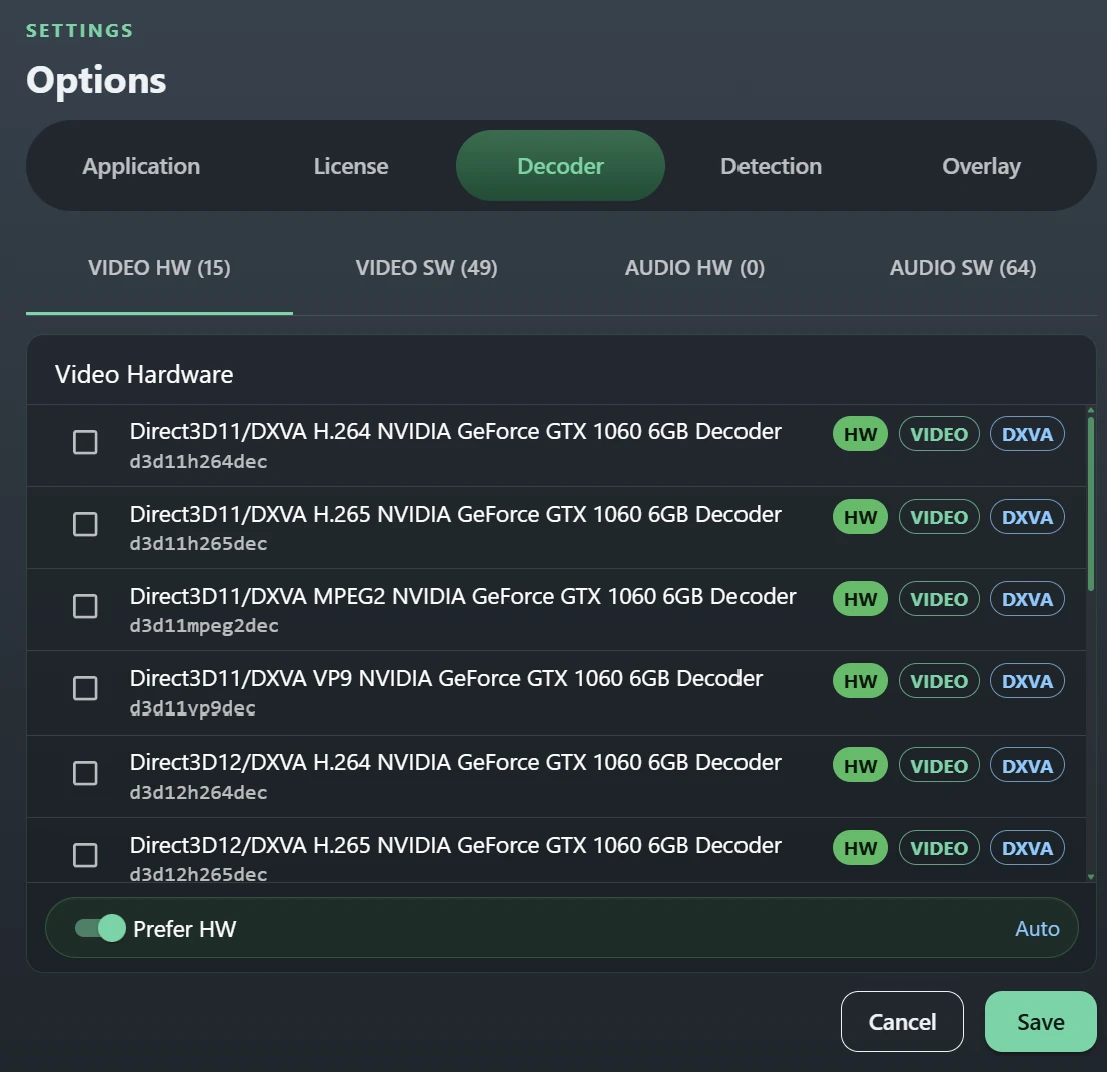
The Decoder tab lists decoders reported by the native media runtime. The list is split into:
- Video HW for hardware-accelerated video decoders;
- Video SW for software video decoders;
- Audio HW for hardware-accelerated audio decoders;
- Audio SW for software audio decoders.
Each decoder row shows the display name, decoder ID, media type, and whether it is hardware or software. You can select a specific decoder for video or audio, or leave the selection as Auto.
Auto is the default video and audio decoder preference. It lets STView apply the decoder policy appropriate for the codec and platform. For example, STView prefers software decoding for MPEG-2 on Windows when no decoder is explicitly selected.
Use Prefer HW or Prefer SW when you want to override Auto and prefer a decoder family without pinning a specific decoder ID. Select Auto to remove the override. Selecting a specific decoder also sets the matching hardware/software preference.
Use hardware decoding for normal playback when the system supports it. Use software decoding when troubleshooting driver issues, hardware-decoder artifacts, unsupported codecs, or performance problems caused by GPU resource contention.
Decoder changes affect future playback. Stop and reopen the source if you need to confirm that a different decoder is being used.
Encoder Information
The Encoder tab, immediately after Decoder, lists the video encoders reported by the native media runtime. Use Video HW and Video SW to view hardware-accelerated and software encoders separately. Each row shows the encoder display name, GStreamer factory ID, video media type, and encoder family. This page reports the encoders available for features such as Flywheel; it does not change Flywheel configuration or select a specific encoder.
The list is a capability snapshot from the GStreamer runtime loaded by the current STView process. Restart STView after installing or removing GStreamer plugins so the runtime can rescan its plugin registry. The HW/SW label is informational, and a listed factory may still be unsuitable for a particular codec, pixel format, resolution, or output protocol. Use the Flywheel or Recast error message when diagnosing whether an encoder can satisfy a specific output configuration.
Detection Options
The Detection tab configures ONNX object detection. It includes the enable switch, model path, provider, input size, FPS limit, confidence and IoU thresholds, box thickness, class filter, per-class thresholds, and draw-overlay setting.
Detection depends on a compatible .onnx model, ONNX Runtime, and the
Detect license option. Choose the model explicitly for reliable
operation. For a complete explanation of ONNX, model selection, provider
choices, class filtering, thresholds, and monitoring, see
Object Detection.
Overlay Options
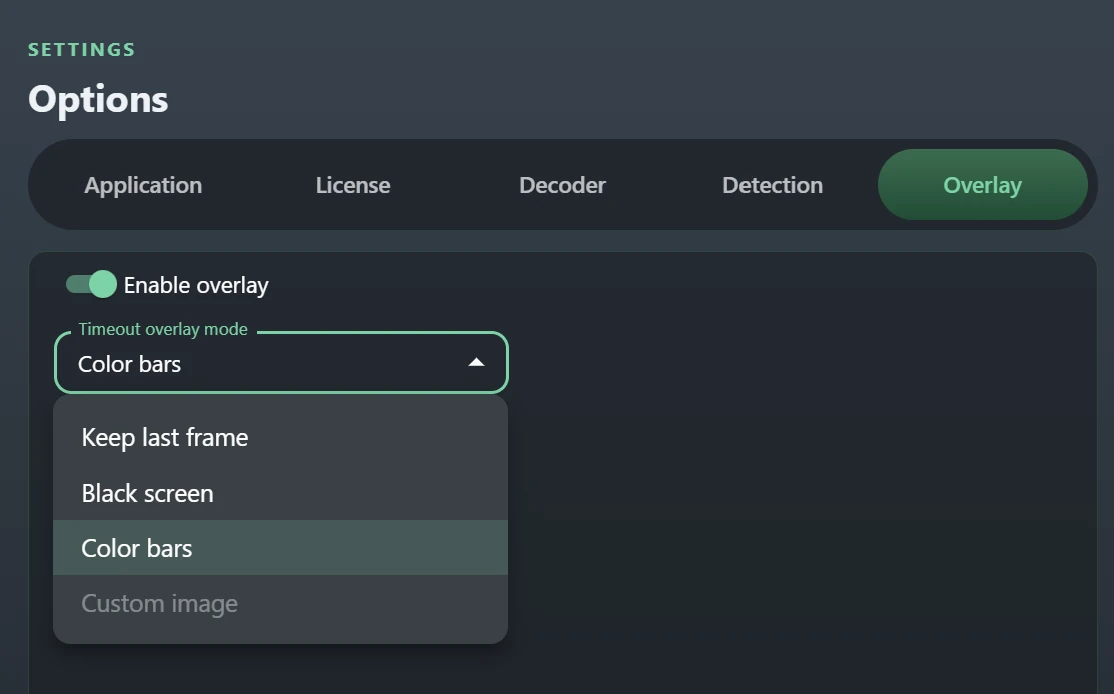
The Overlay tab controls the app-level overlay system.
Enable overlay allows STView to show composited overlay tools and to open the overlay editor. Turn it off if you want a plain video view without overlay composition or if you are troubleshooting overlay-related behavior. When overlay is disabled, overlay editor controls are unavailable.
Timeout overlay mode controls what STView displays when a stream times out or video input is temporarily unavailable:
| Mode | Behavior |
|---|---|
| Keep last frame | Keeps the last frame visible and shows the timeout spinner. |
| Black screen | Replaces the video area with a black offline view. |
| Color bars | Shows color bars. This is the default. |
| Custom image | Reserved in the UI and currently disabled. |
Overlay layout, layer visibility, layer opacity, HUD positioning, marker state, and ruler state are managed from the overlay editor and stored in the same application configuration. For editing details, see Overlay Editor.
Saved State
STView persists more than the visible Options tabs. The same config file can also contain the current media, Open Stream dialog state, overlay layout, snapshot defaults, object detection settings, decoder selections, window size, automation token metadata, and the license token.
On startup, STView restores the last usable window width, height, and desktop position without changing its aspect ratio. If the saved window no longer fits the available desktop, it is moved or reduced to fit. Missing or undersized saved dimensions (below 960 × 540) fall back to a 1280 × 820 application window. Minimized or undersized measurements do not replace the last usable saved size. The 16:9 default applies to the video placeholder inside the window; the application window has no fixed aspect ratio. Once video dimensions become available, including on first playback, the window adjusts to fit the video's aspect ratio while allowing space for the application controls. Playback-driven window resizing also saves the settled size, so closing with the title-bar close button preserves it for the next launch.
The config file is written atomically by the backend. If you are backing up or
resetting STView preferences, close STView first, then copy or remove the
config.json file from the ImpleoTV/STView config folder.
Troubleshooting
If a setting appears disabled, stop playback and reopen Settings > Options. The Options window polls playback state and only enables editable controls when the player is stopped.
If decoder changes do not seem to take effect, stop the current source and open it again. Decoder selection is applied to the native context, but an already running pipeline may need to be recreated before the selected decoder is used.
If automation remains unavailable after enabling it, save the Options dialog and check that you are using the current bearer token. Regenerating the token invalidates the previous token.
If update checks do not appear, confirm Check for updates is enabled and see Update for the manual download path.