Bookmarks
Bookmarks save points of interest in the current media so you can return to them later. A bookmark stores the playback position, a frame preview, a label, optional note, color, tags, and the source information STView needs to find the same point again.

Use bookmarks when a frame or short moment needs later review, correlation with KLV metadata, handoff to another operator, or quick navigation during repeated file inspection.
Creating a Bookmark
- Open a file or stream and start playback.
- Seek, scrub, pause, or step to the moment you want to mark.
- Open the Bookmarks button in the transport controls.
- Click Add Bookmark.
- Wait for STView to capture the preview and resolve timing information.
- Edit the label, note, color, and tags as needed.
- Click Save.

The dialog captures the current video frame before saving. The preview remains stable while you edit the bookmark details, even if playback continues behind the dialog.
Bookmark Details
Each bookmark can include:
| Field | Meaning |
|---|---|
| Preview | A captured frame thumbnail from the marked moment. |
| Position | The playback offset in the source. |
| Timestamp | A KLV-derived UTC timestamp when STView can resolve one. |
| Label | The display name shown in the slider and bookmarks grid. |
| Note | Free text for review comments or context. |
| Color | The marker color used in the player and grid. |
| Tags | Reusable labels for grouping, search, and review workflows. |
Tags can be selected from existing tags or created directly in the bookmark dialog. Click a selected tag to edit its text or color. Tag changes are shared with other saved bookmarks and mission records that use the same tag. Use View > Tags to manage the complete catalog; see Tags.
Where Bookmarks Belong
Bookmarks are stored in STView's local application database. They belong to the media source they were created from, and STView keeps source aliases so the bookmark can still be matched when the same file is addressed by path, URI, or a platform-specific path form.
When a bookmark is created while a mission is active, STView also records that mission context. The bookmark is still source-based, so it can be found from the Bookmarks window and from the playback timeline for the same media.
For file workflows, the current media must be known to STView's ingest database before the bookmark can be saved. If the source cannot be matched to an ingested asset, STView reports that the current media must be ingested before bookmarking.
Using Bookmarks During Playback
Saved bookmarks for the current source appear as colored markers on the seek slider. Hover a marker to see its preview and label. Click a marker to seek directly to that bookmarked position.
The transport Bookmarks button also provides a source-scoped list action. Click All Bookmarks from that button to open the Bookmarks window filtered to the current source.
Bookmarks Window
Open the Bookmarks window in one of two ways:
| Entry point | Scope |
|---|---|
| View -> Bookmarks | Opens the table with all saved bookmarks from all sources. |
| Transport toolbar Bookmarks -> All Bookmarks | Opens the table filtered to the current source. |
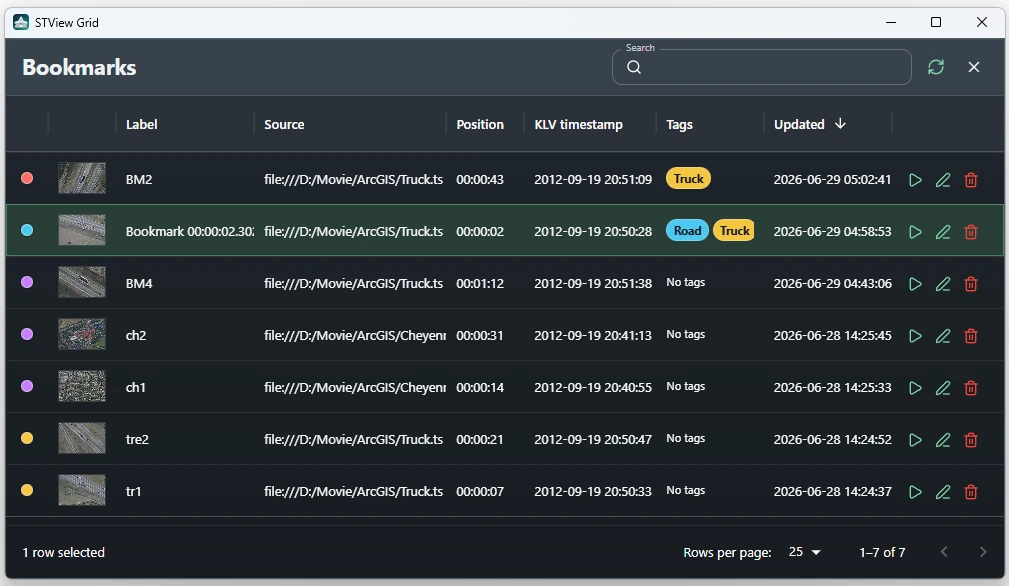
Use the menu entry when you want a full bookmark catalog. Use the toolbar entry when you are reviewing the loaded media and only want bookmarks that belong to that source.
The grid includes:
| Column or control | Purpose |
|---|---|
| Color | Shows the bookmark marker color. |
| Preview | Shows the saved thumbnail. Hover it for a larger preview. |
| Label | Shows the bookmark name. |
| Source | Shows the source when the grid is not source-scoped. |
| Position | Shows the playback offset. |
| KLV timestamp | Shows the resolved metadata timestamp when available. |
| Tags | Shows selected tags. |
| Updated | Shows when the bookmark was last changed. |
| Search | Filters by label first, then by label, source, note, tags, position, timestamp, and update time. |
| Refresh | Reloads bookmarks and tag data from the local database. |
Each row also provides actions:
| Action | Result |
|---|---|
| Play bookmark | Requests playback of the matching mission or source and seeks to the bookmark position. |
| Edit bookmark | Opens the bookmark dialog so you can change the label, note, color, or tags. |
| Delete bookmark | Removes the bookmark after confirmation. |
Double-clicking a bookmark row also plays the bookmark.
Notes and Limitations
- Bookmarks are local STView records; they are not exported as image files like snapshots.
- Bookmark timing is based on the playback position. KLV timestamps are shown only when STView can resolve them from the source metadata.
- The player timeline only shows bookmarks for the current source. Use View -> Bookmarks when you need to search across all saved sources.
- Deleting a bookmark removes that bookmark, but shared tags can remain available for other bookmarks and mission records.