Getting Started
License Center is the workspace where an organization manages the complete product-licensing process. It keeps customer companies and users, describes the products and options that can be licensed, records purchased quantities in orders, and issues cryptographically signed license files. Administrators use it to configure products, signing keys, integrations, and access. Authorized users can then consume an assigned order balance to issue licenses without being able to change the underlying purchase or signing authority.
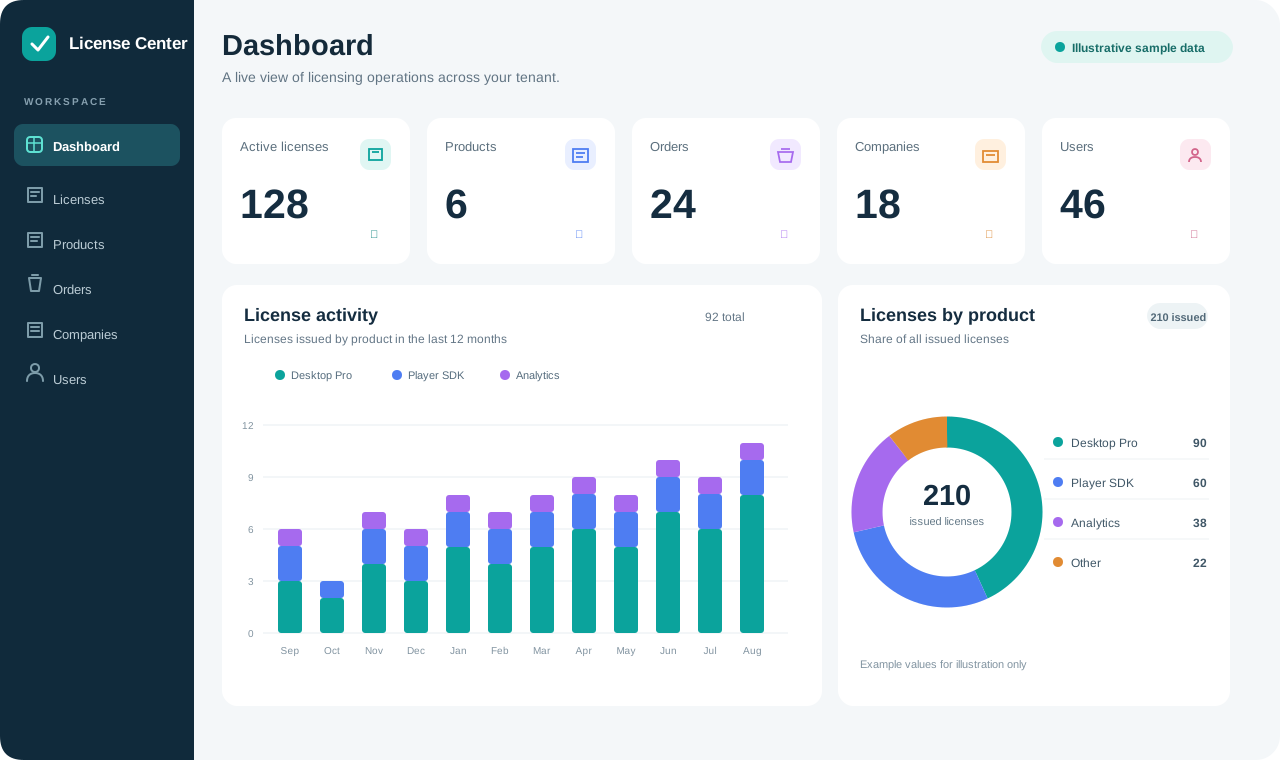
Illustrative example with fictional data. Your dashboard shows your tenant's records.
Each organization works inside a separate tenant. A tenant is a private workspace containing that organization's business records, settings, and signing configuration. People in one tenant cannot browse another tenant's customers, orders, licenses, or private keys, even when both tenants are hosted on the same License Center server.
🪪 How product licenses work
A product license is a signed .lic file issued to a customer for a
specific software product. It identifies the customer and product, and can
include permitted options, a target installation's node information, and an
expiration date. The software receiving the file verifies its signature and
enforces the licensed terms. See License for the file format and
verification steps.
An order-backed license follows this flow:
- Add the customer company and its users.
- Define the product and its signing profile.
- Record an order with the purchased base and option quantities.
- Choose an eligible recipient, configure the license, and issue it. License Center signs the file and consumes the selected order balances.
When the tenant's application activation permits it, an administrator can also issue a license for a tenant-owned product without an order. See Issuing Licenses for both issuance paths.
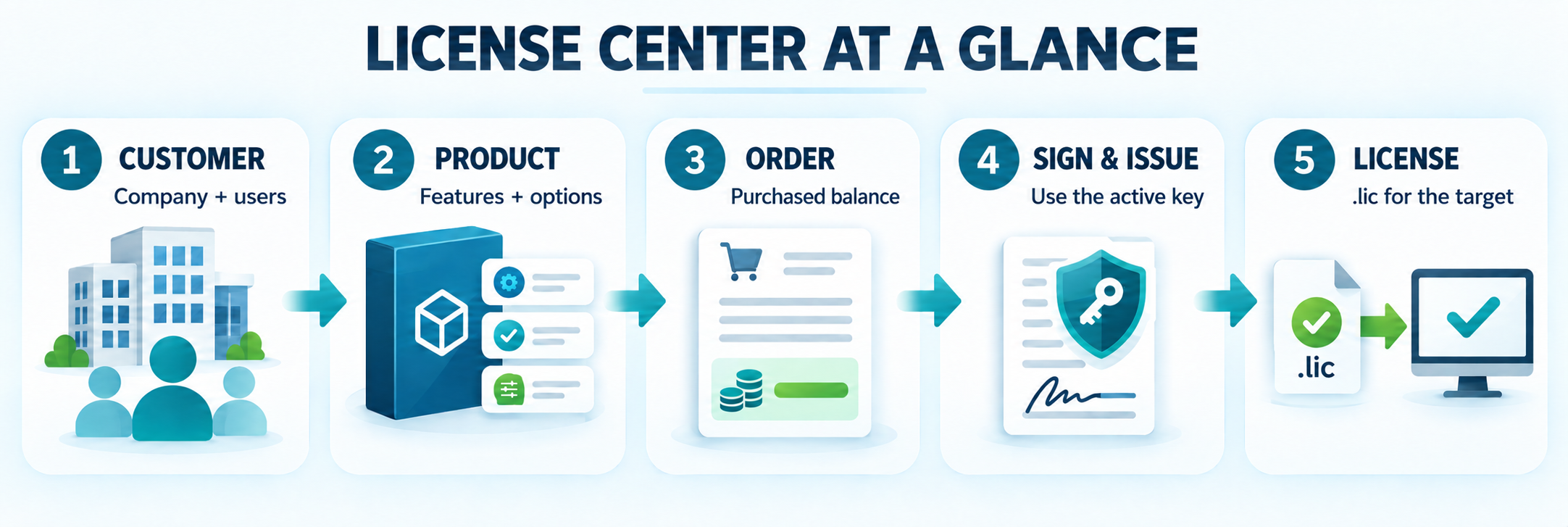
Example: Northwind Media buys 10 licenses for a desktop product and five
units of an optional analytics feature. An administrator creates or imports the
company and users, selects the product on an order, and records those balances.
Each order-backed issuance consumes one base unit and any selected option unit,
then produces a signed .lic file for the recipient's target installation.
The same console can run as a Windows or Linux desktop application, or in a browser connected to a shared License Center server. The operating model is the same in every mode. The main difference is where the database, signing keys, and shared service are hosted.
🖥️ Choose how you will run License Center
- Standalone desktop keeps the database and signing material on one computer. Choose Standalone · local DB when the desktop first opens.
- Desktop connected to a server uses the Windows or Linux application as a client for a shared License Center deployment. Enter the server's HTTPS URL when asked.
- Browser / PWA opens the URL supplied by your administrator. Supported browsers can install the console as an application.
🧭 Typical administrator workflow
- Complete the first-run setup and save any one-time signing-key export.
- Import the License Center application activation in Settings. See Application Activation for the steps.
- Add customer companies and users.
- Create tenant products and, if required, configure a signing profile.
- Record an order or synchronize customers and orders from WooCommerce.
- Open Licenses, select Issue license, and complete the issuance steps.
Products received through forwarded orders require their order balance.
🗺️ Console navigation
Administrators see the tenant dashboard plus Licenses, Users, Companies, Products, Orders, Emails, Logs, and Settings. Regular users see the records their role permits. Platform administrators manage tenants and external application activations from Settings · Admin · Tenants. In the main tenant, they can forward orders from Orders.
Use the theme button in the top bar to switch between light, dark, and system appearance. Select your avatar to edit your own profile.
See Dashboard, Search, and History for charts, global search, email delivery history, logs, and notifications, and Managing Existing Licenses for editing and delivery.
🔑 Sign in to an existing workspace
Enter your username or email and password; a tenant code is not required. When the same credentials are valid in multiple workspaces, License Center asks you to choose the organization after verifying the password. See Accounts and roles for sign-in, recovery, and access request details.
➡️ Next steps
- Follow Installation and deployment for desktop and server prerequisites.
- Use First run to create the initial tenant safely.
- Review Accounts and roles before inviting users.
- Learn how a consuming application verifies and enforces a license.