Player
The Player page is available for a file (or raw packet) session after the Process stage completes. Use it for frame-by-frame review of the decoded video together with the KLV metadata.
📃 What The Player Does
The Player page lets you:
- Inspect decoded video frames on the persisted file timeline
- Step backward and forward through video samples
- Seek to a specific point on the timeline
- Compare the current frame against matched MISB/STANAG KLV metadata
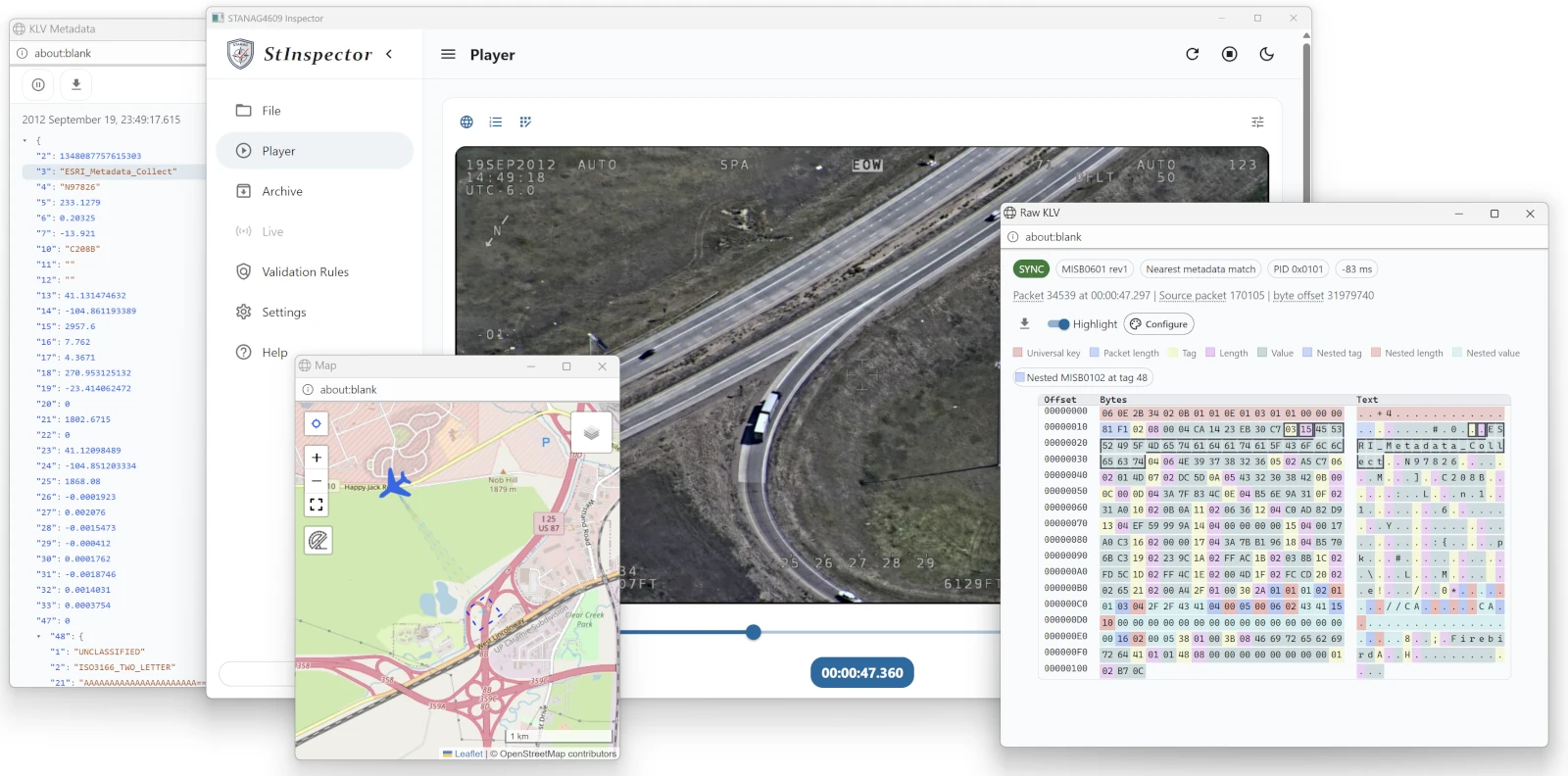
- Open helper windows for mapped platform position, decoded KLV fields, and persisted raw KLV content
🛠️ Toolbar Controls
The toolbar above the frame viewport contains these controls:
Mapopens the map window for the current matched metadata. A platform is shown only when the matched KLV contains usable position fields such as sensor or frame-center latitude and longitude. When multiple KLV PIDs match the current frame, the map can show more than one platform.KLV Windowopens the decoded KLV viewer for the primary matched packet at the current frame. This button is available only when that packet includes a usable timestamp. Inside that window you can pause live updates, download the current packet as JSON, switch between tag view and detailed field view, and toggle the displayed time format.Raw KLVopens the matched-KLV inspector for the current frame. It shows the match type, exact or nearest status, PID, time delta, packet and timecode location, source packet index, source byte offset, and the persisted local-set buffer.Platform Configopens the file-scoped platform settings used by the map overlay. You can set the platform type, model, and color for the current file, and those settings are reused when the file is reopened later.
▶️ Player Controls
The player area contains these controls and readouts:
- The frame viewport, which shows the decoded frame image for the selected sample
- ⏮
Step backward, which moves one persisted video sample backward - ⏭
Step forward, which moves one persisted video sample forward - The
Timelineslider, which seeks to the requested timeline position - Keyboard shortcuts:
Left Arrowsteps backward andRight Arrowsteps forward - The
Durationreadout, which shows the total duration of the persisted video timeline - The
Decode anchorreadout, which shows the decoder start point used for the current seek. The player decodes from a short preroll before the requested position when possible. - The current timecode chip, which shows the timecode of the selected video sample
If a frame is still being prepared, or if the decoder cannot return an image, the page shows the current decoder status instead of a rendered frame.
Raw Binary KLV Sessions
The Player also supports processed raw binary KLV sessions such as .bin and .dat files that contain KLV packets without video.
In this mode:
- the normal Player toolbar remains available
- the
KLV Window,Raw KLV, andMaptools can still be used when matching metadata is available - the timeline slider can still be used to move between packet positions
Step backwardandStep forwardstill move through the packet timeline when more than one packet is available- the video viewport is replaced by an informational message because there is no video stream to decode
This means the Player becomes a packet-timeline inspection view rather than a frame-by-frame video review page.
Single-Packet Limitation
When the processed source contains only one timed KLV packet, the Player can still open it and display its matched metadata.
In that case:
- the KLV windows still work for the available packet
- the current timecode and packet metadata can still be reviewed
- stepping and slider movement do not provide meaningful navigation, because there is no second packet to move to
- map output is available only if that one packet contains usable position fields
🎢 How KLV Metadata Is Matched
During ingest, the application decodes MISB local sets from each detected KLV PID and stores the packet PID, KLV type, source packet index, source byte offset, source PTS when available, nearest PCR, persisted local-set bytes, revision information, and decoded field values.
The Player page then matches that persisted metadata against the selected video sample on the player timeline.
SYNC KLV
For SYNC_KLV, when the metadata packet carries a source PTS, the player maps that packet onto the same normalized video timeline used for the decoded video samples.
- these packets are shown as
syncmatches - a sync packet is marked as an exact match only when its normalized timeline is the same as the selected video sample timeline
- if the packet lands on a different normalized time, it is still shown as a sync match, together with the signed timeline delta from the current frame
ASYNC KLV
For ASYNC_KLV, or any persisted KLV packet without a source PTS, the player falls back to timing derived from packet location and PCR information.
- these packets are shown as
asyncmatches - the player chooses the latest async packet at or before the selected frame for each PID
- if no earlier async packet exists on that PID, the player uses the earliest following packet instead
- async packets are displayed as nearest matches rather than exact matches
Multiple KLV PIDs
The implementation keeps KLV streams independent per PID during ingest and during player matching.
- the backend returns at most one active match per KLV PID for the current frame
- more than one KLV PID can therefore be matched and displayed at the same time
- the
Raw KLVwindow shows those matches as PID tabs so you can switch between them - the map window can render multiple platforms when more than one matched PID provides coordinates
🖥️ How Matched Metadata Is Displayed
Matched metadata is displayed in three different ways on the Player page:
- the
KLV Windowshows the decoded JSON view for the primary matched packet returned for the current frame - the
Raw KLVwindow shows all current matches and includes the sync or async badge, exact or nearest badge, PID, timeline delta, packet location, and the persisted binary local-set content - the
Mapwindow uses matched KLV position fields to place the platform overlay, using the saved platform configuration for appearance
When multiple KLV PIDs are present, use Raw KLV for the clearest per-PID inspection view.
👉 Related Configuration
For Player-specific application settings, see Player. For KLV decoding settings, see KLV.