Report
The Report page is the final page in the recorded-file workflow.
It appears after Analyze, Ingest, and Process complete, and it brings the saved results from those stages into one review surface before you close the session.
📍 When To Use It
Use the Report page to:
- confirm the overall outcome of the inspection
- review which tests passed, warned, failed, or remained pending
- inspect saved file-analysis detail from earlier stages
- open supported charts for individual validation tests
- open the matching manual page for documented tests
- export the current report as HTML or PDF
- complete the report and close the active file session
📋 Page Layout
At the top of the page, the application shows the file workflow stepper, the page title, and the selected source path.
The top action area also includes:
Export report as HTMLto download a standalone HTML copy of the current reportExport report as PDFto generate a PDF copy of the current reportComplete Reportto mark the report stage complete and close the recorded-file workflow
🏆 Overall Result
The Overall Result panel summarizes the saved process results as counts for:
- passed tests
- failed tests
- warnings
- other results such as pending or still-running states
If no saved process tests are available yet, the page shows an informational message telling you to run the Process stage before completing the report.
📝 File Analysis Section
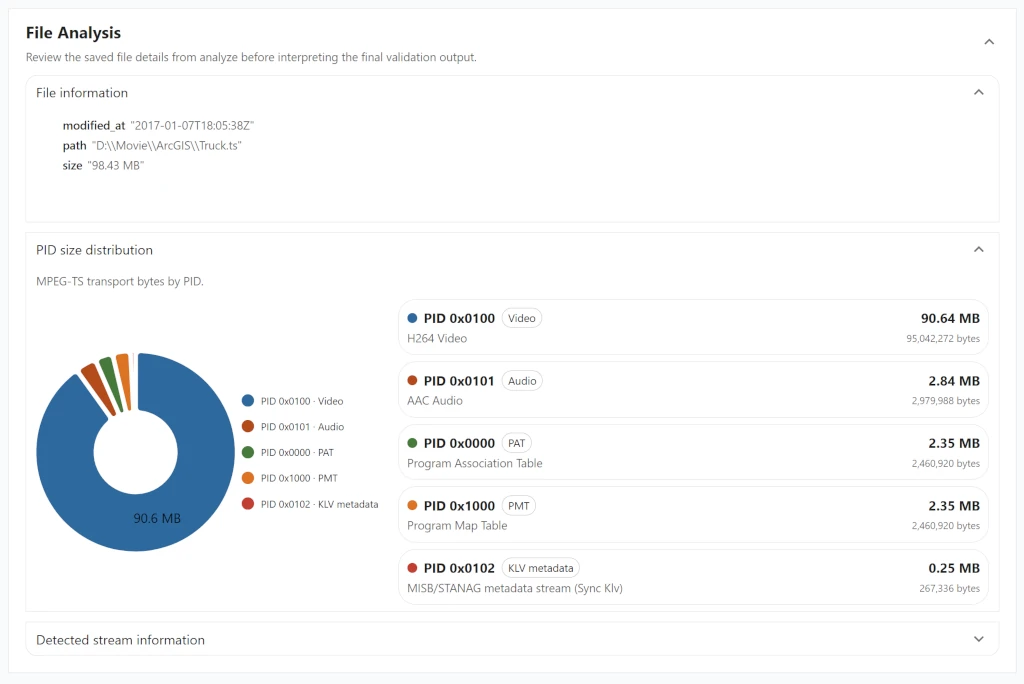
Show Detailed File info
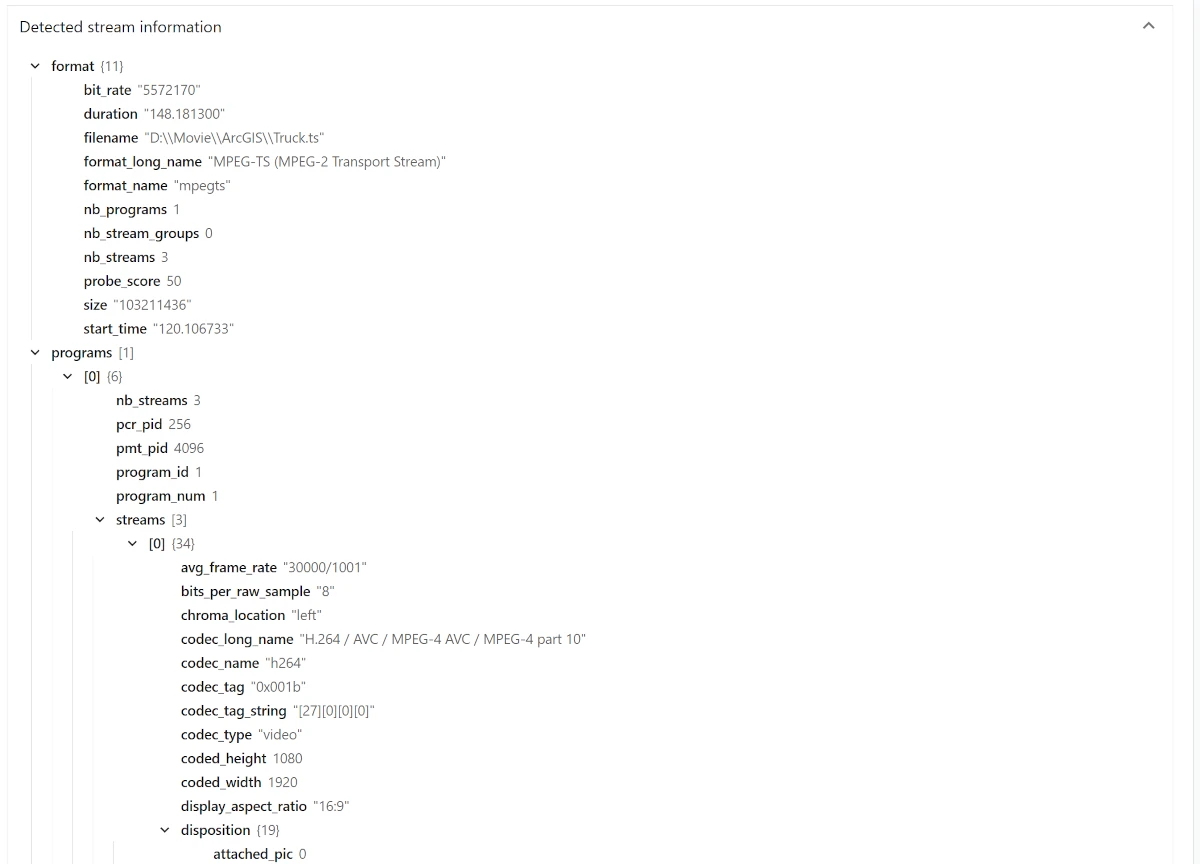
Below the summary, the page includes a File Analysis section built from saved Analyze and Ingest output when that data is available.
Depending on what was captured earlier in the workflow, this section can include:
File information, shown as structured saved analysis data for the inspected sourcePID size distribution, shown as a chart built from saved MPEG-TS analysis and ingest dataDetected stream information, shown as structured stream-detection output from analysis
If earlier stage output is missing, the Report page keeps working and instead shows an informational message for the missing saved analysis data.
Geospatial Info
When file ingest has geospatial data, the Report page adds a Geospatial Summary.

This section can include:
Filmed area available, built from polygon footprint for the observed areaSensor path available, built from sensor position- a geospatial map preview that overlays the available filmed-area polygon and sensor-path line together
For filmed area data, the page shows:
- the derived area in square kilometers and square miles
- the number of metadata packets used to build the polygon
For sensor path data, the page shows:
- the derived path length in kilometers and miles
- the number of metadata packets used to build the path
- the number of position samples plotted on the path
If the saved process result does not include a derived filmed area or sensor path, this section is omitted.
Flight Altitude Profile
When process output includes altitude-profile data, the Report page adds a Flight altitude profile section after the geospatial summary.
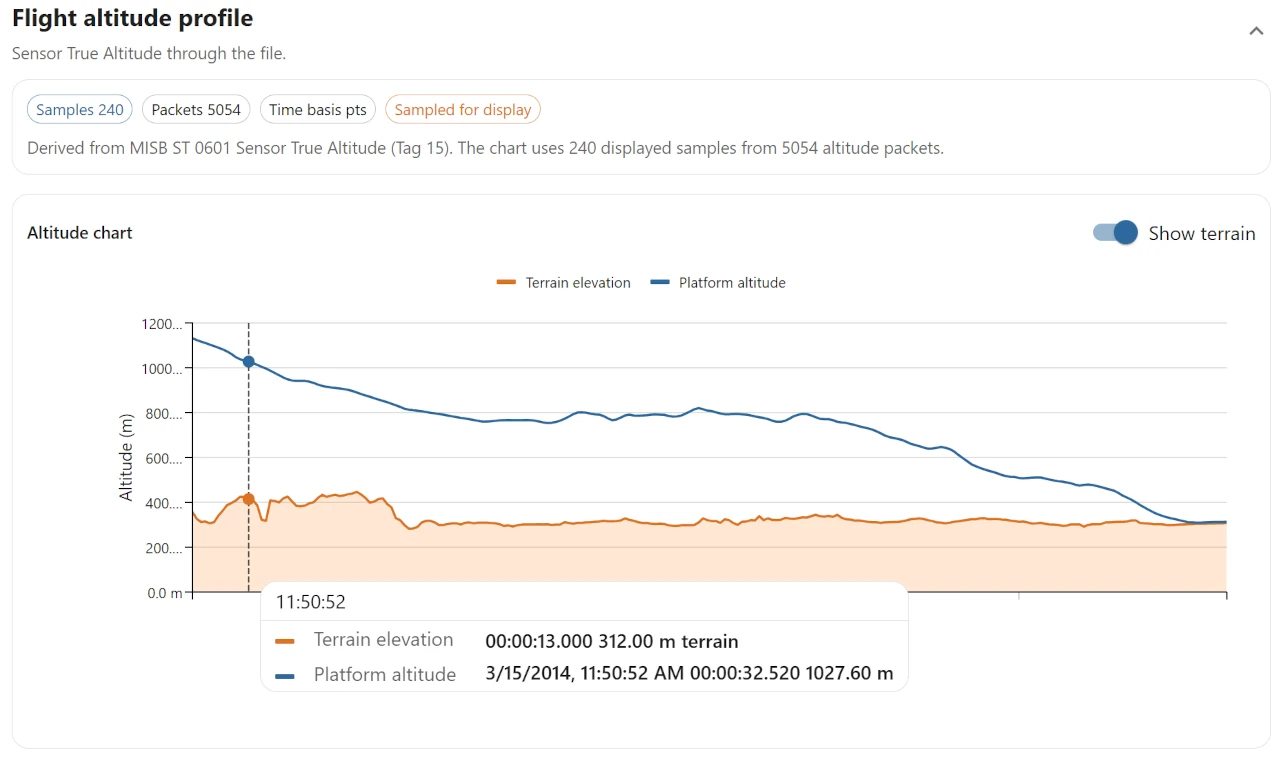
This section is derived from MISB ST 0601 Sensor True Altitude (Tag 15) and includes:
- sample and packet counts for the plotted profile
- the available time basis used by the chart
- a
Sampled for displaychip when the displayed chart uses a reduced sample set for rendering - an altitude chart showing platform altitude through the file
When terrain-elevation data is available with the saved sensor path, the page also provides a Show terrain toggle so you can overlay terrain elevation on the altitude chart for comparison.
The terrain overlay is not read from the STANAG 4609 source itself. Instead, ST Inspector derives it from the saved sensor path:
- the ingest/process pipeline builds the sensor path from decoded platform-position metadata
- the backend samples that path at roughly 1-second intervals
- for each sampled latitude/longitude point, the application requests ground elevation from the Open-Meteo elevation service
As a result, the altitude line represents metadata-carried platform altitude, while the optional terrain line represents externally looked-up ground elevation beneath sampled sensor-path positions.
If no saved altitude profile is available, this section is omitted.
☰ Validation Result Groups
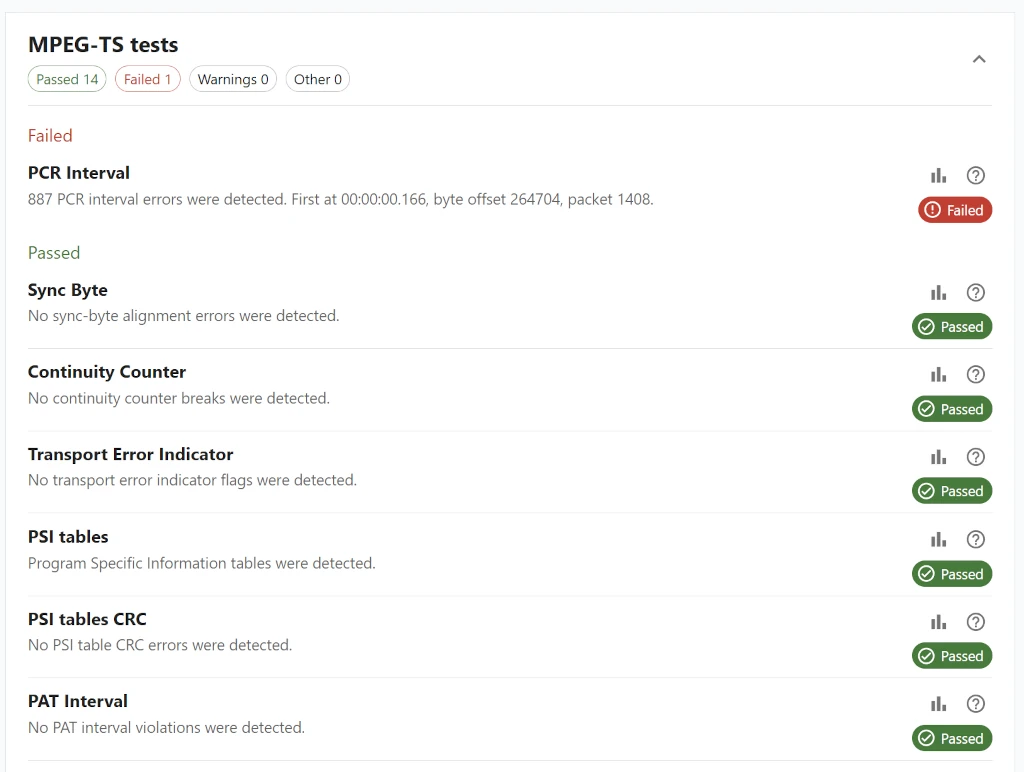
The main report content is grouped by validation area, typically:
MPEG-TS testsMISB ST 0601 tests
Each group header summarizes the number of failed, warning, passed, and other results in that group.
Inside each group, tests are organized into sections so you can review the most important results first:
-
Failed -
Passed -
Warnings and pending
Each test entry shows its name, group, status, and the saved message or description returned by processing.
📈 Charts And Manual Links
Some validation tests expose extra actions on the Report page:
- a chart action for tests that support a visual result view
- a manual action for tests that have a matching manual page
Use the chart action to open a dialog with the saved chart for that test.
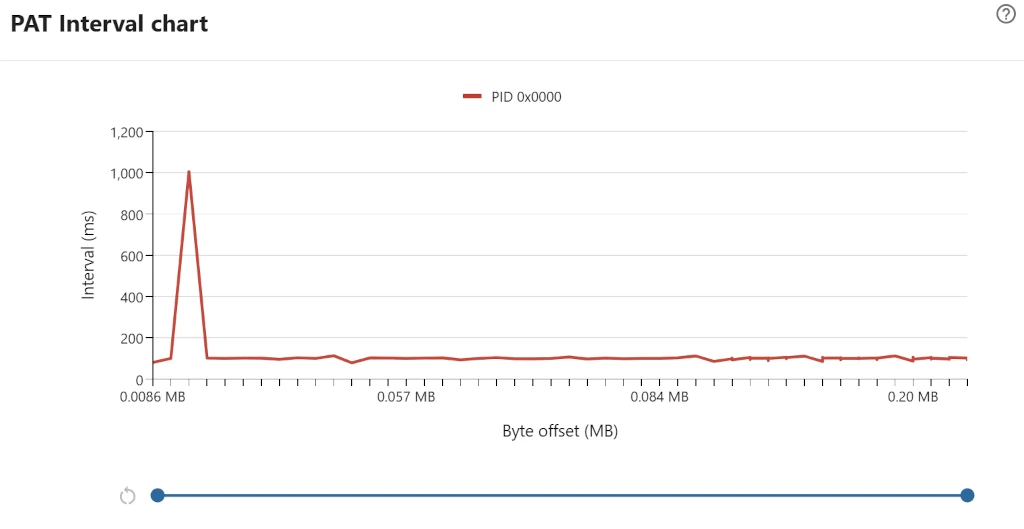
Use the manual action to open the rule documentation in the manual when you need rule-specific interpretation of the reported result.
📄 Report Export
Select Export report as HTML or Export report as PDF to export the current Report page.
The export is created from the saved report data already loaded in the application.
The HTML export produces a standalone .html file that preserves the rendered report content without converting each page into images first. It is usually the faster option for large reports and can help avoid PDF memory-pressure failures.
The exported HTML or PDF can include:
- the report title, source path, and export timestamp
- the overall pass, fail, warning, and other counts
- saved file-analysis details
- geospatial summary details and map output when available
- the flight altitude profile chart, including terrain overlay when available
- PID distribution and supported validation charts
- grouped validation results and per-test status details
The exported filename is derived from the inspected file name and uses one of these patterns:
- HTML:
<source-name>-report.html - PDF:
<source-name>-report.pdf
For example, exporting a report for sample.ts produces sample-report.html or sample-report.pdf.
During export, the page shows progress while charts and report sections are prepared for the selected format.
If export fails, the page shows the reported error so you can retry after the underlying issue is resolved.
🚩 Completing The Report
Select Complete Report when you have finished reviewing or exporting the results.
Completing the report closes the recorded-file inspection workflow and returns the application to the next valid file-workflow state.