File Mode
File mode is the primary recorded-file workflow in ST Inspector. Use it to inspect an on-disk MPEG transport stream / STANAG 4609 file (or raw binary KLV file), through the full desktop pipeline.
❓ What File Mode Does
File mode lets you:
- enter a local file path directly
- choose a file with the desktop shell's native file picker
- reopen recent file sources
- run the staged inspection workflow from file selection through final report
- review playback, metadata, findings, and per-test validation status
- reopen cached analysis data when matching archive results already exist
Only one active inspection session is tracked at a time.
📜 Workflow Stages
After you start inspection, File mode moves through these stages:
Select
Choose the source file and confirm the path.
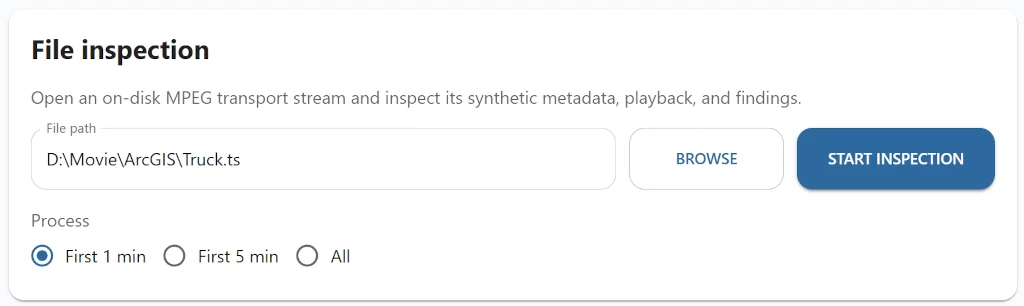
For faster processing, especially with large files, select only part of the file, to save time.
Analyze
The application opens the selected file, runs the analysis job, and shows the resulting JSON-style analysis output together with any diagnostics reported during the run.
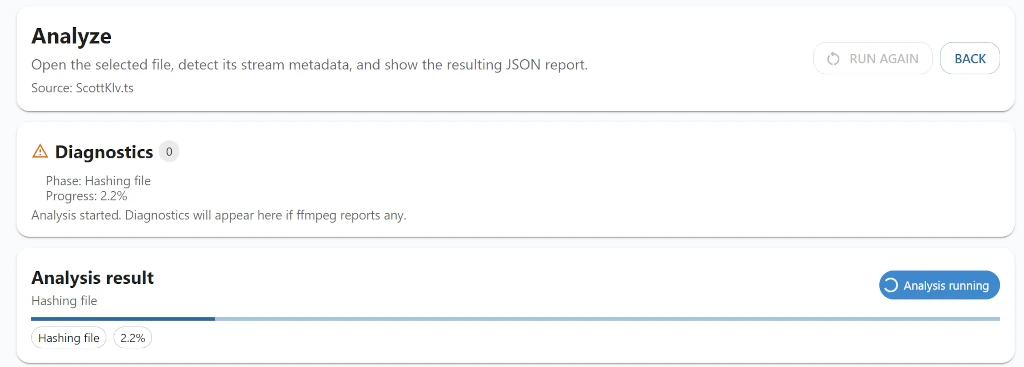
If a cached analysis result already exists for the selected file, the UI notifies you that the file was found in the archive.
Ingest
The ingest stage parses the transport stream, stores observations, and reports progress, scanned bytes, counts, and notable warnings or errors.
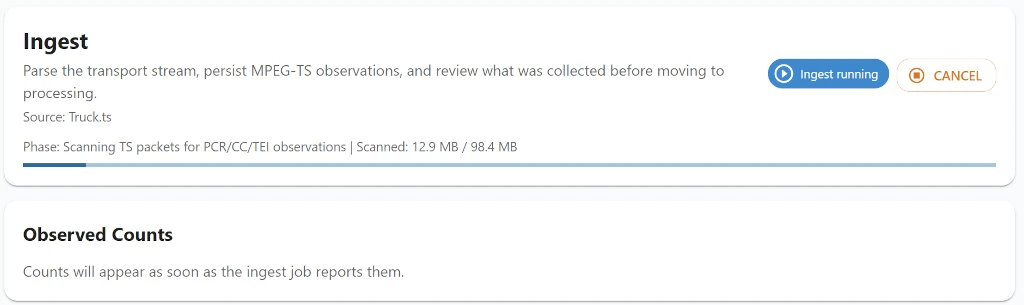
Typical ingest output includes counts for items such as:
- PCR values
- PES timestamps
- KLV packets
- detected ingest errors
Process
The process stage runs the enabled MPEG-TS and KLV validation rules against the ingested data.
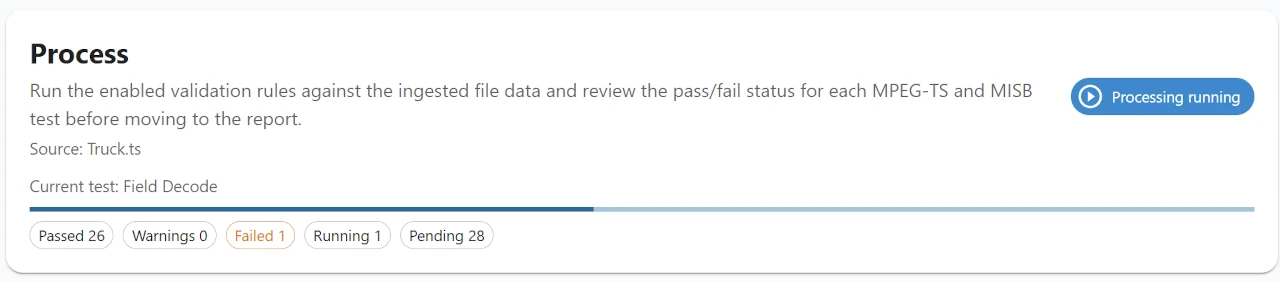
The page shows:
- overall progress for the processing job
- pass, warning, fail, running, and pending counts
- the individual tests that were performed
- chart actions for supported result types
- manual links for tests that have a documentation page
Report
The report stage is the final recorded-file review page.
Use Report for the detailed layout, grouped validation results, chart and manual actions, and HTML/PDF export behavior.
Binary Raw KLV Files
File mode also supports raw binary KLV files with .bin and .dat extensions.
Use this path when the source contains concatenated KLV packets without an embedded video stream.
For these files:
- Analyze detects the source as raw KLV rather than MPEG transport stream video
- Ingest stores the decoded KLV packets and builds a timeline from the available packet timing information
- Process runs the enabled KLV validation rules against the ingested packet data
- Player remains available after Process, but it operates as a metadata-only timeline instead of a video review page
Current limitations for binary raw KLV files:
- timeline navigation depends on packet timing recovered during ingest
- KLV windows are useful only when ingest can decode and time-align the packet data
PCAP And PCAPNG Captures
File mode also supports packet captures with .pcap and .pcapng extensions.
When you open a capture, ST Inspector scans the UDP flows in the file and looks for MPEG-TS-over-UDP payloads. If the capture contains more than one playable stream, the application asks you to choose the stream to inspect. The selected source is identified by the capture file and the UDP stream endpoints, for example:
- network interface when available from PCAPNG metadata
- source IP and port
- destination IP and port
After a stream is selected, ST Inspector extracts that UDP payload into a temporary MPEG-TS working file. The rest of the recorded-file workflow then uses that extracted transport stream for Analyze, Ingest, Process, Player, charts, timestamp export, and Report. This keeps PCAP handling compatible with the same MPEG-TS tools used for normal .ts files.
Extracted PCAP stream files are cached under the current user's operating-system cache directory.
On Windows:
%LOCALAPPDATA%\ImpleoTV\stinspector\pcap-cache\
For example:
C:\Users\<user>\AppData\Local\ImpleoTV\stinspector\pcap-cache\
On macOS:
~/Library/Caches/ImpleoTV/stinspector/pcap-cache/
On Linux:
$XDG_CACHE_HOME/ImpleoTV/stinspector/pcap-cache/
If XDG_CACHE_HOME is not set, Linux uses:
~/.cache/ImpleoTV/stinspector/pcap-cache/
Each extracted cache file is named from the selected stream's archive hash and uses a .ts extension.
The extracted .ts cache is kept so reopened sessions, playback, and repeated processing do not need to rescan and re-extract the same PCAP stream every time.
The cache is deleted when you delete the matching entry from the analysis archive. Deleting all archive entries removes the whole PCAP extraction cache directory. Archive cleanup also removes matching files from the older legacy cache location, %LOCALAPPDATA%\stinspector\pcap-cache\, when they exist.
Single-Packet Limitation
A raw binary file can contain only one decodable KLV packet.
That case is still supported, but navigation is limited:
- the file can still be analyzed, ingested, processed, and opened in Player
- the KLV tools can still show the decoded and raw packet views for that packet
- stepping and timeline movement do not provide meaningful navigation when there is only one packet on the timeline
🧭 Navigation During A Session
The workflow stepper shows the current stage and allows you to reopen completed stages. Later stages remain unavailable until the session has advanced far enough to make them valid.
When you revisit an earlier completed stage after the workflow has moved on, the page shows the saved result for that stage rather than starting the job again immediately.
📊 Retry And Rerun Behavior
- Analyze can be run again from the Analyze page while the active session remains in file mode.
- Ingest can be retried from the Ingest page after the current run stops or completes.
- Process can be retried from the Process page after the current run stops or completes.
Successful stage completion advances the session automatically to the next workflow stage.
🗄️ Archive And Reuse
File mode can reuse archived workflow output for matching files. Cached analysis or later-stage data may allow the application to reopen saved results instead of rebuilding every step from the beginning.
Use the archive-related pages and actions when you need to inspect previously processed files or remove saved results.