KLV Presentation
The KLV page explains how StInspector exposes decoded MISB/STANAG metadata during recorded-file playback.
Use it when you want to inspect the metadata matched to the current frame, compare decoded fields against the raw persisted packet, or export the current KLV packet view.
📍 Where You Use It
KLV inspection is part of the Player workflow for recorded files.
After Process completes, open the Player page and use the KLV tools in the toolbar:
KLV Windowto inspect the decoded metadata for the primary matched packetRaw KLVto inspect the persisted matched packets, per PID, together with timing and packet-location details
📦 Raw KLV Window
The Raw KLV window shows the persisted KLV packet matches returned for the current frame.
It is the best place to confirm how a packet was matched and where it came from in the source transport stream.
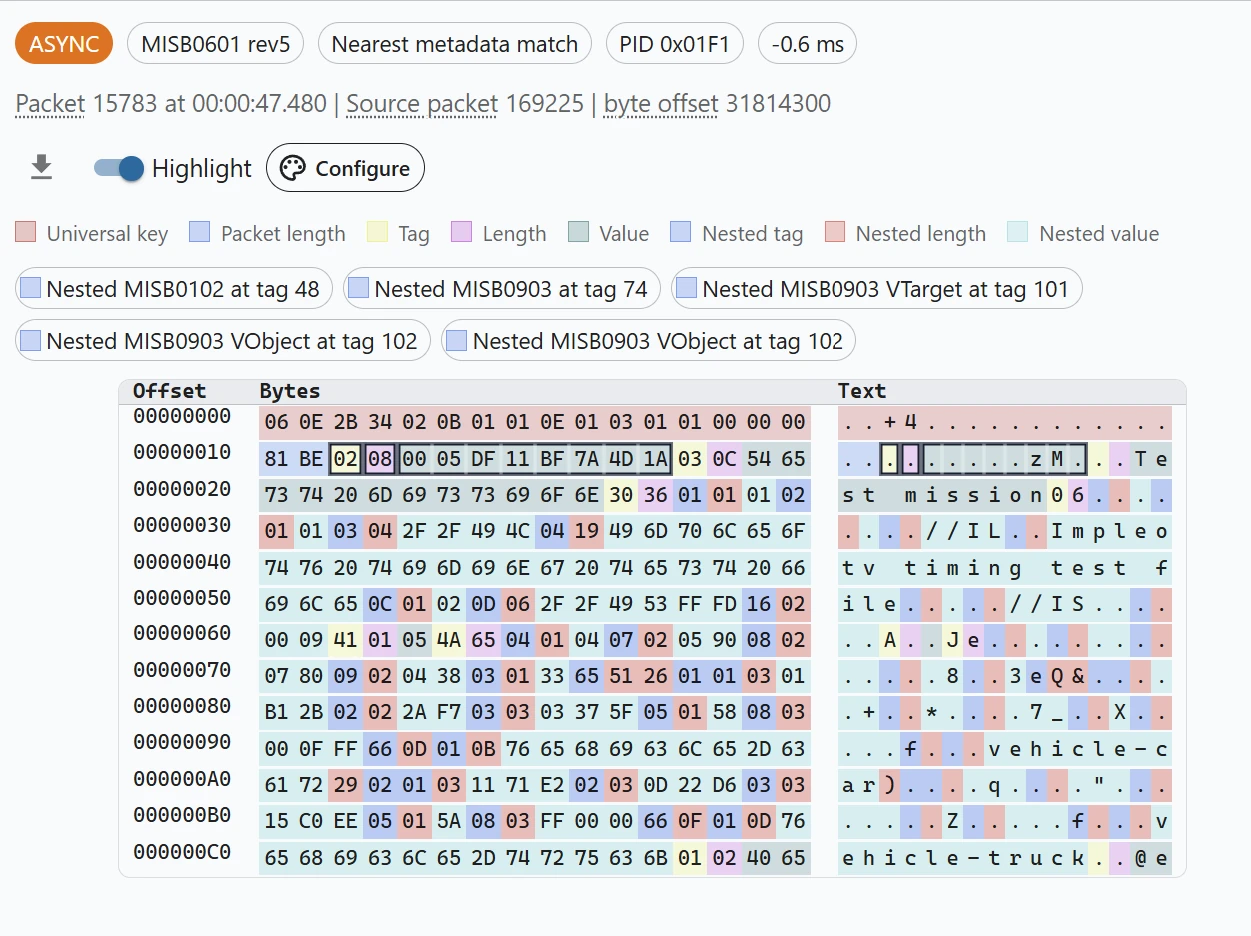
For the selected PID match, the header shows:
- whether the match is
syncorasync - the MISB standard and revision
- whether the packet is an exact or nearest match
- the packet PID
- the time delta relative to the selected frame
- the matched packet number and timecode
- the source packet index and byte offset
The toolbar below that header provides these controls:
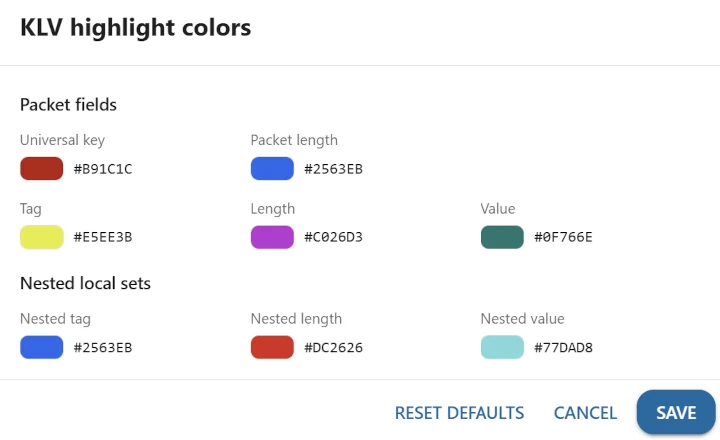
Downloadexports the currently displayed raw KLV packet as a binary.binfileHighlightswitches between a structured byte view and a plain byte dumpConfigureopens the color dialog for packet-field and nested-local-set highlight colors
When more than one KLV PID is active, the window exposes those matches as PID tabs so you can inspect each stream independently.
When Highlight is enabled, the byte viewer shows:
- a legend for universal key, packet length, tag, length, and value bytes
- separate legend colors for nested local-set tags, lengths, and values
- a structured
Offset,Bytes, andTextview for the persisted packet buffer - nested-local-set chips such as
Nested MISB0903 at tag 74that jump directly to that embedded set
Every highlighted tag, length, and value region is selectable from either the hex or text column. Selecting any byte that belongs to a field highlights the entire encoded element, not just the individual character or byte you clicked.
For nested local sets, you can select either:
- the entire nested set by clicking its chip
- a specific inner field by clicking that field's tag, length, or value bytes
Repeated nested series items stay distinct. If the same tag appears more than once inside a repeated local set, the selection follows the specific repeated entry you clicked rather than all matching tags.
Use Configure when you want to change the highlight palette for top-level packet fields or nested local sets.
Details
Configuring highlight colors
🪟 Decoded KLV Window
The KLV Window presents the decoded metadata associated with the currently selected frame.
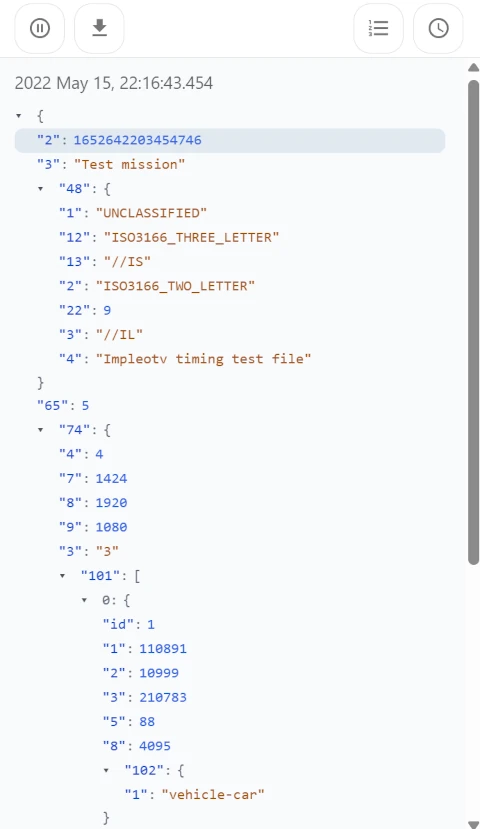
The top toolbar provides these controls:
Pausefreezes the window on the currently displayed packet until you resume updatesDownloadexports the current view as JSONTags/Detailed infoswitches between raw tag-oriented JSON and a more descriptive field viewUTC time/Local timechanges how the packet timestamp is shown
Below the toolbar, the window shows the packet timestamp and the decoded JSON tree for the active packet.
You can interact directly with the JSON tree:
- click a scalar field row to select that decoded value
- click an object row to select the whole container and expand or collapse it
- click a nested local-set row such as tag
48or74to select the whole nested structure - click a repeated series item's inner field to select that exact repeated entry
Selections are based on tag paths, so nested fields and repeated array entries remain distinguishable.
The window follows the selected Player frame unless it is paused.
If no usable matched KLV packet is available for the current frame, the button remains unavailable.
🔗 Sync Between Decoded And Raw Views
The KLV Window and Raw KLV window are intended to be used together.
They stay synchronized to the same currently selected Player frame and the same active matched packet.
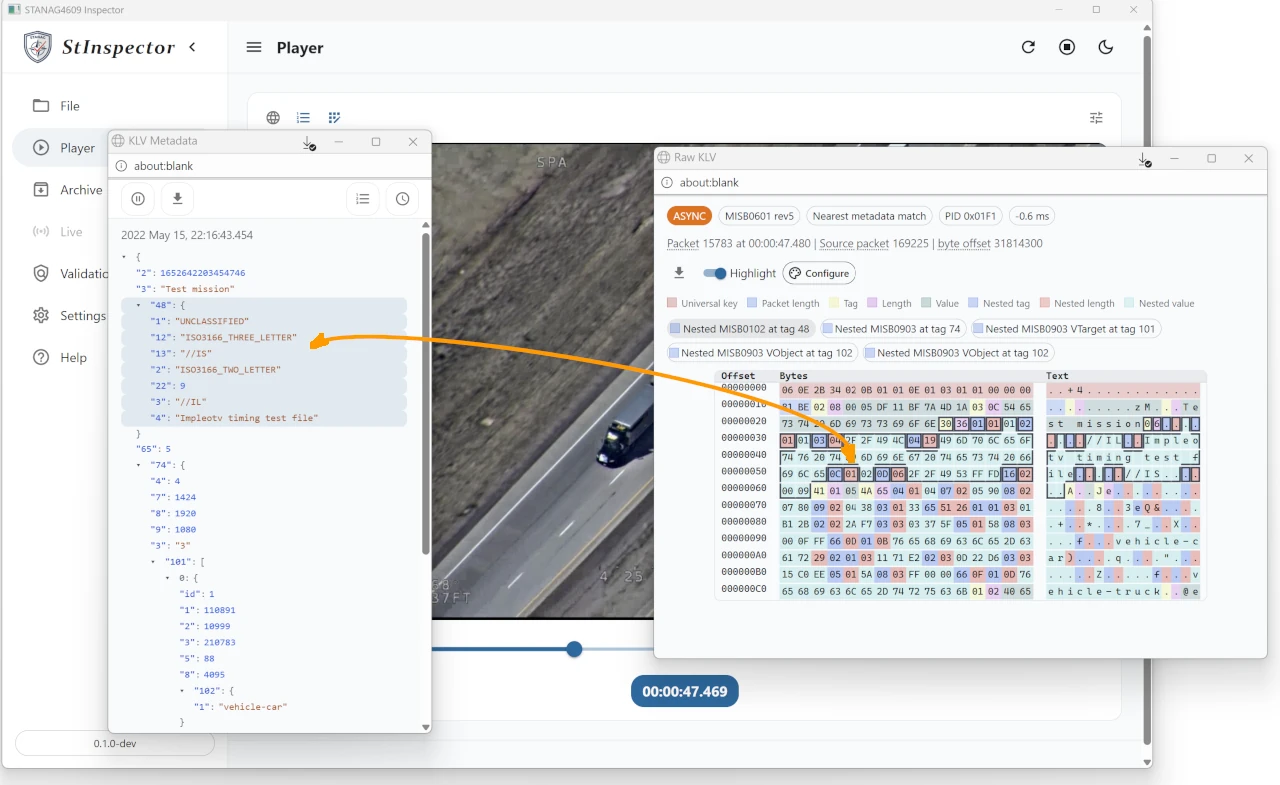
Use that pairing like this:
- start in
KLV Windowwhen you want the readable decoded interpretation of the packet - open
Raw KLVwhen you want to verify how that same packet is actually built in the persisted binary buffer - move between frames in Player to update both windows to the next matched packet
The two windows also share the same current tag selection. That means:
- clicking a decoded field in
KLV Windowhighlights the matching raw bytes inRaw KLV - clicking raw tag, length, or value bytes in
Raw KLVselects the matching decoded JSON row inKLV Window - clicking a nested-local-set chip in
Raw KLVselects the full corresponding nested object inKLV Window - selecting a whole nested object in
KLV Windowhighlights that nested local set inRaw KLV
This works for:
- top-level tags
- nested local-set tags
- individual decoded values
- whole nested containers
- repeated nested series entries, where the selected array item stays distinct from other instances of the same tag
This is useful when you need to confirm that a decoded value matches the underlying packet bytes, trace a field into a nested local set, or investigate why a particular repeated item decoded the way it did.
🔄 How KLV Changes With Playback
The KLV tools update as you move through the Player timeline.
- stepping backward or forward updates the active matched metadata
- seeking on the timeline updates the currently selected packet match
- exact and nearest behavior depends on whether the packet was persisted as
SYNC_KLVorASYNC_KLV
For a more detailed explanation of matching behavior, see Player.
💾 Export And Review
Use the KLV tools together when you need both a decoded and source-oriented view:
- use
KLV Windowfor readable field inspection, tree navigation, and JSON export - use
Raw KLVfor packet provenance, PID-specific inspection, raw binary export, and persisted local-set review
This is useful when you are validating metadata content, comparing multiple KLV streams, or investigating why a field appears a certain way in the Player.
👉 Related Pages
For Player workflow details, see Player. For KLV decoding preferences, see KLV.