Player
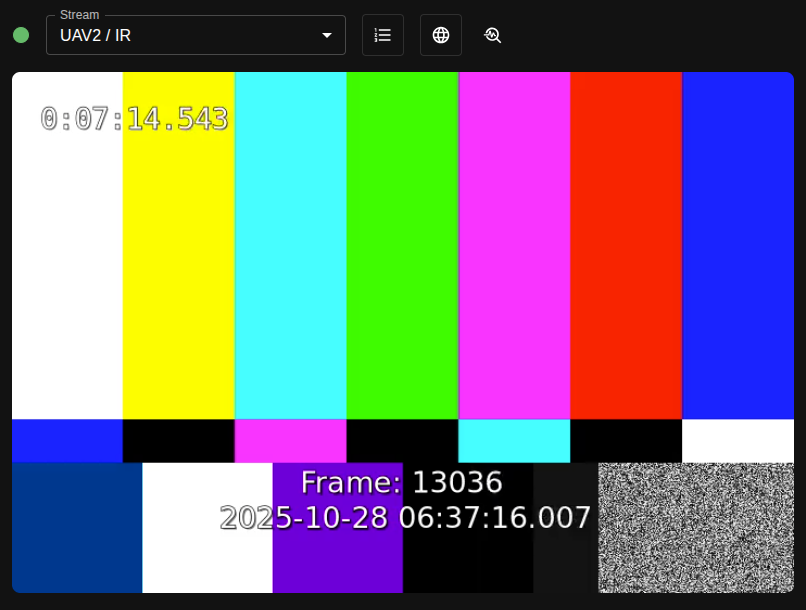
The Player page is the main workspace for watching one or more streams and inspecting their metadata. Use it to select configured streams, open supporting panels, and review the KLV metadata while the videos play.
To watch several streams together, see Multiple streams playback for stream selection, saved layouts, and choosing a player for the toolbar tools.
Stream selection
- Status indicator – a green dot means the stream is online. Orange means Timeout and Red signal an error state. Grey means the stream is offline. Hover the dot for details.
- Stream menu - check one or more sensor feeds you want to view. Entries are listed as
<platform> / <stream>when platform information is available. If the list is empty, confirm that streams are configured and running.
Toolbar controls
- Toggle KLV window (numbered list icon) – opens a popup window that shows decoded KLV metadata packets in timestamp order. Use this to verify MISB fields such as target latitude/longitude, platform angles, etc. Click again to hide the panel.
- Toggle map window (globe icon) – displays an embedded map that plots the platform or target position when latitude/longitude is present in the stream, sensor footprint and other info. This is useful for tracking movement while the video plays.
- Stream detection info (crosshair icon) – opens a dialog with recent stream detection info.
More on Stream Detection Window
Working with auxiliary panels
- Select a stream and wait for the video to start.
- Toggle the KLV window to inspect metadata.
- Toggle the map window to visualize the stream’s geospatial context.
- Open Stream detection info to review the video and metadata related parameters.