🔑 Licensing
Without a license, the SkyView application operates in demo mode with certain restrictions.
To remove these limitations, obtain a license and upload it through the application's user interface.
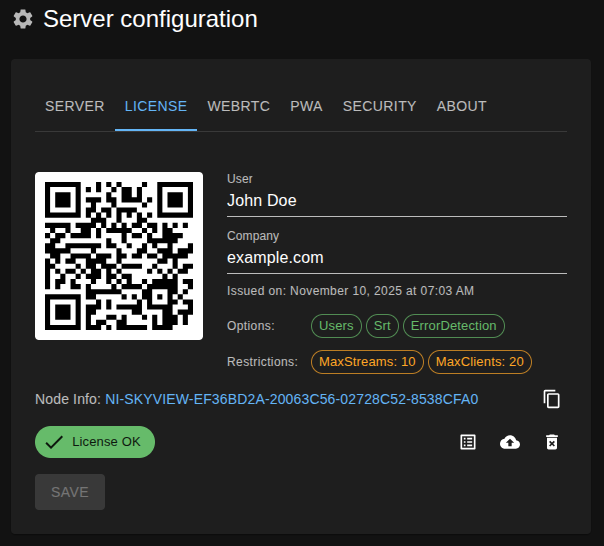
License options
SkyView optional features are enabled by a license:
| Feature | Description |
|---|---|
| User & Group Management | JWT-based authentication and authorization for secure and controlled access |
| SRT | SRT input and output; outputs also require Recast |
| Offline maps | Download/Import maps and use them without Internet access |
| Error detection | MPEG-TS and KLV integrity issues |
| Stream recasting | MPEG-TS and Data stream recasting, file streaming |
| Record | Record configured UDP streams to PCAPNG; requires Recast as well |
| Flywheel | Requires Recast and an available native worker. Produce a continuous, normalized MPEG-TS output with KLV, regardless of whether a source stream is present. |
| Analytics | Stream Analytics (TimescaleDB) services |
An unexpired demo can grant capabilities temporarily. Offline Maps and Analytics require their explicit license options. Removing a license does not renew an expired demo. The backend enforces capabilities when configuring and starting streams.
License restrictions
| Restriction | Description |
|---|---|
| MaxClients | Maximum number of simultaneously connected clients |
| MaxStreams | Maximum number of simultaneous streams |
✉️ Obtaining a license
To obtain a license, please contact ImpleoTV support and provide the Node Info string, which can be found in the License dialog.
The GUI shows the Node Info in two equivalent forms: the full Node Info text and a QR code that encodes the same text. You can either copy and paste the Node Info string directly into your support message, or, if that's more convenient (for example during an offline installation), take a clear photo of the QR code and send the image to us. When using a photo, make sure the QR code is fully visible and in focus so it can be scanned reliably.
📤 Uploading a license
To upload your license, use the application’s user interface - either drag and drop the license file into the designated area, or click “Select file” to browse and choose the license file manually.

After a successful license upload, you should see descriptive information about the license (for example, available options, license restrictions, expiration date, or scope). The detailed license content can be reviewed by clicking the "Show license" button in the dialog. Removing a license returns the application to the capabilities allowed by its remaining demo period, if any.