WebRTC configuration
The WebRTC tab under Configuration → WebRTC is where administrators tune how Sky View negotiates peer connections.
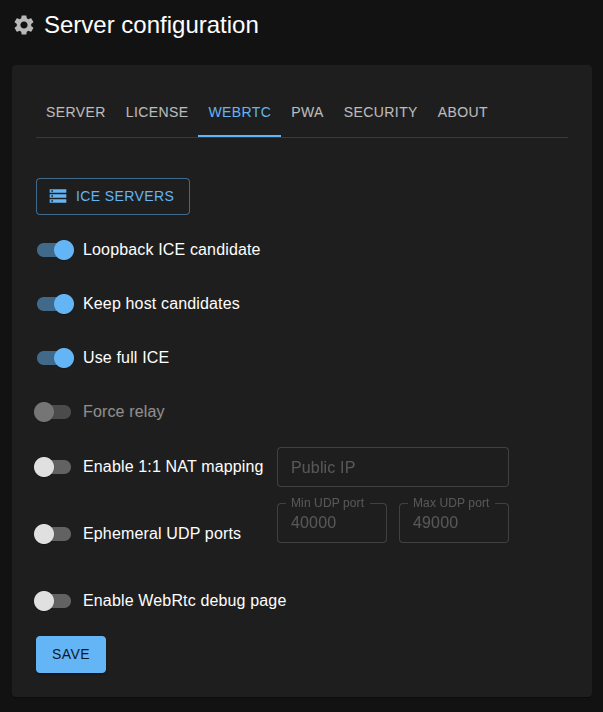
| UI control | Purpose | Default / environment variable |
|---|---|---|
| ICE servers | Defines the STUN/TURN servers advertised to browsers. The dialog expects a JSON array compatible with the standard RTCIceServer structure. The backend validates the JSON before using it to configure the WebRTC server. | Default: ["stun:stun.l.google.com:19302"]. |
| Loopback ICE candidate | Adds a 127.0.0.1 candidate for local testing. Disable this in production when remote peers must not see loopback addresses. | Default: true. |
| Keep host candidates | Controls whether LAN interface candidates remain available to peers. Turn this off when exposing only relayed addresses is required. | Default: true. |
| Use full ICE | Switches the server from ICE-Lite to full ICE, allowing two-way connectivity checks. Leave enabled when interacting with browsers that expect full ICE support. | Default: true. |
| Force relay | Forces all media traffic through TURN relays, which can simplify firewall traversal at the expense of latency and bandwidth costs. | Default: false. |
| Enable 1:1 NAT mapping | Advertises a public IP that maps 1:1 to the server. When enabled you must supply the public IP field below; the server falls back to the CLI --publicIp flag if the UI value is blank. | Default: false. |
| Public IP | Specifies the address advertised when NAT 1:1 mapping is on. Eenter the routable IP visible to peers. | Default: empty. |
| Ephemeral UDP ports | Restricts the UDP port range used for host and server-reflexive (srflx) ICE candidates. When enabled, you must specify both minimum and maximum port values. This is useful for configuring firewall rules to allow only specific UDP ports. | Default: false. |
| Min UDP port | The lowest UDP port number to use when ephemeral UDP ports are enabled. Must be between 1024 and 65535. | Default: empty. |
| Max UDP port | The highest UDP port number to use when ephemeral UDP ports are enabled. Must be between 1024 and 65535 and greater than or equal to the minimum port. | Default: empty. |
| Enable WebRTC debug page | Exposes Debug → WebRtc Debug in the navigation so authenticated users can inspect offers/answers. Useful during deployments; hide it in production environments. | Default: false. |
Runtime application of changes
When you press Save, the backend decides whether it can update the WebRTC server in-place or needs to restart it. Toggles that affect ICE gathering or candidate advertisement (ICE servers JSON, loopback/host candidates, full ICE, force relay, NAT 1:1, public IP, and ephemeral UDP port range) trigger a controlled restart of the embedded WebRTC server. The restart briefly stops active pipelines and then recreates them with the new settings. In contrast, enabling the WebRTC debug page is applied immediately without a restart.
Interaction with other configuration sources
- Environment variables seed the defaults listed above at startup. Setting them is a convenient way to preconfigure new deployments before the UI is available.
- Command-line flags (
--loopbackIceCandidate,--fullIce,--forceRelay,--nat1to1Enabled,--publicIp) act as fallbacks that the runtime uses if no value is persisted yet. This is particularly useful when running Sky View without the configuration UI. - Runtime updates made in the UI are persisted through the settings service, so subsequent restarts reuse your saved values unless you change the environment/flags. Whenever a restart is required, the application tears down and recreates active pipelines automatically to apply the new WebRTC configuration safely.
💡 By understanding the impact of each field you can tailor WebRTC connectivity for different network topologies - from local lab testing with loopback candidates to hardened production deployments that rely exclusively on TURN relays.
🔍 Debugging WebRtc
Use the WebRtc debug console to troubleshoot connectivity or playback quality issues, or to inspect connection methods and statistics.
Adaptive playback and shared renditions
RTCP feedback, congestion estimation and packet pacing work automatically for WebRTC playback. No separate switches are required for those features. Adaptive playback controls encoder bitrate adaptation and additional quality renditions, separately for each stream.
A rendition is a version of the same video with its own resolution, frame
rate and encoder bitrate. main is the existing playback video. Each viewer
automatically selects a rendition according to its connection's available
bandwidth. Viewers can receive different qualities of the same stream at the
same time.
Choose a configuration
| Playback requirement | Configuration |
|---|---|
| Keep the original encoded video with minimal processing | Leave Passthrough on and Adaptive playback off. |
| Adjust the bitrate of one encoded quality | Turn Passthrough off, configure Video, enable Adaptive playback, and set the main bitrate limits. Additional renditions are optional. |
| Offer several qualities to viewers with different connections | Enable Adaptive playback and add one or two shared renditions with lower resolutions and target bitrates. For passthrough, also enable Allow transcoding for lower-quality renditions. |
Reducing an encoder's bitrate keeps that rendition's configured resolution and frame rate. Switching renditions can change all three. If viewers need a much lower bitrate, provide a smaller rendition rather than relying only on reducing the bitrate of a high-resolution picture.
Configure a stream
- Stop the stream if it is running, then open Stream → Edit.
- Select a mode with playback enabled: Player (
play) or Play and Recast (playAndRecast). The adaptive controls are hidden for recast-only and data-only streams. - On the General tab, under Behavior & notes, enable Adaptive playback.
- For transcoded playback, turn Passthrough off, select Video codec in General, and configure the main resolution, frame rate and bitrate in Video. Set its adaptive minimum and maximum bitrate in General. For passthrough, keep Passthrough on and enable Allow transcoding for lower-quality renditions if you want to add other qualities.
- To provide different qualities, click Add shared rendition once or twice. Give each rendition an ID, resolution, frame rate and bitrate limits.
- Save the stream and start it if it does not start automatically. Reopen the editor to review the saved configuration.
The main rendition plus additional renditions give one, two or three qualities. With adaptation enabled and no additional renditions, an encoded main rendition can still adjust its bitrate within its limits. Viewers select quality automatically according to network feedback. Each rendition's encoder is shared between its viewers; a lower-bandwidth viewer can move to a lower rendition without reducing the bitrate of the higher rendition.
Controls and defaults
| Control | Behavior / default |
|---|---|
| Adaptive playback | Off by default, including for existing streams. Off keeps one rendition at its configured encoder bitrate; transport feedback and pacing remain active. |
| Main minimum kbps | Encoded playback only. 0 uses one quarter of the main target bitrate, with a 50 kbps floor, capped at the effective maximum. |
| Main maximum kbps | Encoded playback only. 0 uses the bitrate configured for the main rendition. |
| Allow transcoding for lower-quality renditions | Passthrough only; off by default. Required before adding encoded derivatives of the original video. |
| Add shared rendition | Up to two additional renditions. Each inherits the main playback codec and is encoded once for all viewers selecting it. |
Main minimum and maximum accept whole numbers from 0 to 100000 kbps. An
explicit minimum must not exceed the effective maximum. When maximum is 0,
the main target bitrate is the maximum. The main encoder starts at the target
configured in Video, clamped to the effective minimum and maximum.
Each additional rendition has these fields:
| Field | Meaning and valid values |
|---|---|
| Rendition ID | A unique name with 1–32 letters, digits, underscores or hyphens. main is reserved. Names such as low and medium identify the rendition; the configured bitrates determine quality selection. |
| Width, Height | Output dimensions in pixels. Both must be even whole numbers from 16 to 8192. Choose dimensions with the intended aspect ratio. |
| FPS | Output frame rate, a whole number from 1 to 120. Lower rates can reduce bandwidth and encoding work. |
| Minimum kbps | Lowest bitrate the encoder may use. A high minimum can leave a slow viewer bandwidth-limited. |
| Target kbps | Starting encoder bitrate and the nominal bitrate used when selecting an encoded rendition. |
| Maximum kbps | Highest bitrate the encoder may use when bandwidth allows. |
| Remove | Deletes this additional rendition from the configuration when saved. |
Additional bitrate limits must be whole numbers satisfying
50 ≤ minimum ≤ target ≤ maximum ≤ 100000 kbps. They do not use the main
rendition's 0 defaults. 1000 kbps is 1 Mbps; allow additional network
capacity for transport overhead and retransmissions.
The first Add shared rendition click fills in low at 640×360, 15 FPS,
150/500/750 kbps (minimum/target/maximum). A second click fills in medium at
1280×720, 30 FPS, 750/2000/2500 kbps. Review these values for your source and
network; enabling adaptation alone does not add either rendition.
Turning Adaptive playback off preserves its saved settings and uses only
main. Enable it again to reuse the configured renditions.
Example: three shared qualities
For example, with an encoded main rendition configured at 1920×1080, 30 FPS and 4000 kbps, a three-quality configuration could be:
| Rendition | Resolution | FPS | Minimum kbps | Target kbps | Maximum kbps |
|---|---|---|---|---|---|
main | 1920×1080 | 30 | 1000 | 4000 | 4000 |
medium | 1280×720 | 30 | 750 | 2000 | 2500 |
low | 640×360 | 15 | 150 | 500 | 750 |
For main, enter the target in Video and the minimum/maximum in
General. Configure the other rows using Add shared rendition.
Renditions are saved with the stream; they do not require environment variables.
With only main configured, its encoder can adapt between 1000 and 4000 kbps.
Adding medium and low lets viewers move to a smaller picture when needed.
Within each encoded rendition, the shared encoder follows the smallest fresh
bandwidth budget among the viewers selecting it, bounded by its minimum and
maximum. Viewers on the same rendition therefore share its encoder bitrate.
Playback cache and latency
Low Latency and Cache (ms) control playback buffering independently of adaptive quality selection. Adaptive playback can be used with either buffering policy.
| Control | Effect |
|---|---|
| Low Latency | Off by default. When enabled, removes the configured playback cache and requests zero extra browser receiver buffering. This can expose source timing jitter. |
| Cache (ms) | Default 400; accepts whole numbers from 1 to 10000. With Low Latency off, sets the playback cache and requests the corresponding browser receiver buffer. Larger values trade extra startup and playback delay for smoother delivery. Disabled while Low Latency is on. |
Find Low Latency in General → Behavior & notes. Cache (ms) is in Source File for file and PCAP sources, and Source Stream for network sources. Pattern sources hide Low Latency and use the saved cache value. Browser buffer requests depend on browser support; these values do not guarantee a particular end-to-end latency. A zero buffer request still leaves network, decoding and display delay.
Passthrough and resource use
Existing streams retain one rendition. A passthrough stream keeps its original encoded video. Allow transcoding for lower-quality renditions explicitly permits a shared decoder and additional encoders when needed. Without that permission, a viewer whose connection cannot carry the original bitrate remains bandwidth-limited; SkyView does not silently enable transcoding. The existing H.265-to-H.264 compatibility setting still applies to playback.
Renditions start when needed and retire after ten idle seconds. Switching waits for an independent keyframe. Incompatible codec profiles retain the current rendition. A viewer continues receiving its current rendition while a replacement starts. Upgrades require five seconds of stable selection; a lower estimate can select a lower rendition immediately, with delivery switching at its keyframe. New and reconnected viewers wait for their connection to be ready and for a keyframe with decoder configuration. A source that cannot respond to keyframe requests uses its next periodic keyframe, which can add a brief startup delay.
Encoded renditions start at their first observed source frame. Opening a new rendition or rejoining after its idle retirement does not fill the earlier source timeline with duplicate pictures. Normal conversion to the configured frame rate still applies after that first frame. This is automatic and requires no setting; strict passthrough remains unchanged. Derivative decoders use their own clock, so rejoining after retirement stays at the current live position. Short transport bursts are buffered within bounded delivery limits rather than discarding a GOP when the viewer worker is briefly busy. Diagnostics include pending frame bytes and frame handoff overloads as well as the RTP pacer counters.
Recast outputs and mosaic previews retain their own lifecycles.
An encoder that cannot change its bitrate while running retains its current rate; quality selection can still use other configured renditions. The playback status reports unsupported encoder controls.
Each active encoded rendition adds encoding work, even though its encoder is shared. Passthrough derivatives also need a shared decoder. Additional viewers still add outgoing network traffic: sharing an encoder does not share a viewer's WebRTC connection. Check CPU/GPU load and server upload capacity with the expected number of streams and viewers.
Diagnostics and server limits
Authenticated diagnostics are available at
GET /api/streams/:id/playback/status, including actual/pending rendition,
congestion estimate, feedback freshness, queue bytes/age, retransmissions,
overloads and encoder control errors.
| Symptom | What to check |
|---|---|
| Adaptive controls are missing | Use a video stream in Player or Play and Recast mode; stop it before editing. |
| Add shared rendition is disabled | For passthrough, enable the transcoding permission. Check whether two additional renditions are already configured. |
| A slow viewer stays bandwidth-limited | Check that a lower rendition is configured with a suitable bitrate. Original passthrough cannot reduce its bitrate; inspect encoder errors or capacity limits if an encoded rendition cannot start. |
| A quality change takes time | Upgrades need five seconds of stable selection, and all switches wait for a compatible independent keyframe. A source's keyframe interval can add delay. |
| Quality adapts but playback is still delayed | Review Low Latency and Cache separately, then inspect browser statistics in the WebRTC debug console. |
Advanced limits apply to the whole server and are configured through environment variables at startup. Restart the server after changing them. They are separate from the per-stream rendition settings:
| Variable | Default | Meaning |
|---|---|---|
SKY_VIEW_WEBRTC_QUEUE_PEER_MIB | 4 | Per-viewer byte limit at each delivery stage (pending frames and paced RTP), in MiB |
SKY_VIEW_WEBRTC_QUEUE_TOTAL_MIB | 128 | Aggregate delivery queue budget across viewers, in MiB |
SKY_VIEW_WEBRTC_QUEUE_MAX_AGE_MS | 500 | Maximum delivery queue age in milliseconds |
SKY_VIEW_WEBRTC_MAX_ENCODERS | 64 | Maximum active playback rendition encoders across all streams, including encoded main renditions |
These bounds include pending frame/packet delivery and retransmissions, not total process memory. Native media processing and NACK caches consume additional memory. An original passthrough rendition does not consume an encoder slot. The encoder limit is an admission bound, not a guarantee of capacity for that many channels. Queue limits cap delivery backlogs; increasing them does not create bandwidth or set the browser's playback cache. If a delivery queue overloads, that viewer's backlog is flushed and playback resumes at a safe keyframe.