Map
The folded-map Map button opens this window. The adjacent Globe button opens 3D View; both windows can remain open together.
The Map page explains the detached map window available from the Player page for recorded-file playback.
Use it when you want to inspect matched KLV position data geographically instead of only reading coordinates in the KLV windows.
What The Map Presents
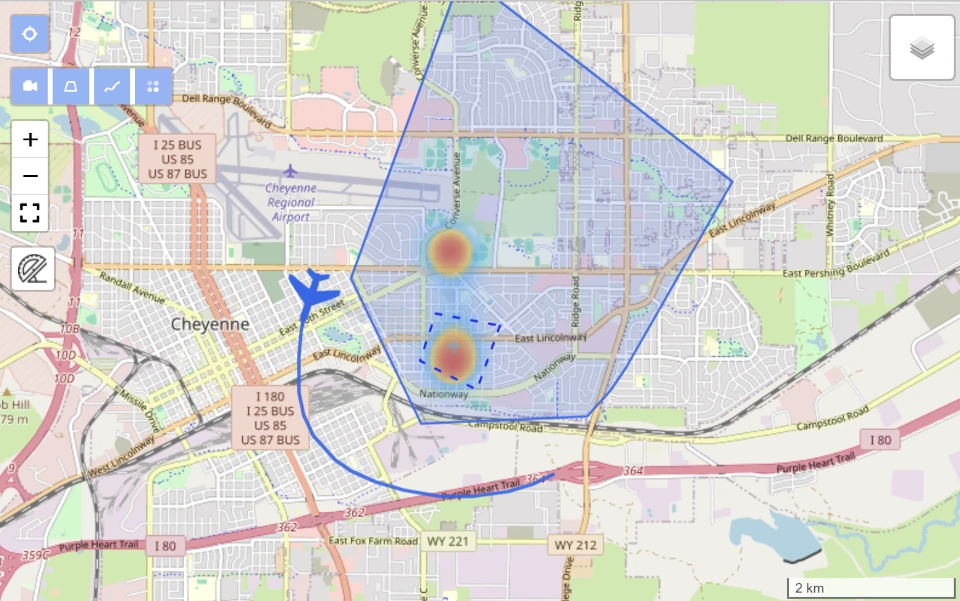
The Map window plots the current matched KLV packet on a geospatial map.
When usable latitude and longitude fields are present, StInspector can show:
- the current platform position for the matched packet
- a shared interactive marker that can be moved either from the map window or from the Player overlay
- the platform heading when heading metadata is available
- VMTI targets
- optional filmed-area and sensor-path overlays
- frame-center heatmap data when it exists in the processed geospatial result
The platform marker appearance comes from the file-scoped Player Config dialog, where you can save the platform type, model, and color for that source.
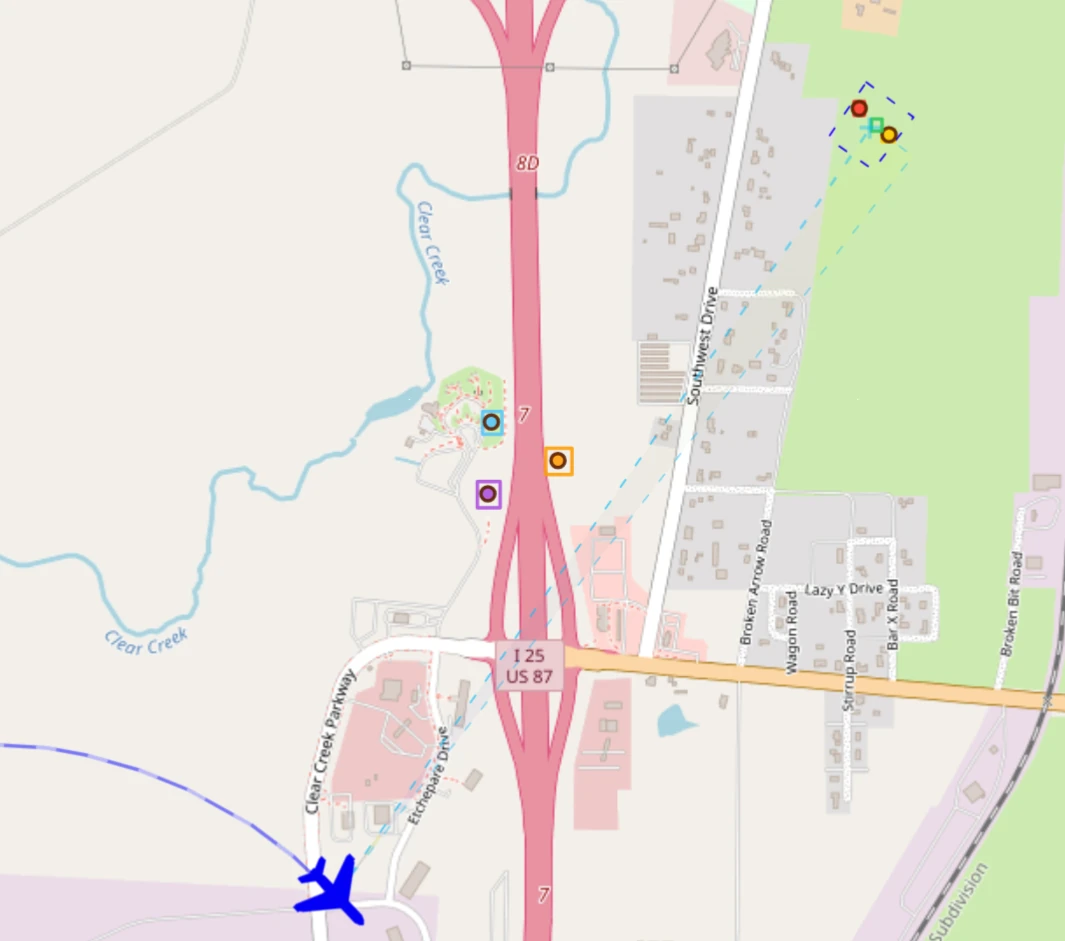
Map Data Sources
The map needs usable coordinates in the matched KLV packet.
For each active KLV PID, StInspector looks for platform coordinates from fields such as:
- sensor latitude and longitude: Tags
13and14 - frame-center latitude and longitude: Tags
23and24 - frame-center heatmap data derived during processing, when available in the saved geospatial result
For heading, the map uses:
- platform heading angle: Tag
5
VMTI-related geospatial information can also contribute to what you inspect on the map.
- embedded MISB ST 0903 VMTI local set: parent ST 0601 Tag
74 - target-related geospatial context when the processed data includes VMTI detections with usable geographic information
This means the map is not limited to only the platform marker. Depending on the processed dataset, it can also help you review where VMTI activity is concentrated and how that relates to the platform track and filmed area.
If multiple KLV PIDs match the current Player position, use KLV PID to choose the displayed platform. LS selects the parent or an amended local set.
Map Controls
The detached map window is primarily for spatial inspection of the currently matched metadata.
Depending on the installed map control and the available metadata, the window can expose these actions:
- normal map pan and zoom controls
Marker, which shows the draggable shared marker in the map window- platform selection when more than one matched platform is shown
Area, which requests the filmed-area polygon for the current ingest run and draws it on the mapPath, which requests the sensor path for the current ingest run and draws it on the map
When an Area or Path request is running, the map shows a spinner. If the backend does not have that geometry, StInspector keeps the window open and shows the error in the Player page.
Shared Marker Behavior
The map window and the Player overlay can share one interactive marker position.
- In the Player toolbar, turn on
Markerto show the overlay marker on the video. - In the map window, use
Markerto show the draggable map marker. - When you drag the marker in the Player overlay, the overlay becomes the current master. The map marker follows that new position.
- When you drag the marker in the map window, the map becomes the current master. The overlay marker follows that new position.
In practice, the last surface you move becomes the active source for the shared marker position.
The shared marker uses geographic coordinates. This means the map can keep the marker anchored to the same latitude and longitude while the overlay reprojects it into the current frame when the packet georeferencing allows that projection.
If the current packet cannot resolve the marker into the frame, the map marker can still keep its geographic position, but the overlay may not be able to draw it until usable georeferencing is available again.
Amend Local Set
When the active packet carries ST 0601 Tag 101 Amend Local Set data, the Player LS selector also controls which metadata branch the map uses for KLV-driven geospatial reads.
Parent LSkeeps the map on the original parent local set.Amend napplies the selected amend branch, so platform coordinates and other map-relevant KLV reads come from the same effective view used by the overlay and KLV windows.
For the full parent-plus-amend interpretation rules, see Amend Local Set.
When The Map Is Unavailable
The Map button can still be opened from Player, but a platform is shown only when the current matched KLV includes usable coordinates.
If position fields are missing:
- no platform is plotted for that matched packet
- heading cannot be drawn
- area and path overlays are not meaningful until a platform can be identified
For raw binary KLV sessions without video, the map still works as long as the packet timeline includes usable coordinates.
Related Pages
For playback behavior, see Player. For on-frame orientation and VMTI drawing, see Overlay. For decoded and raw metadata inspection, see KLV Presentation.